
HOW TO: Add Manuscript FOLDER LINK to ClickUp Preaching Schedule
This guide will show you WHERE to paste the link to your sermon manuscript folder. Thank you in advance for helping us all find these assets!
In Google Drive, navigate to the GOOGLE FOLDER with your MANUSCRIPT and images. CLICK on the folder arrow to open options.
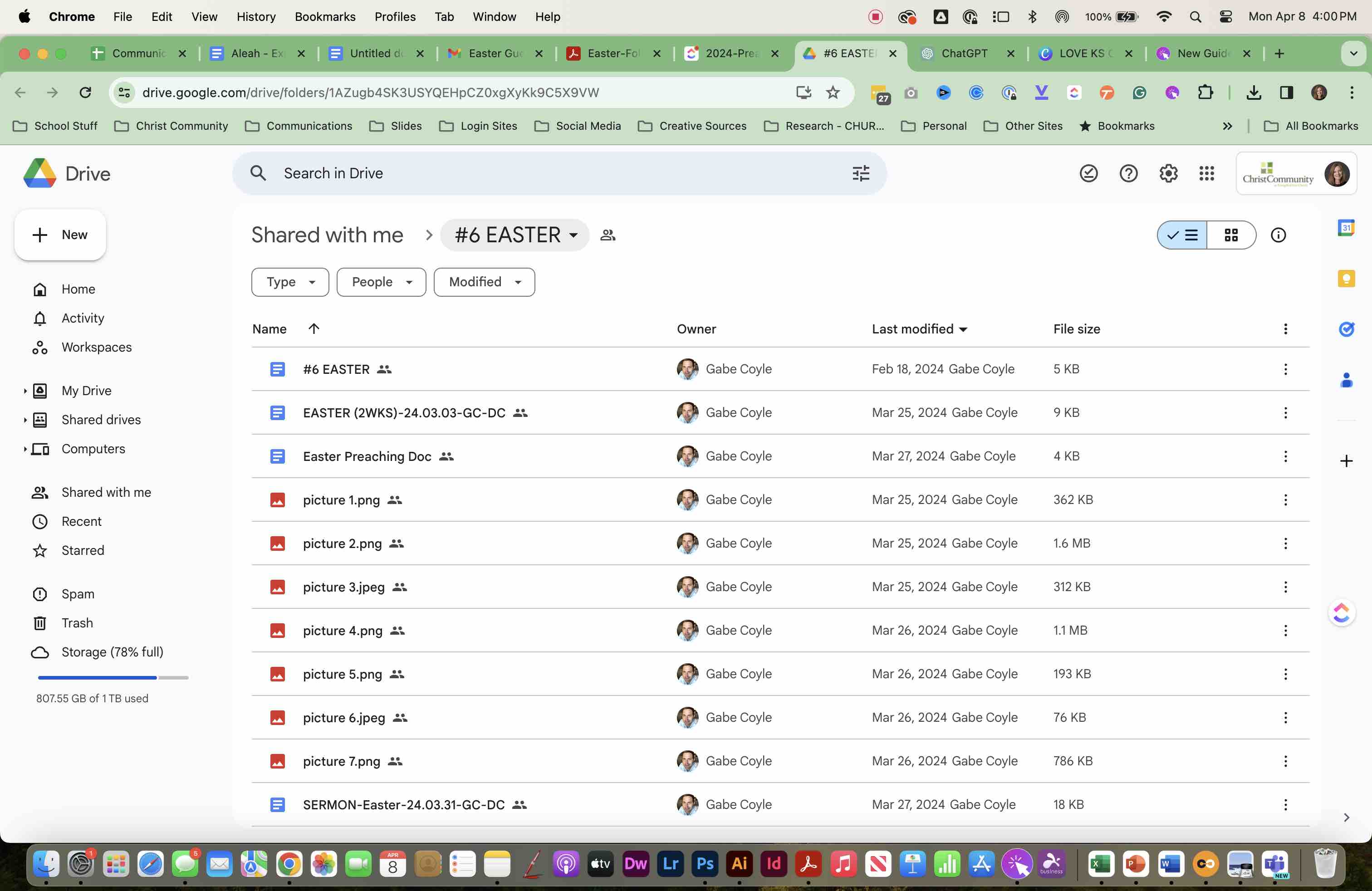
SCROLL down to SHARE and SELECT SHARE to open the dialog box.
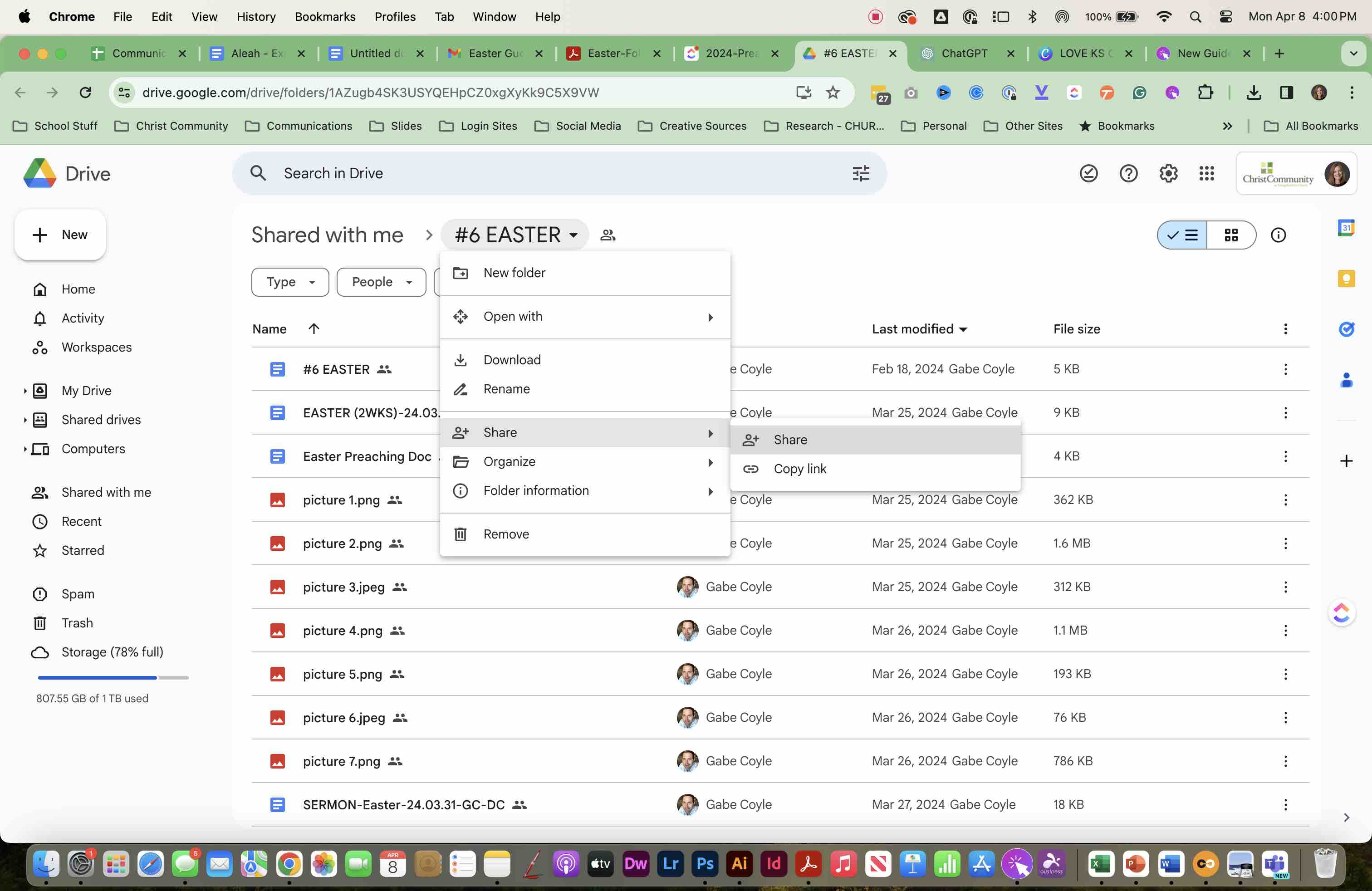
TYPE "comm-av@cckc.church" to add the Communications Slide team to the shared folder.
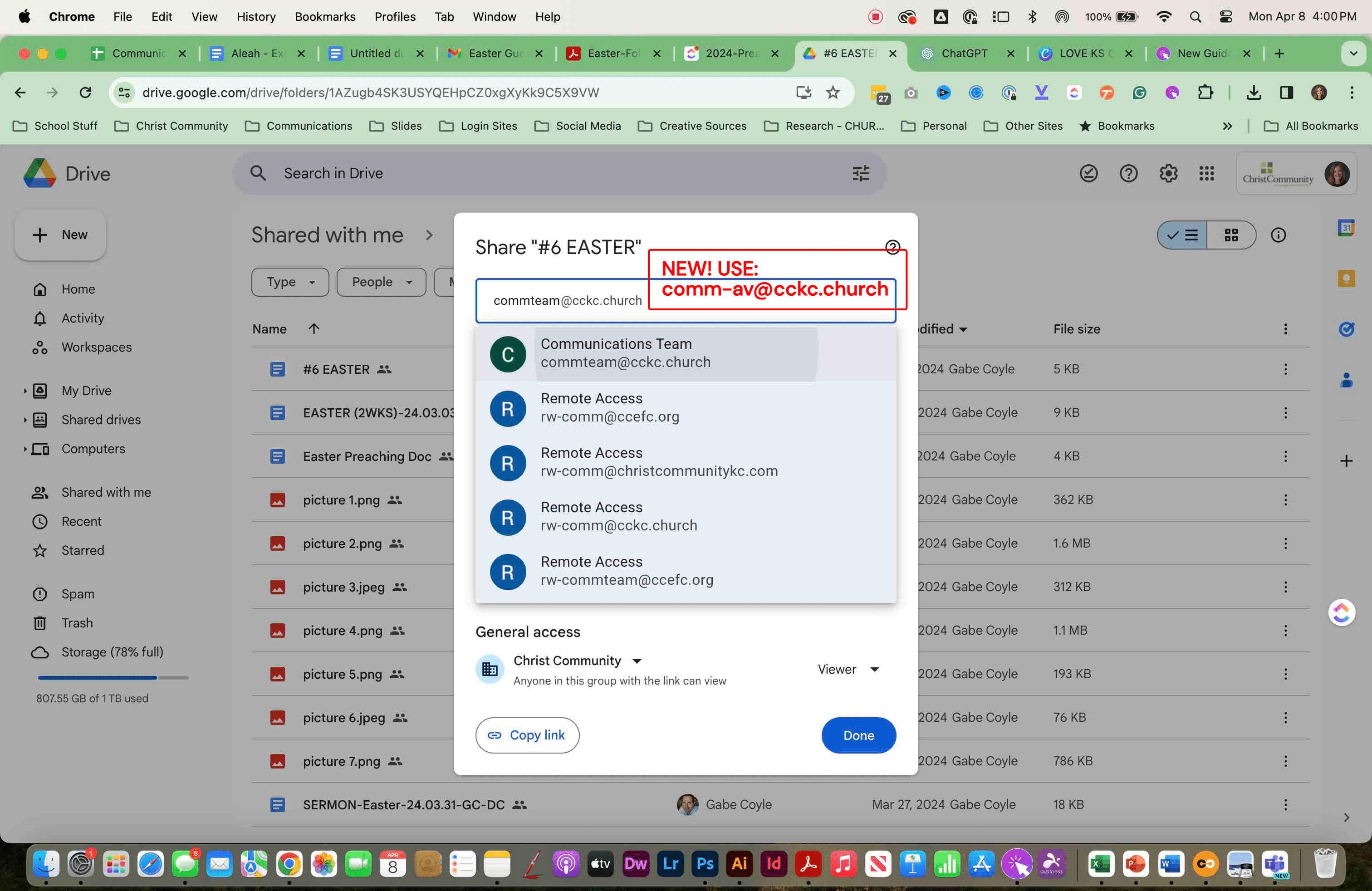
- **CLICK the LINK **icon in the lower left of the dialog window to **COPY THE LINK ADDRESS ** for the folder. 2a) Make sure access is set to EDITOR (so we can see COMMENTS in the document) 2b) Click SHARE or SEND to close the dialog window. The copied LINK is now in your computer clipboard.
When you share a folder with EDITOR access, the files and subfolders inside are updated with the new sharing settings.
Open CLICKUP in a new browser window. In ClickUp, navigate to the Preaching Schedule main page.
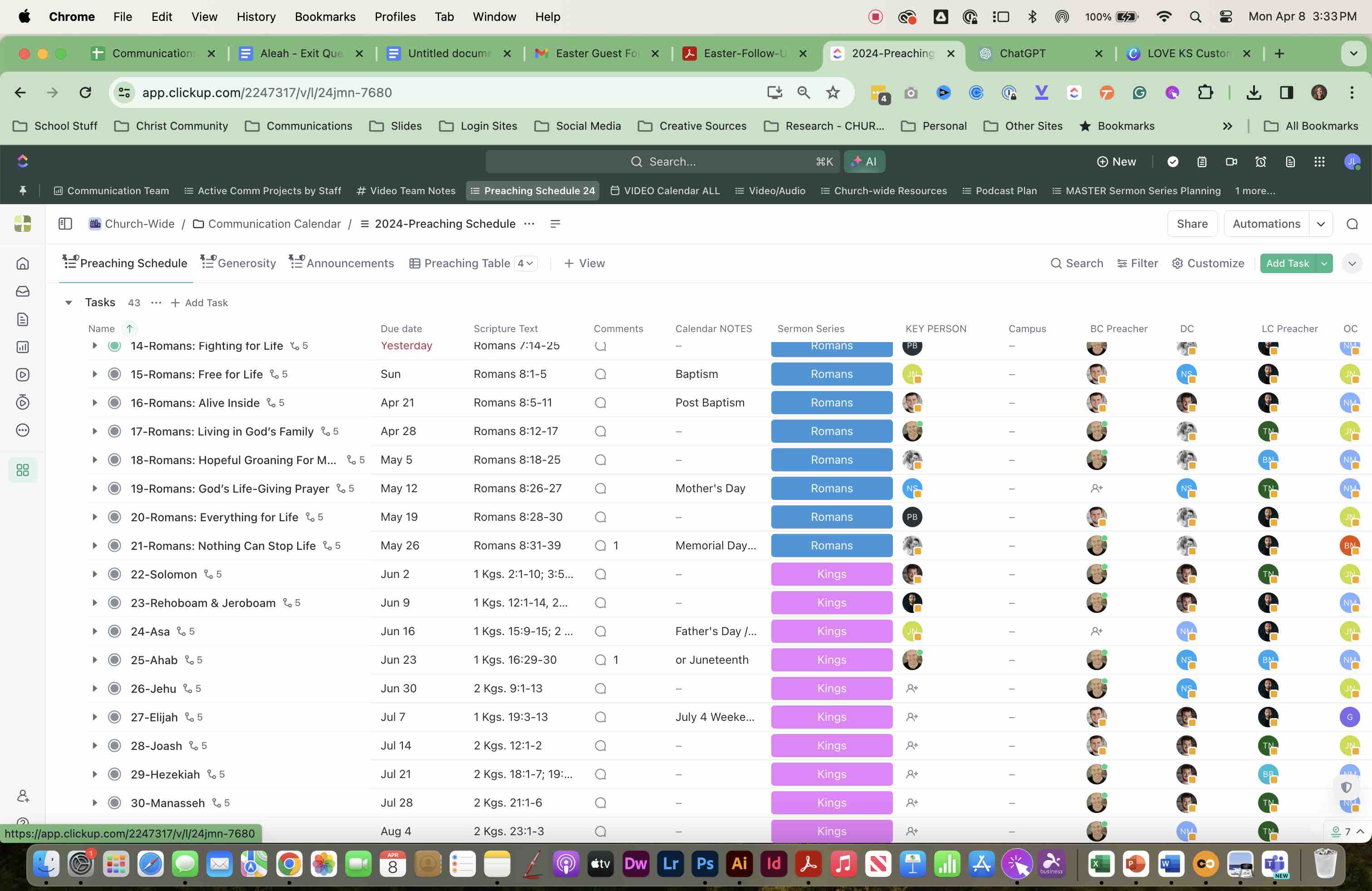
EXPAND the SERMON WEEK SUBTASK by clicking on the arrow to the left of the sermon week.
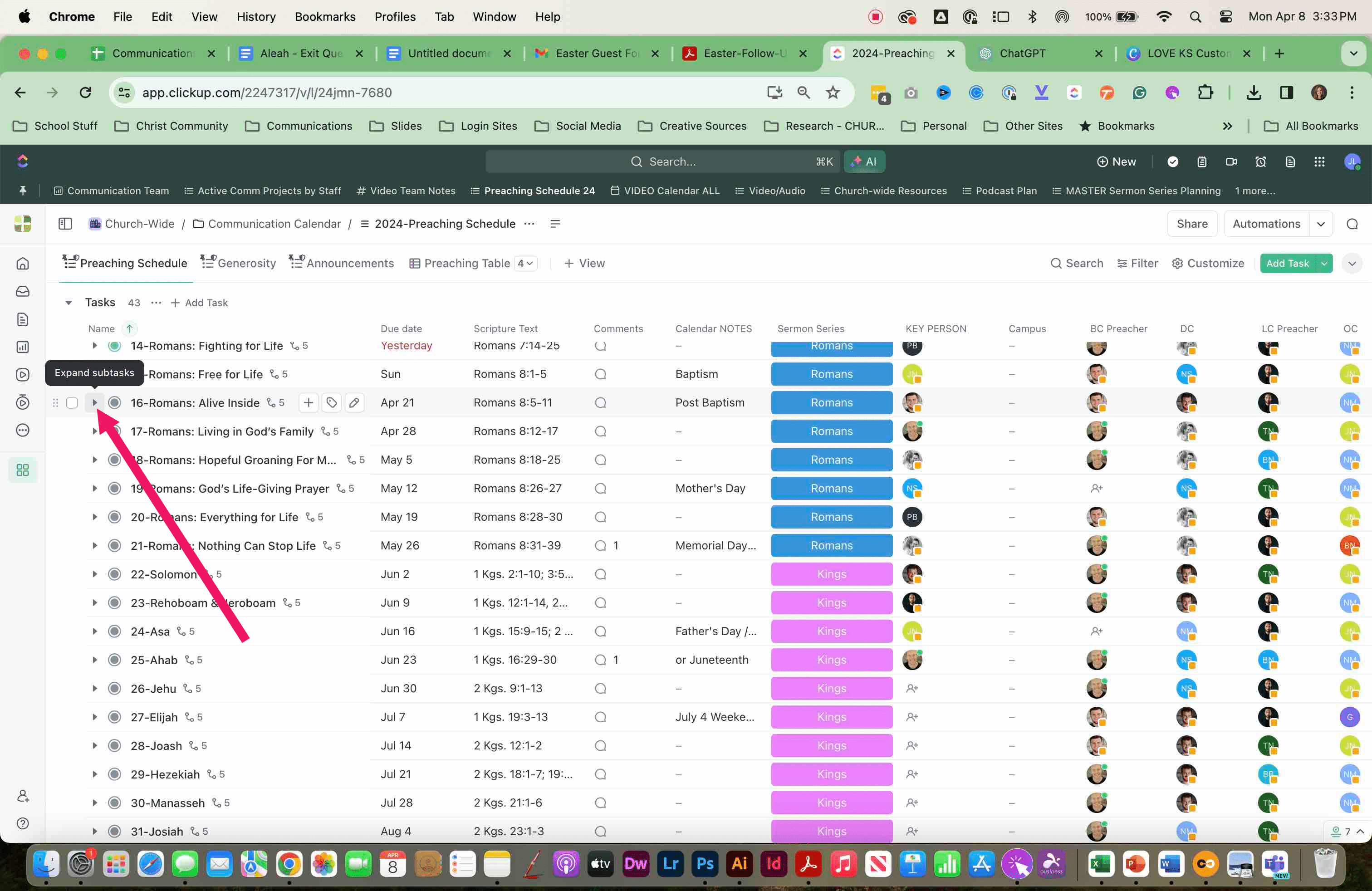
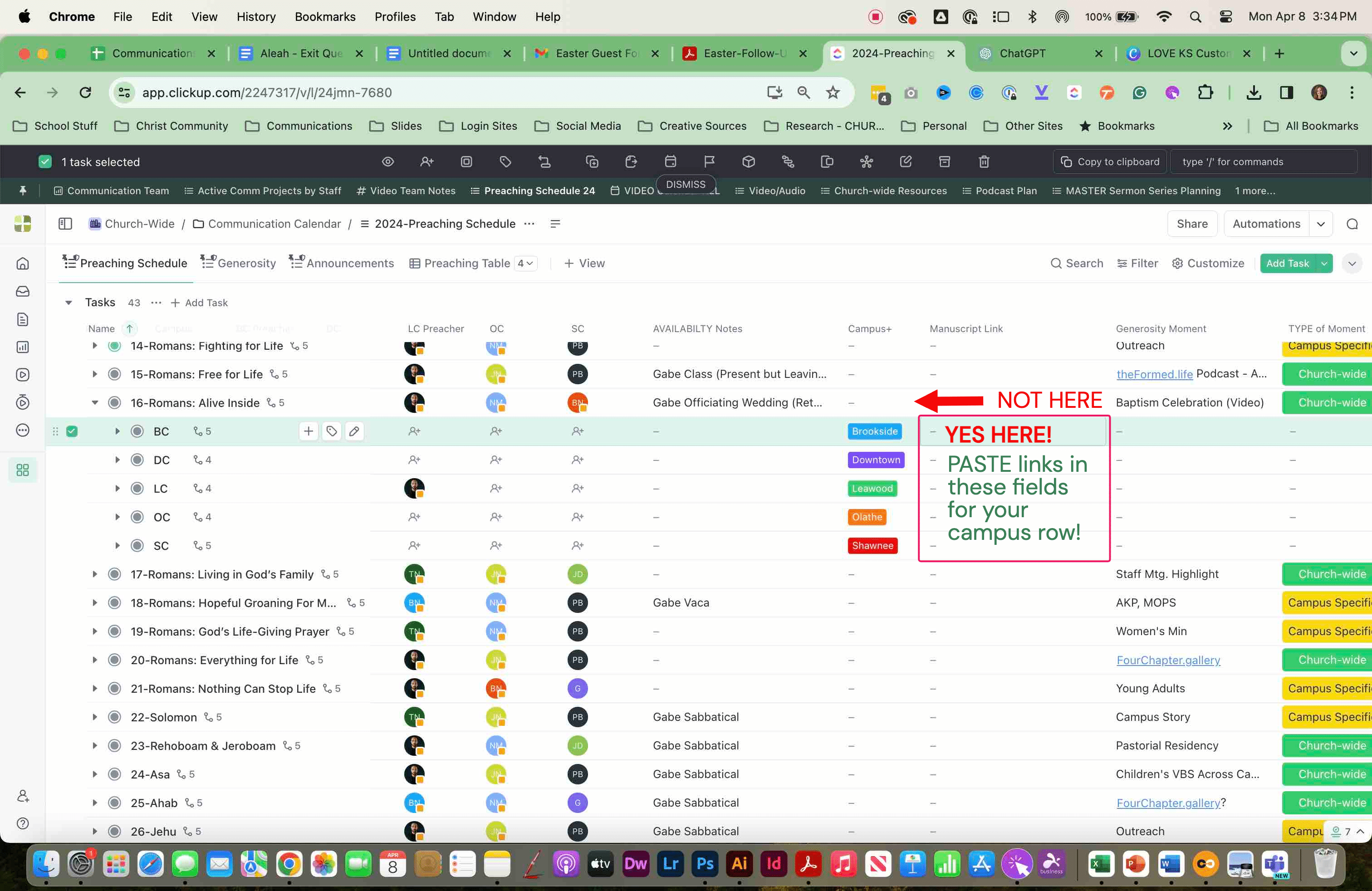
SELECT your campus row by clicking the left checkbox. NOTE: Doing this will help you put the link in the correct row. This step is not magical ;-) but helps you keep your place in mind!
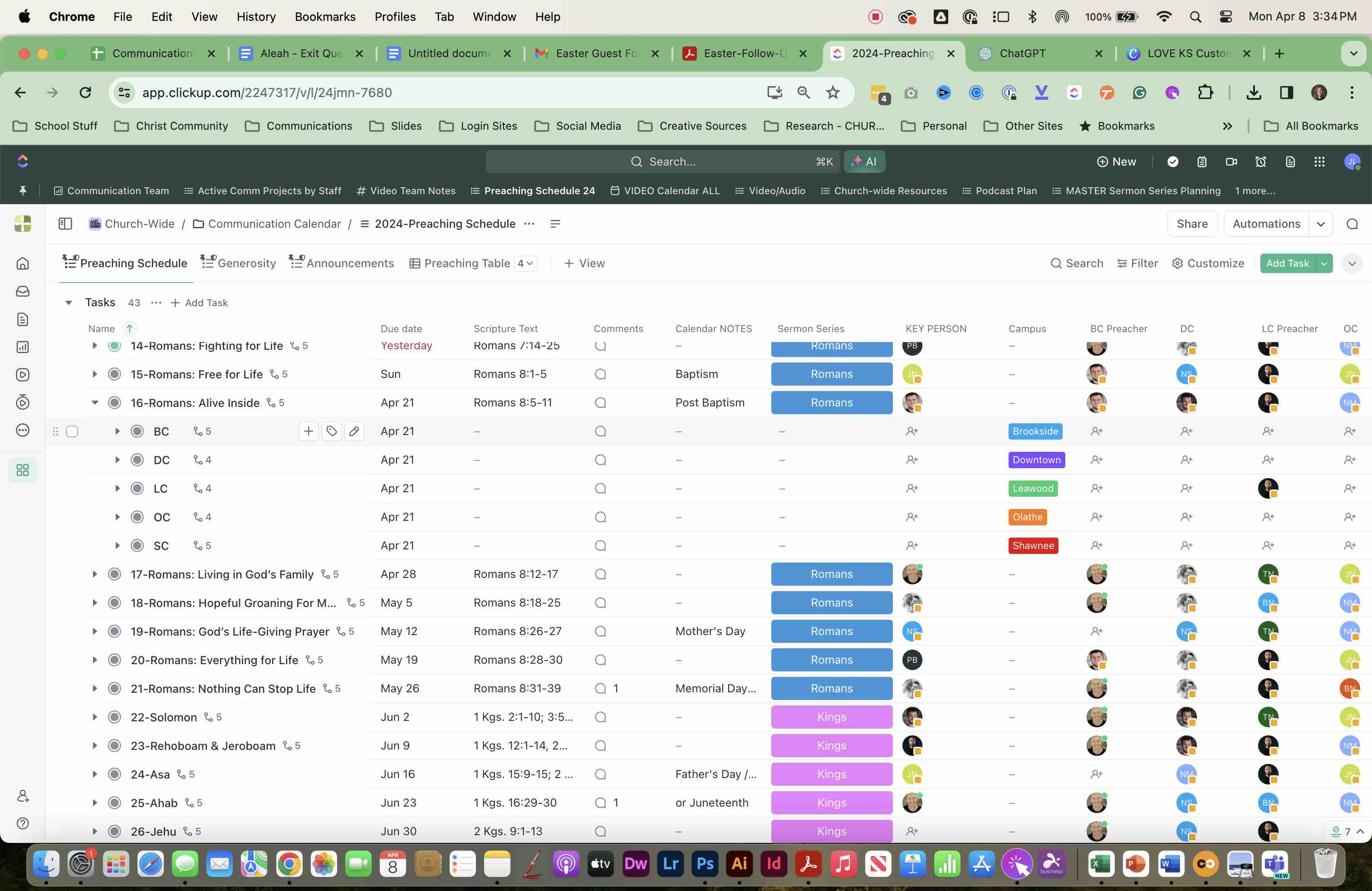
SCROLL to the right in the main preaching schedule window. CLICK in the field under MANUSCRIPT FOLDER and PASTE your Google Drive Folder link into the field. Double-check that you are putting the link in YOUR campus row!
SUCCESS: The Google Drive link should now be visible in the field.
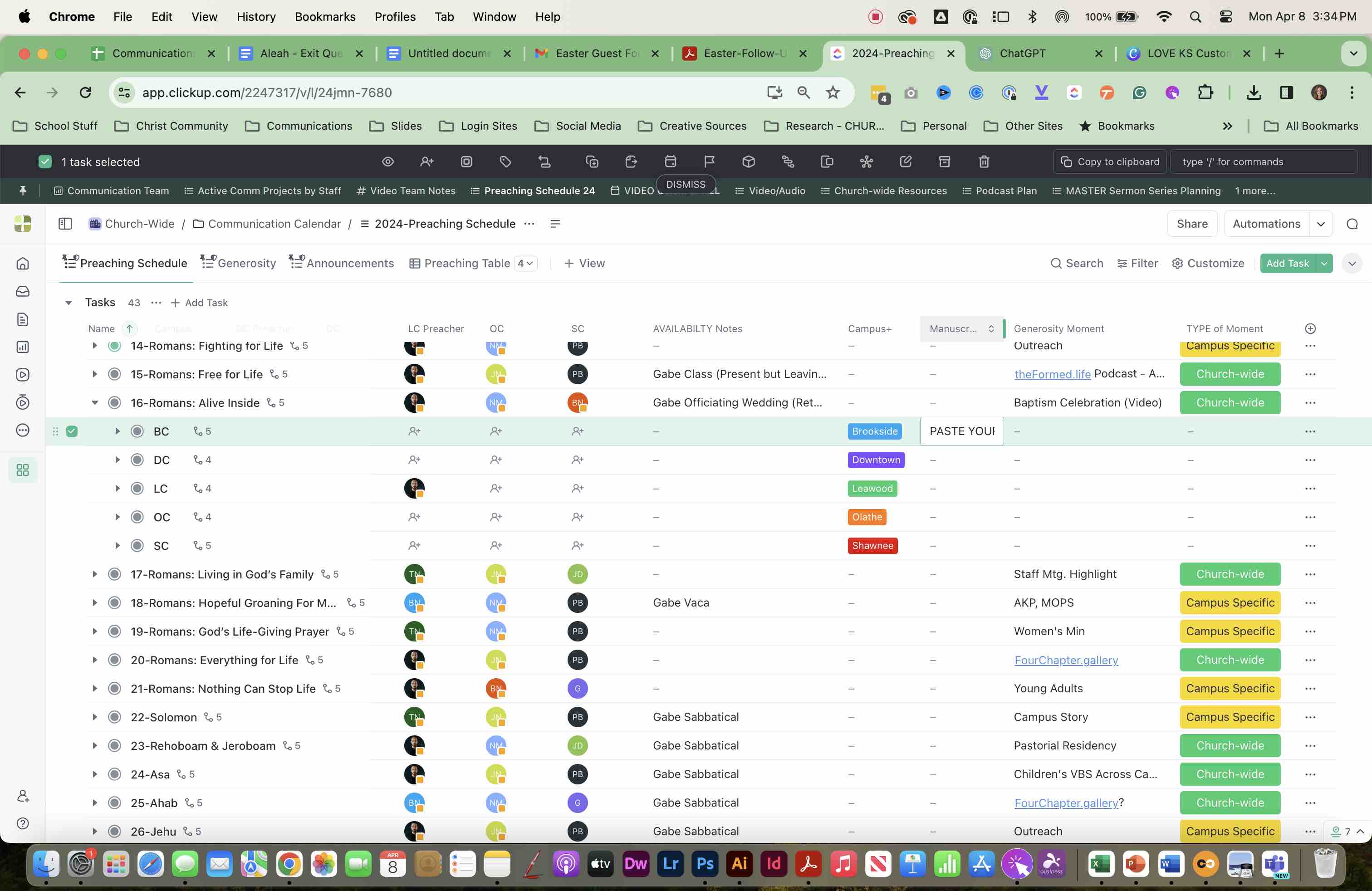
PRO TIPS
PRO TIPS:
- PASTE the link on the MAIN PAGE of the Preaching Schedule (NOT within the campus task).
- DO NOT Paste the link in the field with NO campus designation.
- DO Paste the link in the field to the right of your CAMPUS designation.
That's it! Easy Peasy! Thanks for your help streamlining this process.