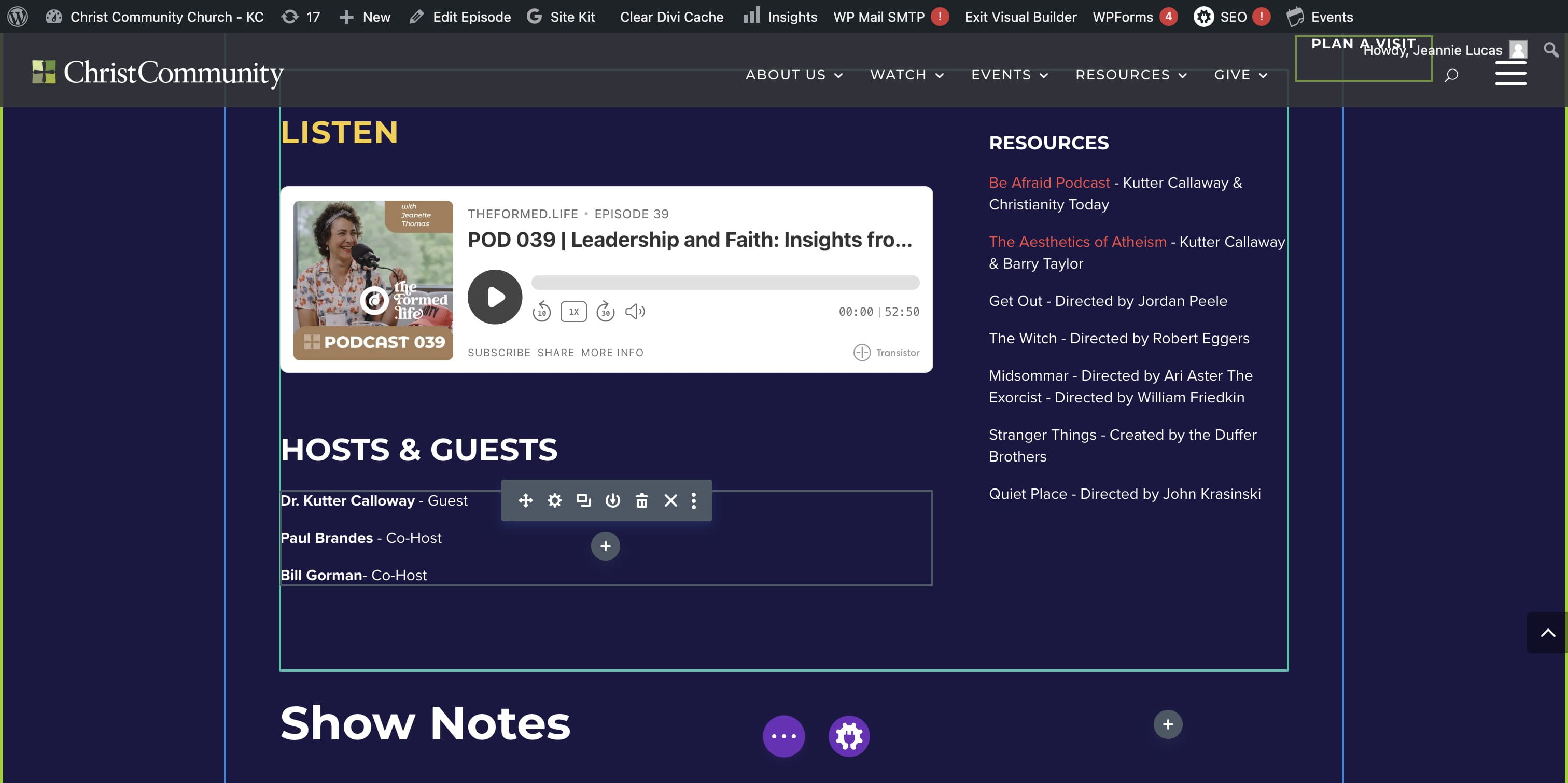
Building a PODCAST EPISODE LANDING Page - Step 1
OPEN the PODCAST PLAN in ClickUp
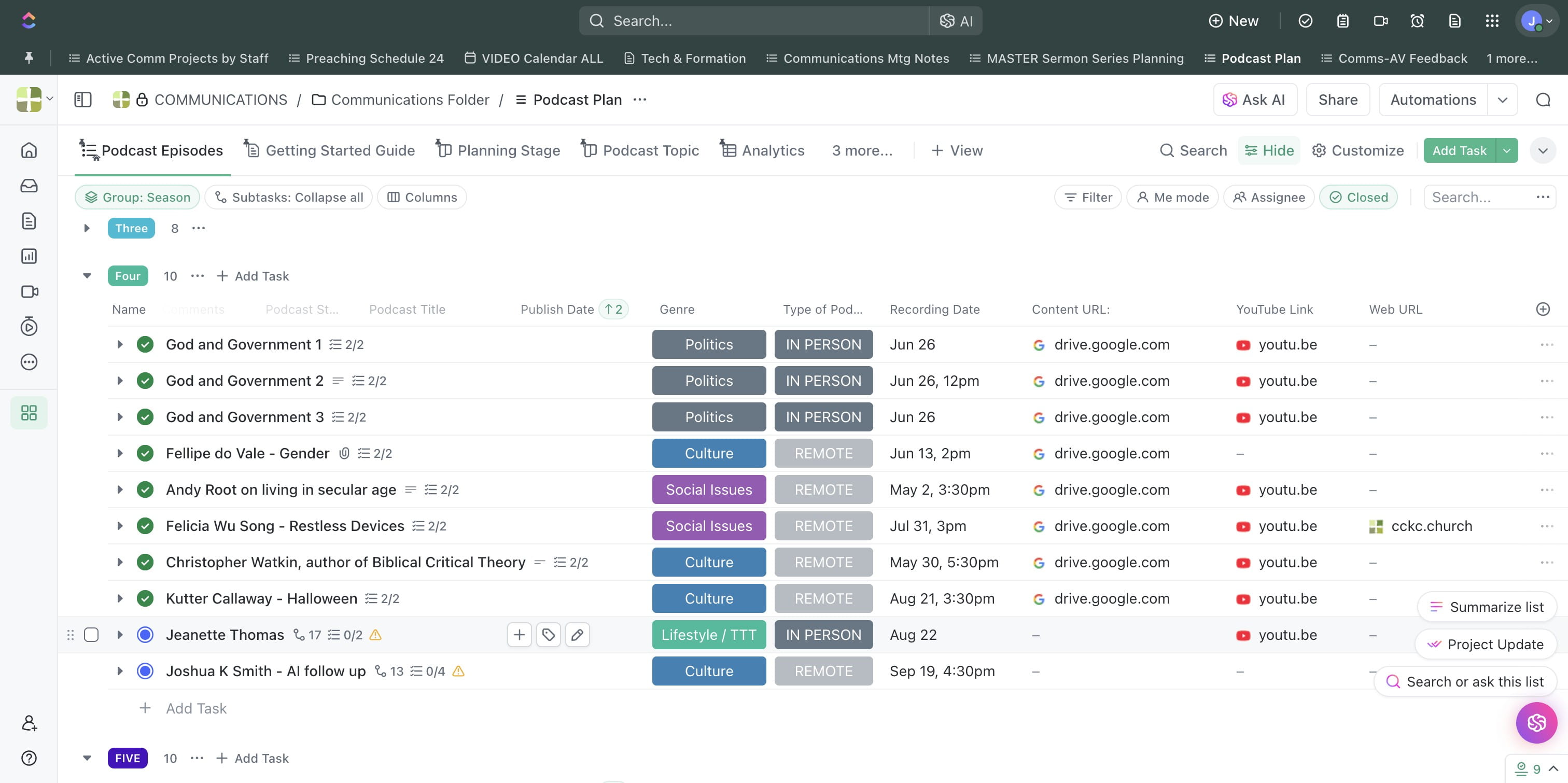
NOTE: Podcast supporting files can be found on the CHURCH ONLINE drive. CHURCH ONLINE/theFormed.life/TFL Podcast/TFL Episodes/TFL Podcast Season X/POD 0XX Guest name
The EMBED CODE comes from Transistor. (Valerie or Kris can get that) OR it should be added to the Show Notes section of the Interview Google Doc.
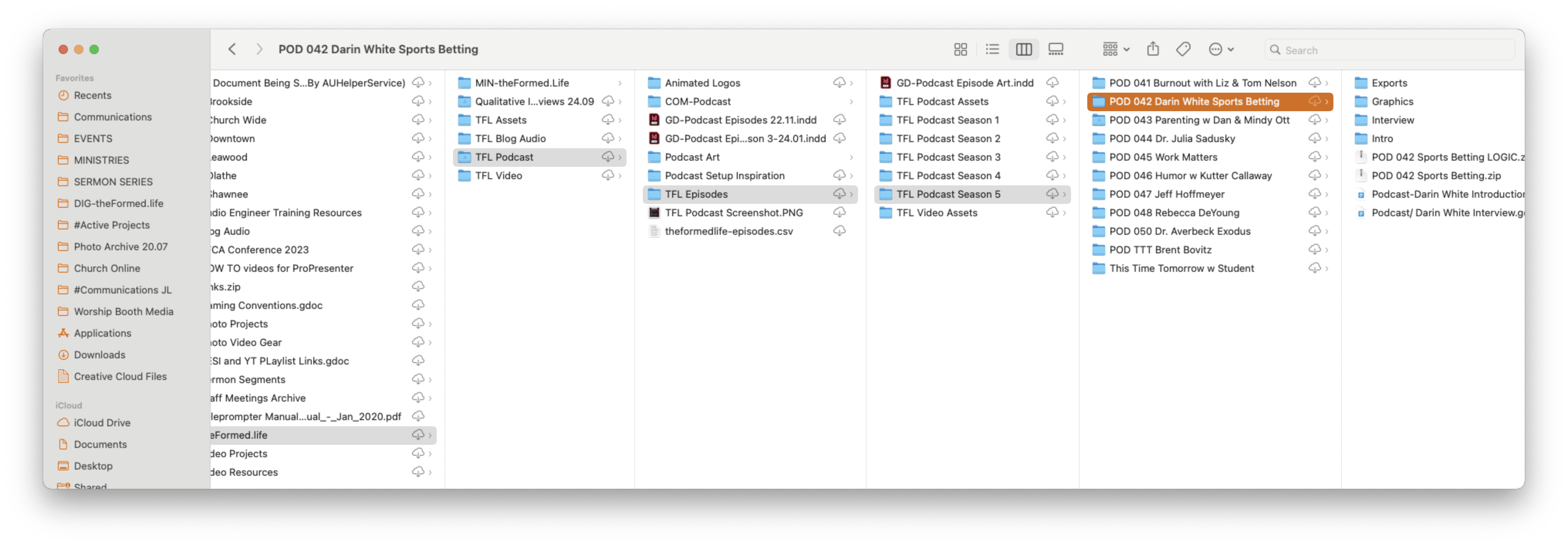
SELECT the Episode you are building a page fro.
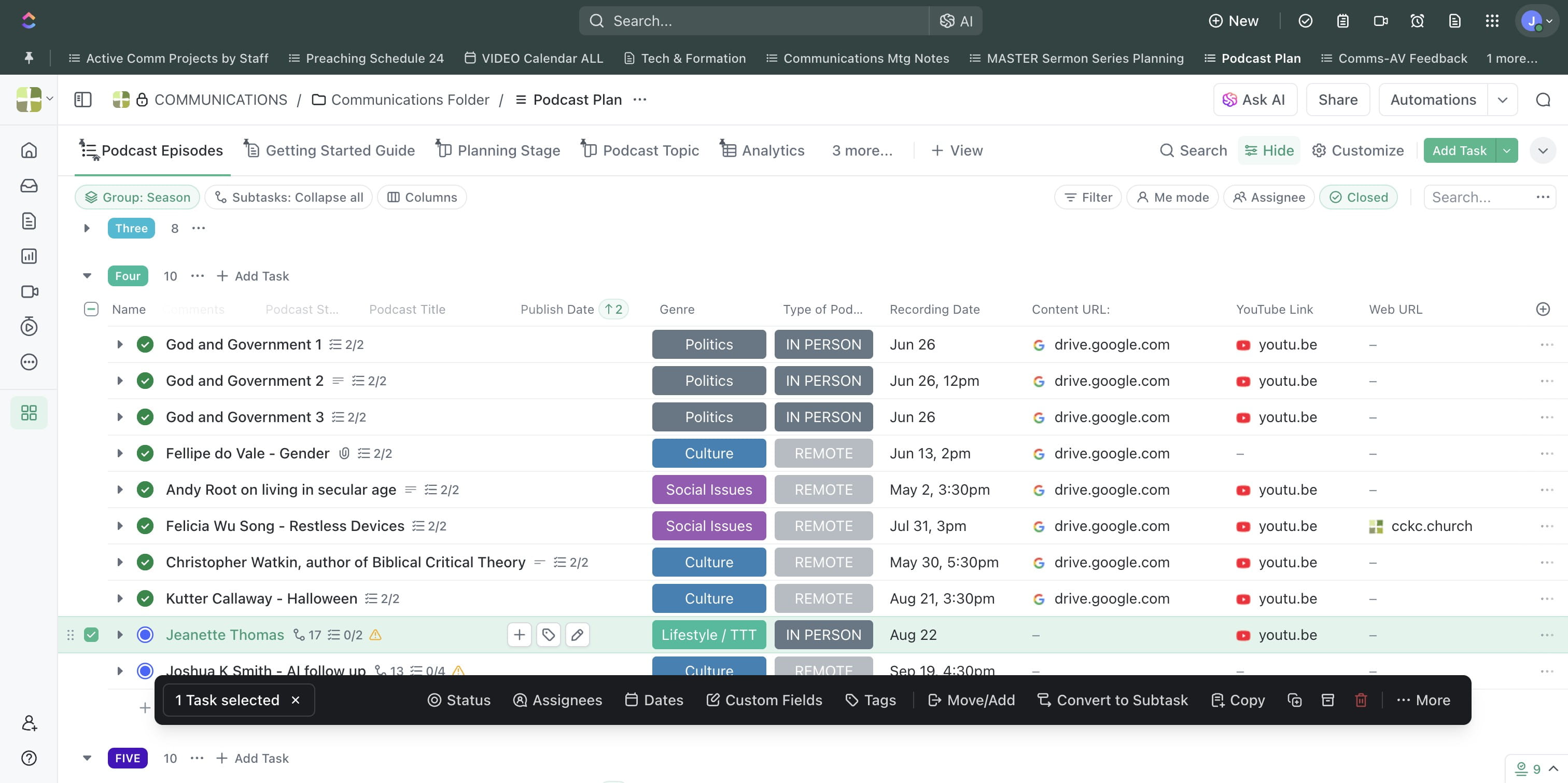
OPEN the ClickUp task for that episode.
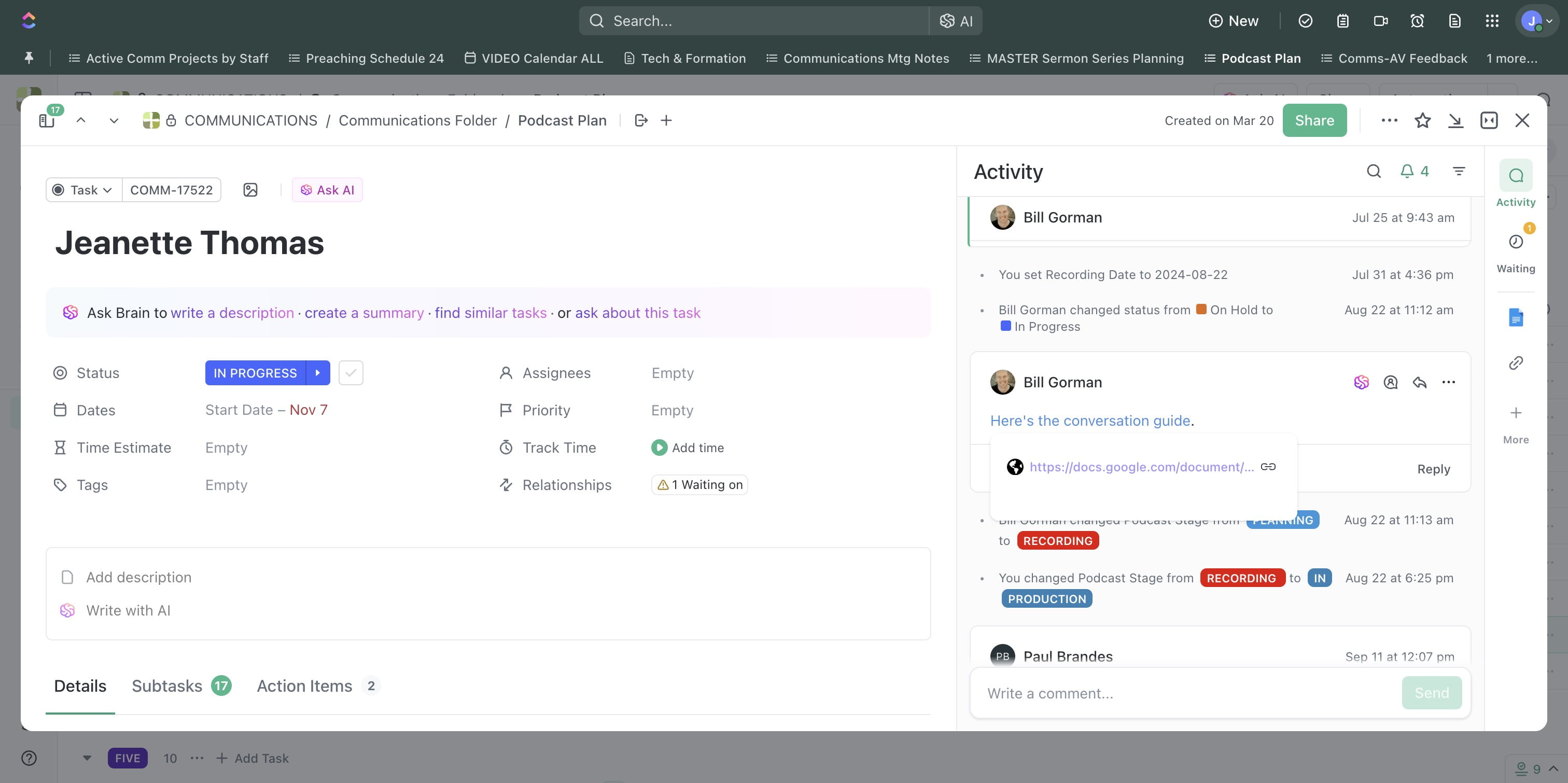
OPEN the Conversation Guide (also has the SHOW NOTES) Google Document
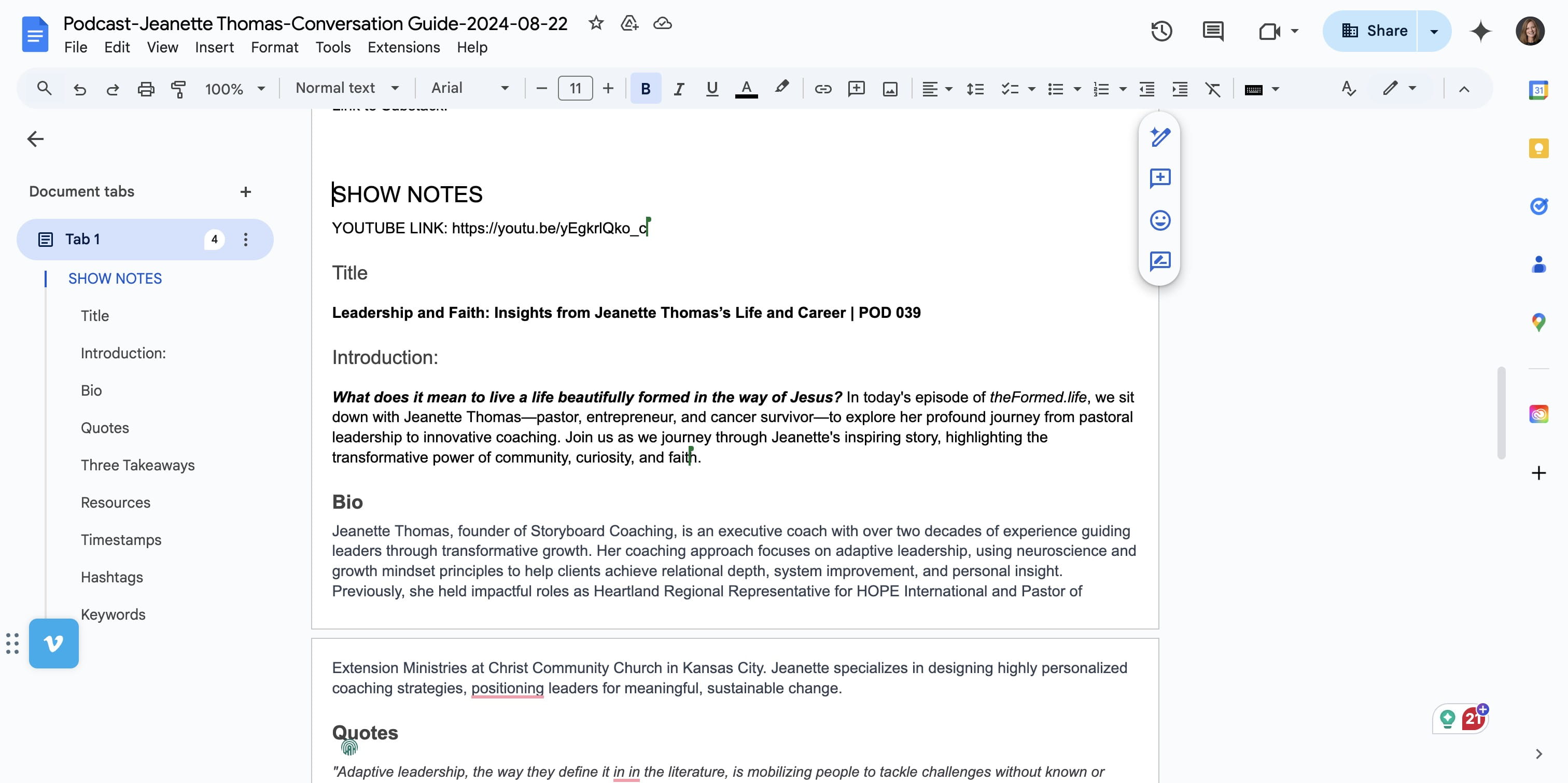
OPEN the YouTube Episode to get the URL
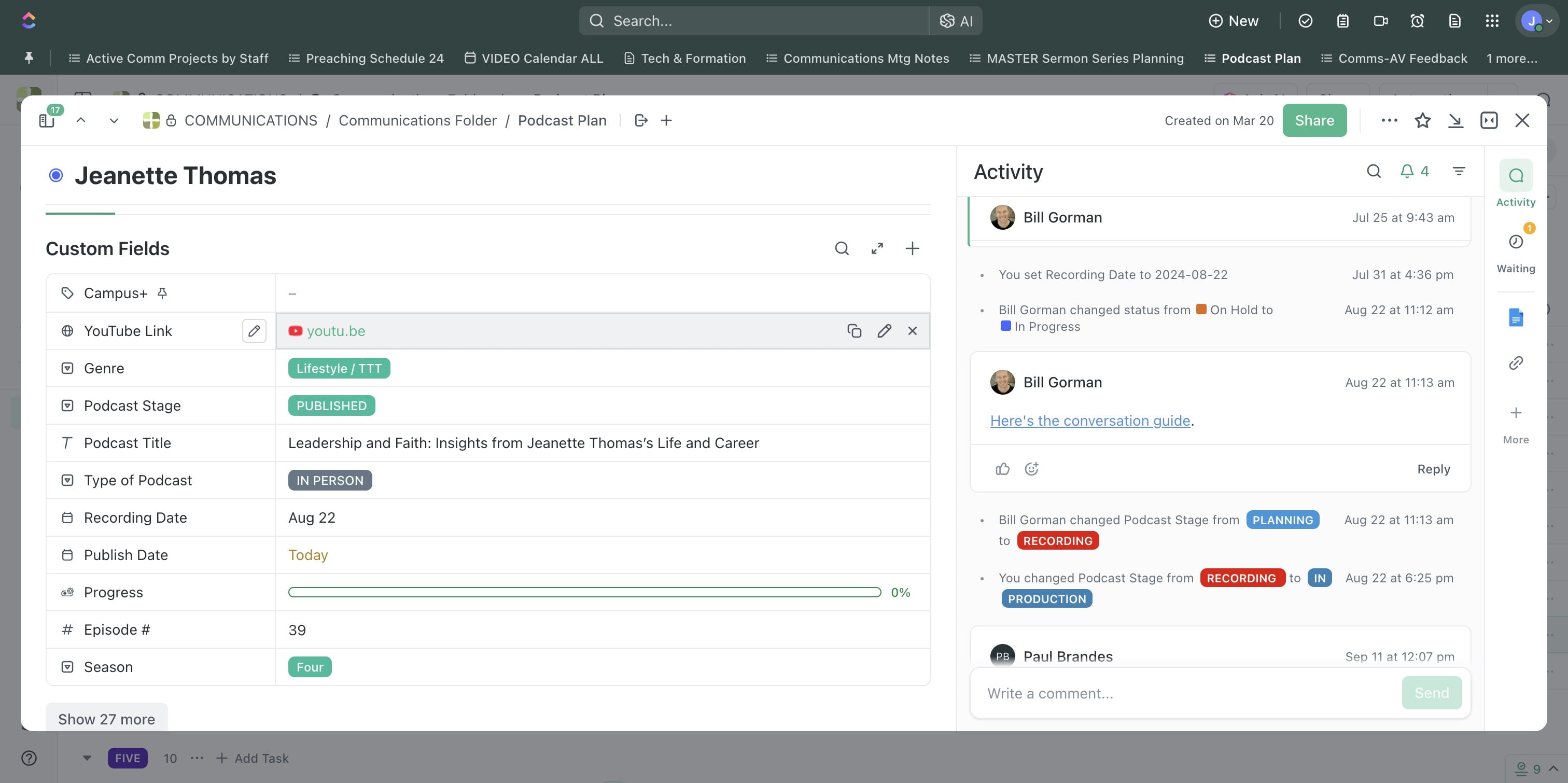
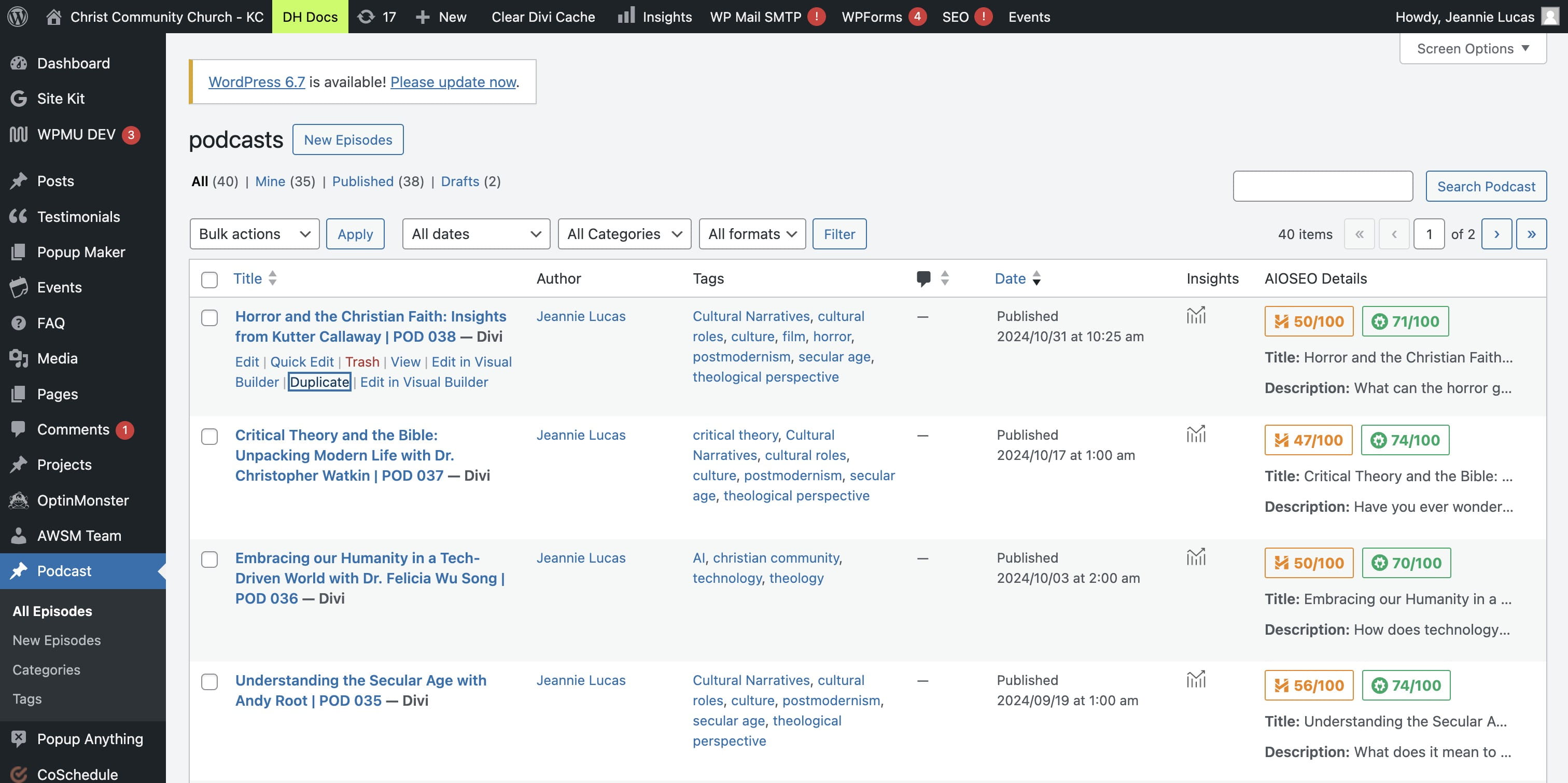
In the cckc.church website backend, NAVIGATE to PODCAST > ALL EPISODES
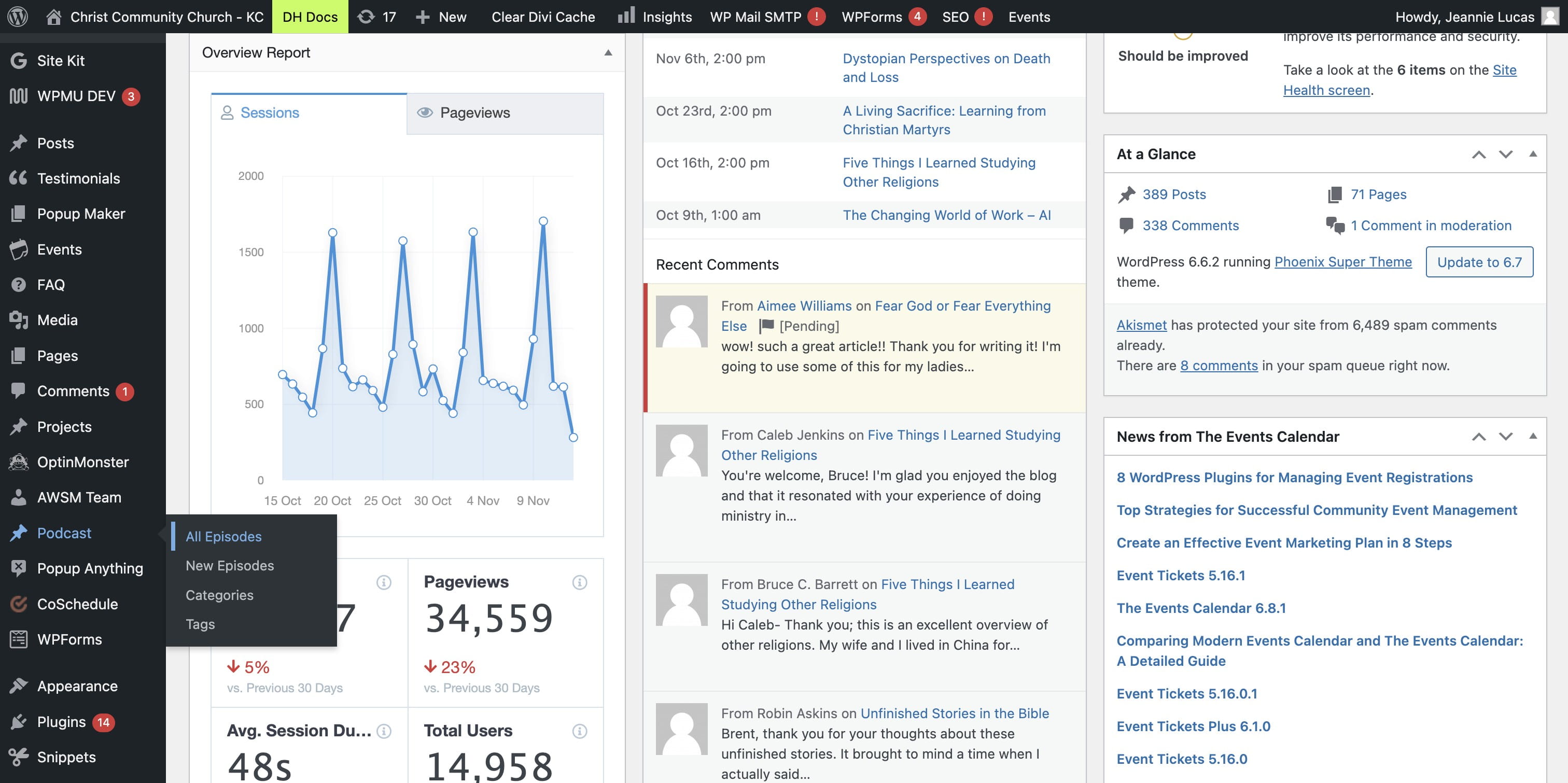
Click on "Duplicate" to copy a similar episode setup.
Using the Google Doc Show Note (Conversation Guide), update the relevant information for this episode.
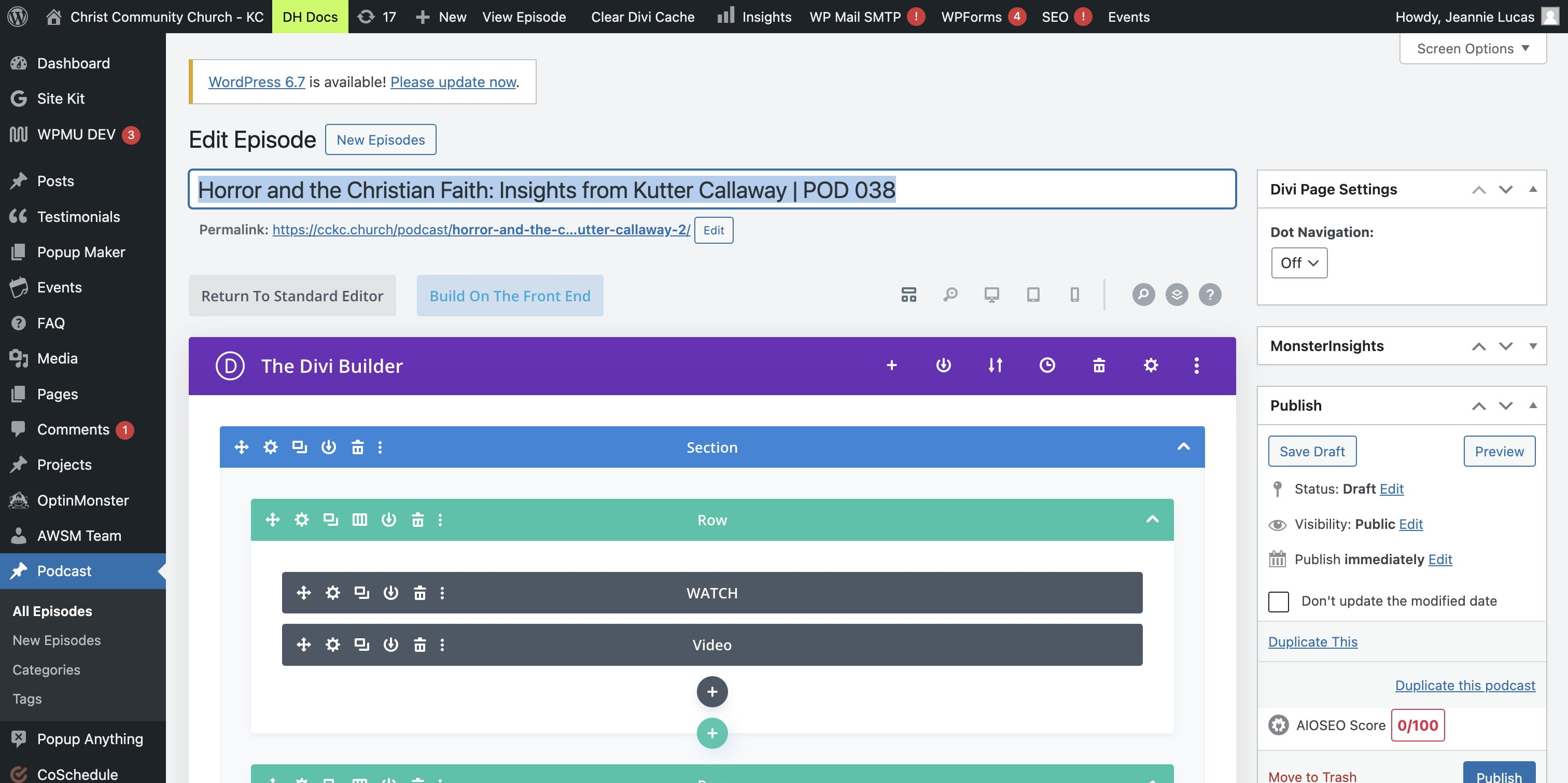
Be sure to "Edit" the PERMALINK! and click OK
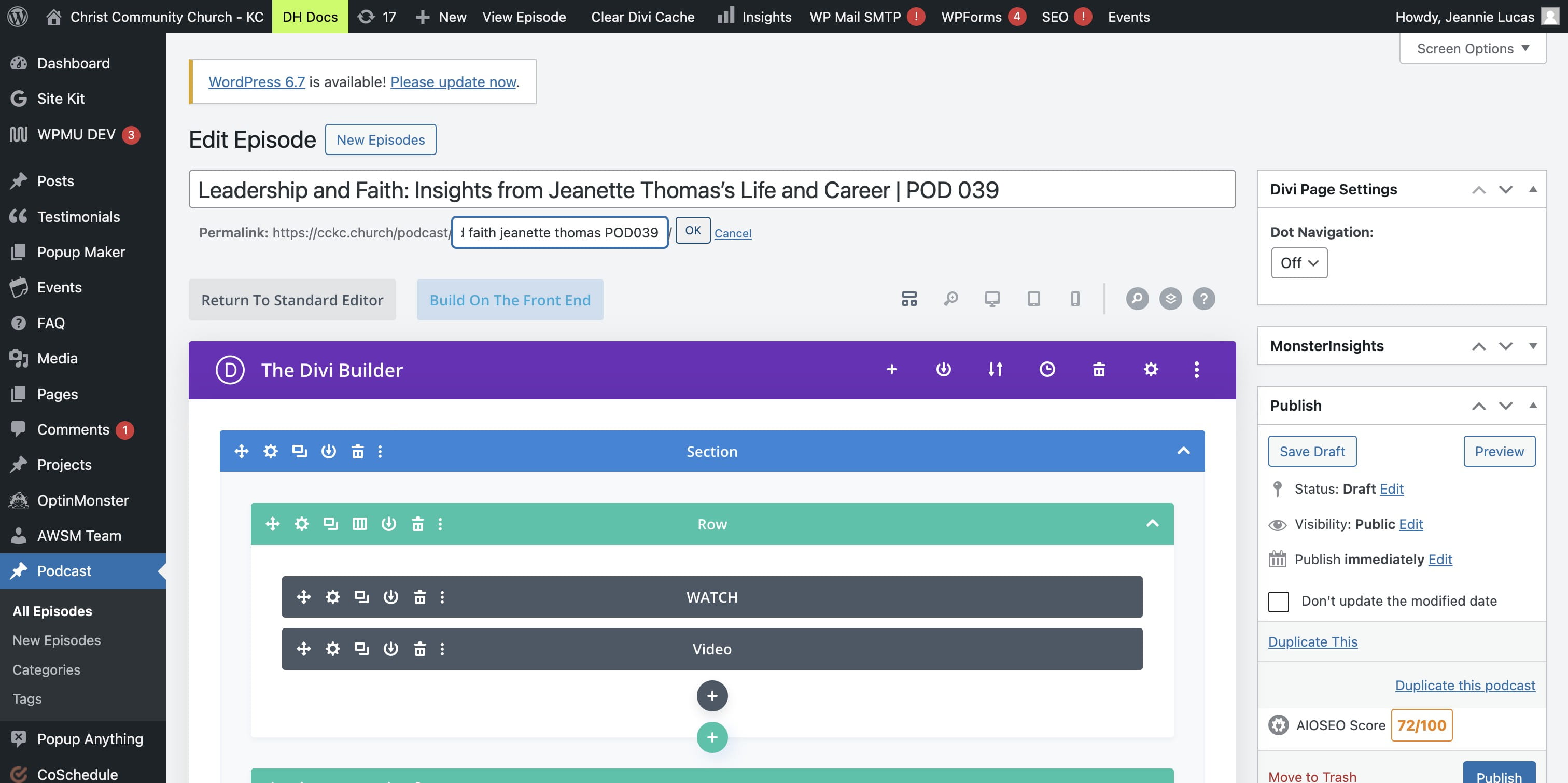
Update the TAGS with relevant information and DELETE tags that are not appropriate.
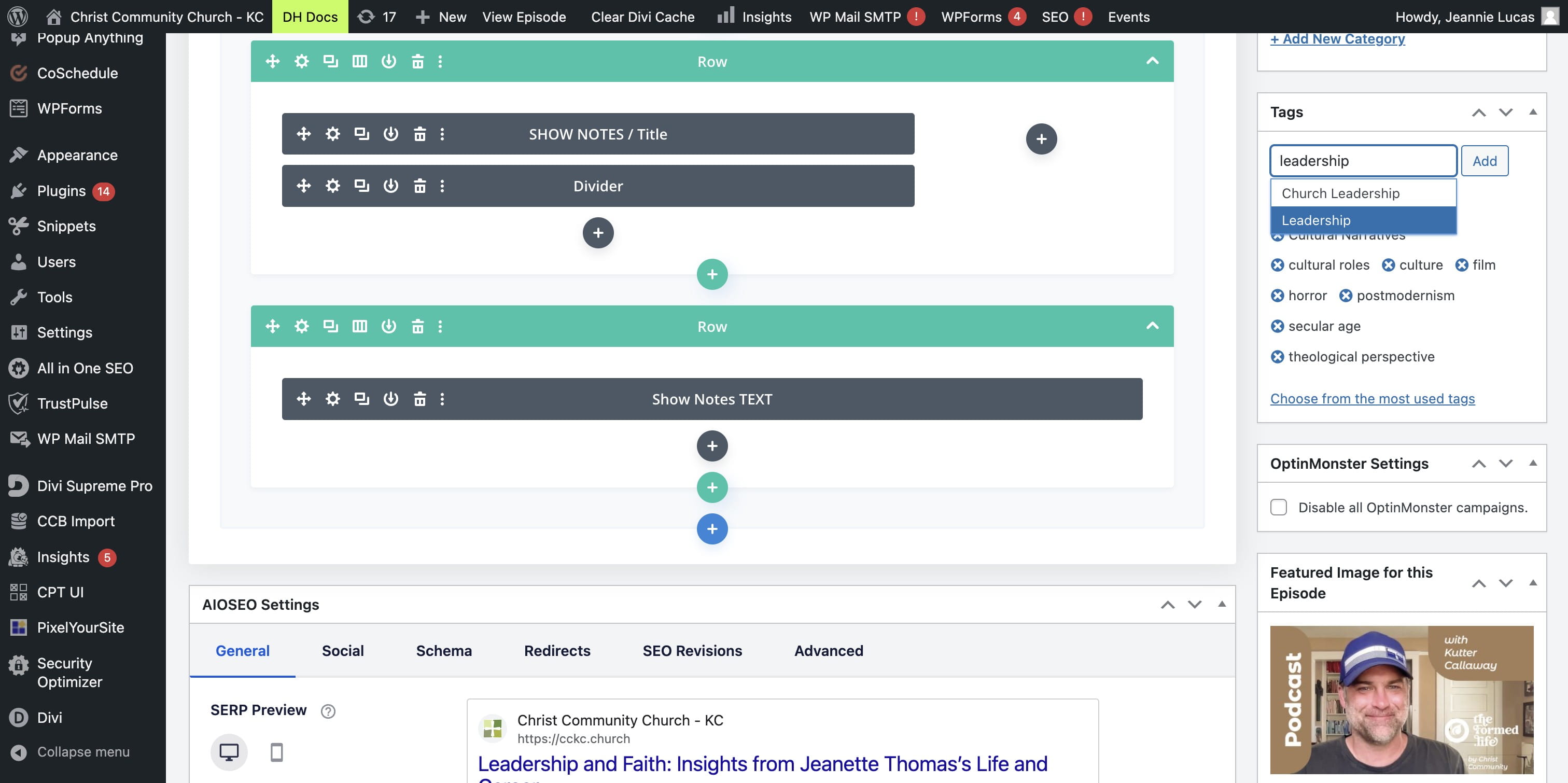
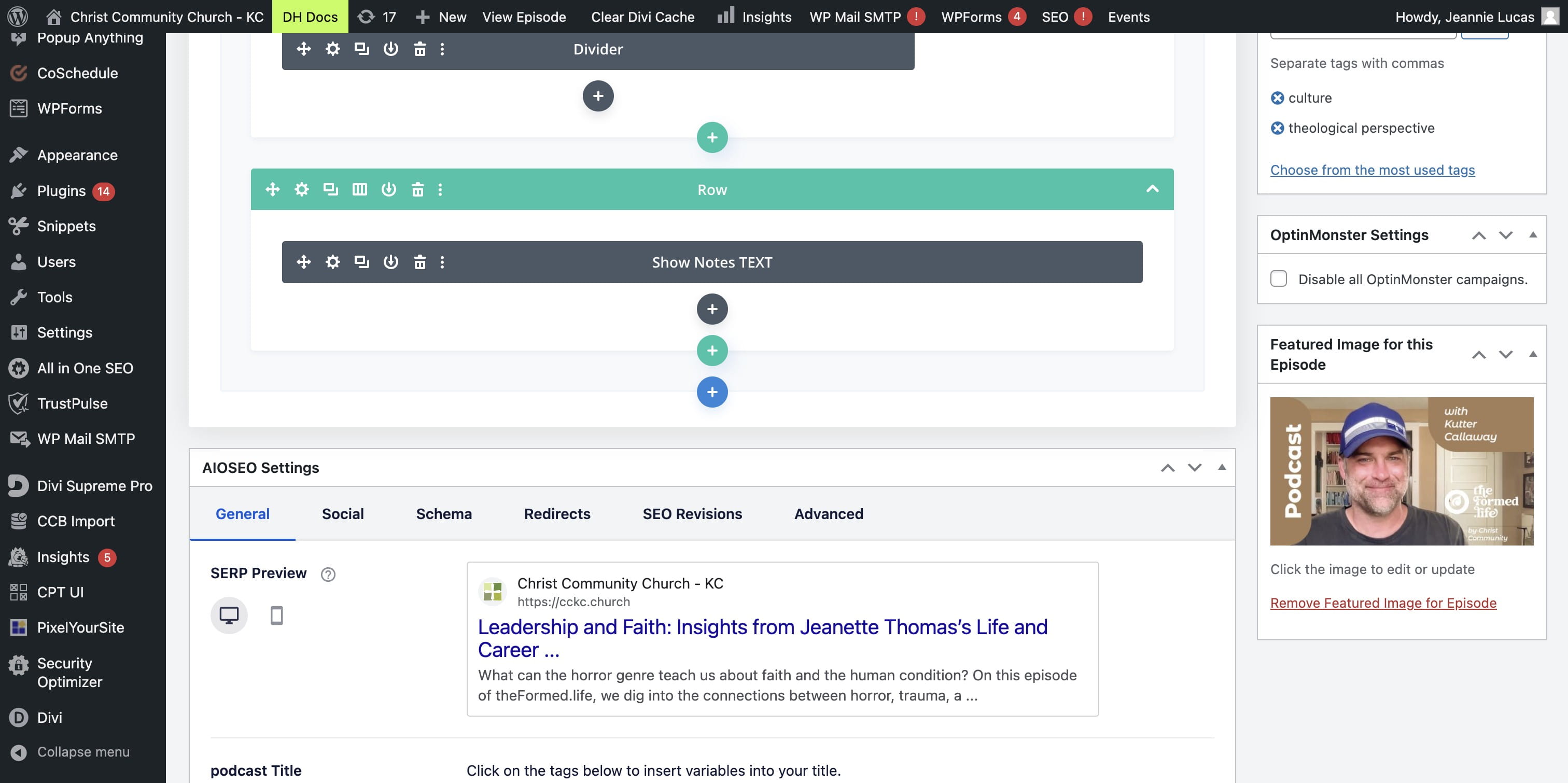
Click on "Remove Featured Image for Episode" to update the Podcast Image
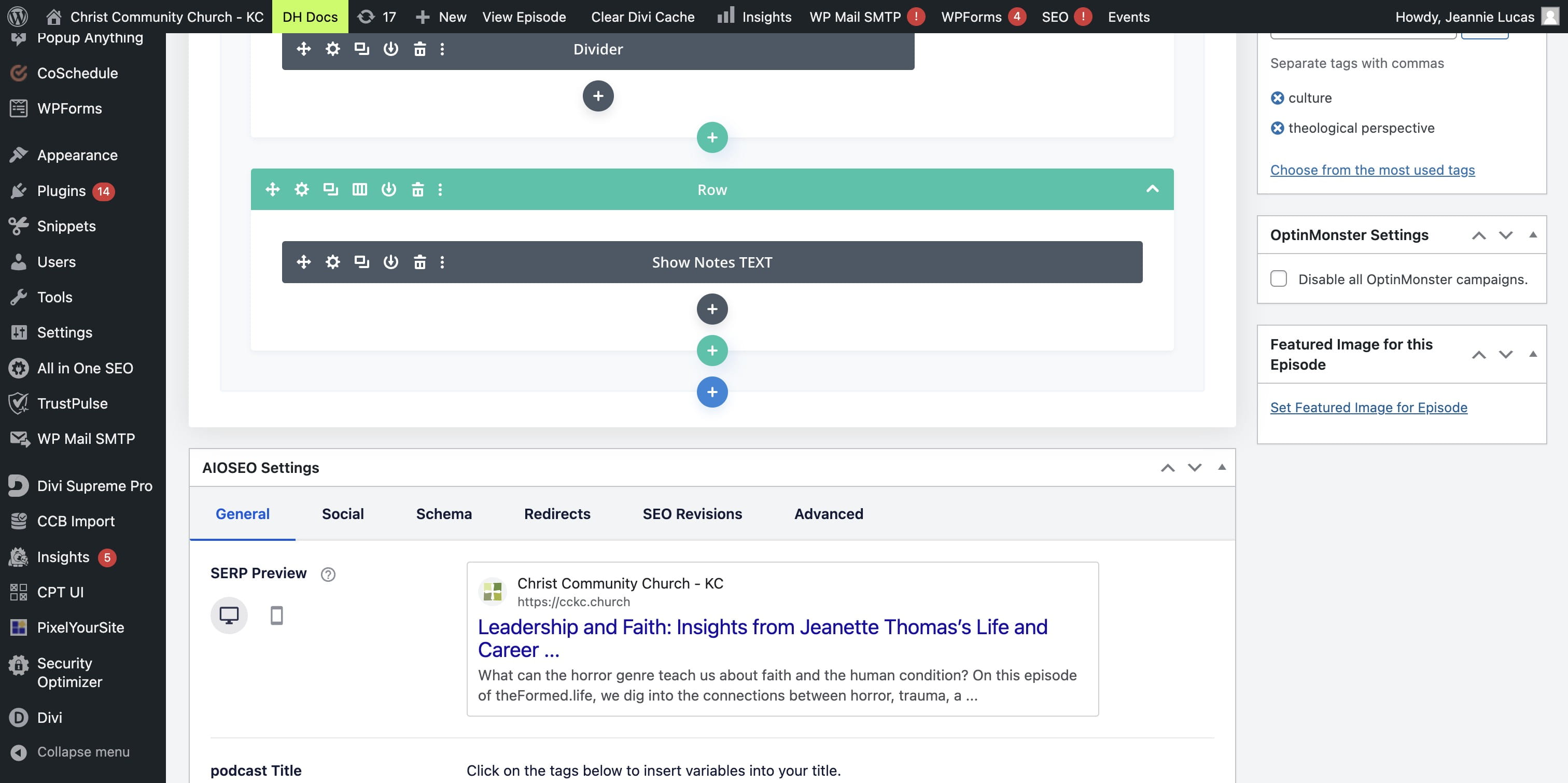
Click on "Set Featured Image for Episode" to select a new image.
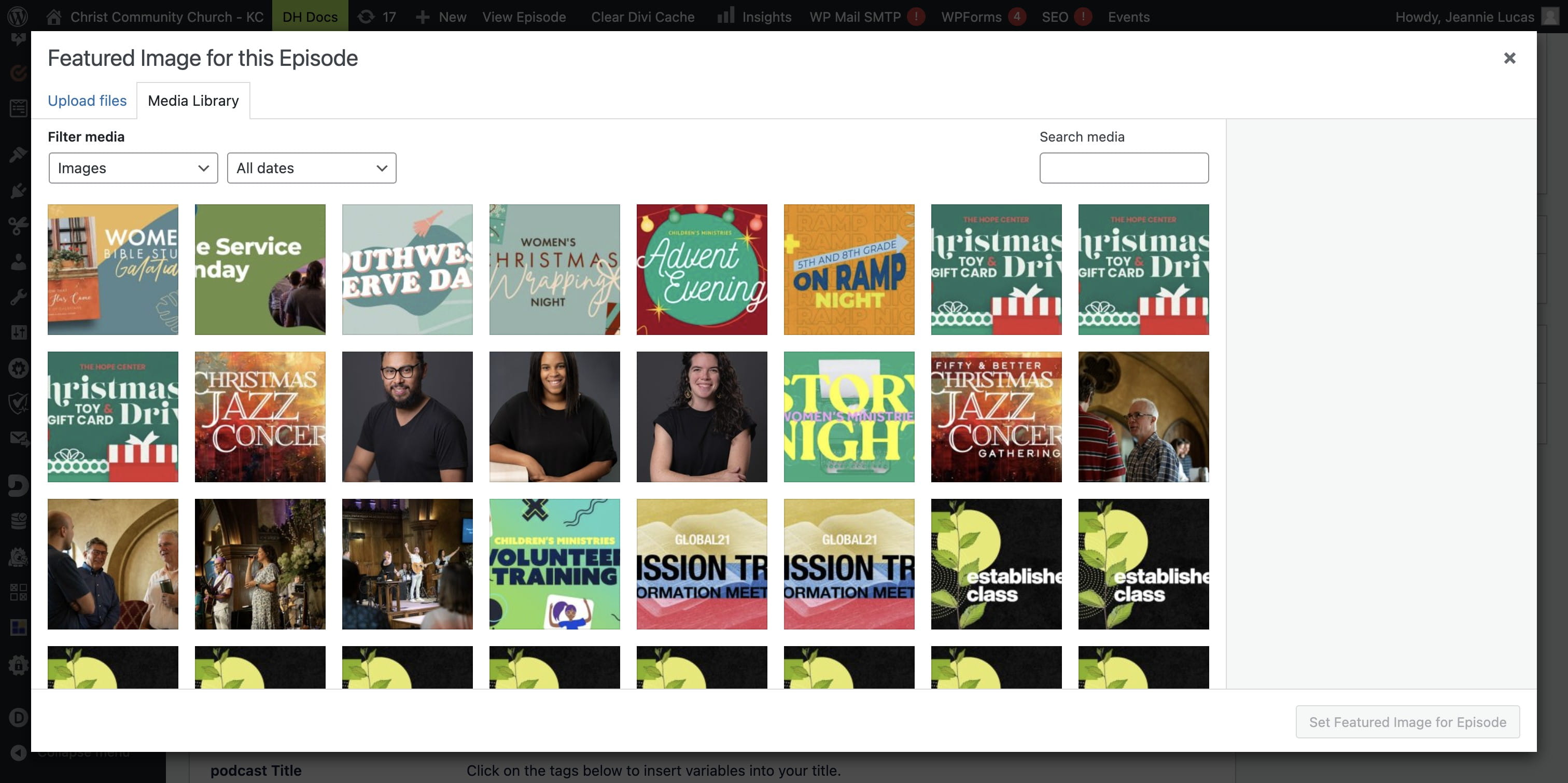
Click on "Upload files" and navigate to the Episode image in the episode folder on Google Drive. The folder link should be in the ClickUp task.
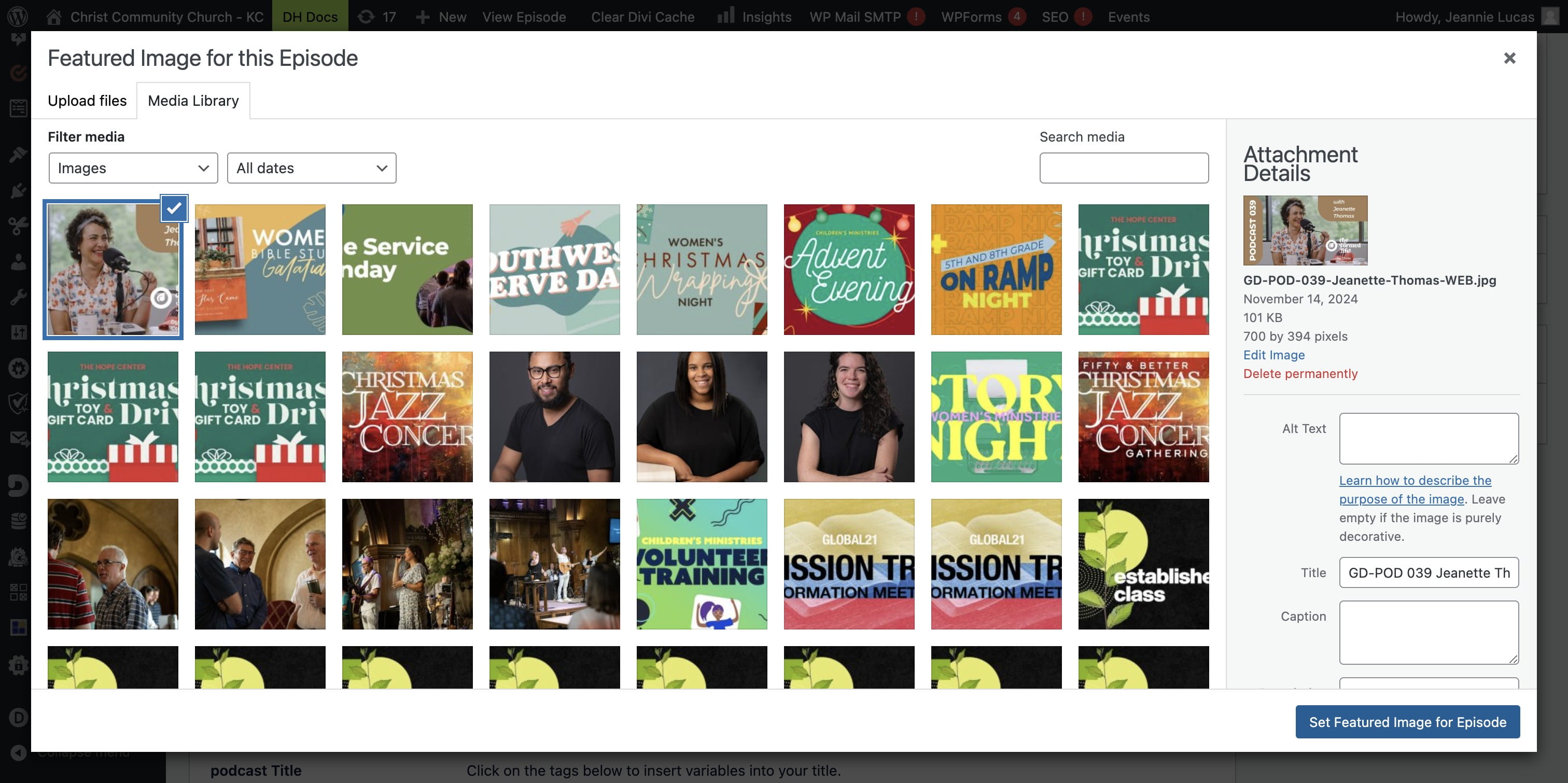
Click on "Set Featured Image for Episode"
UPDATE the Excerpt and Meta Description using the intro paragraph from the Show Notes. You may need to shorted or edit the paragraph.
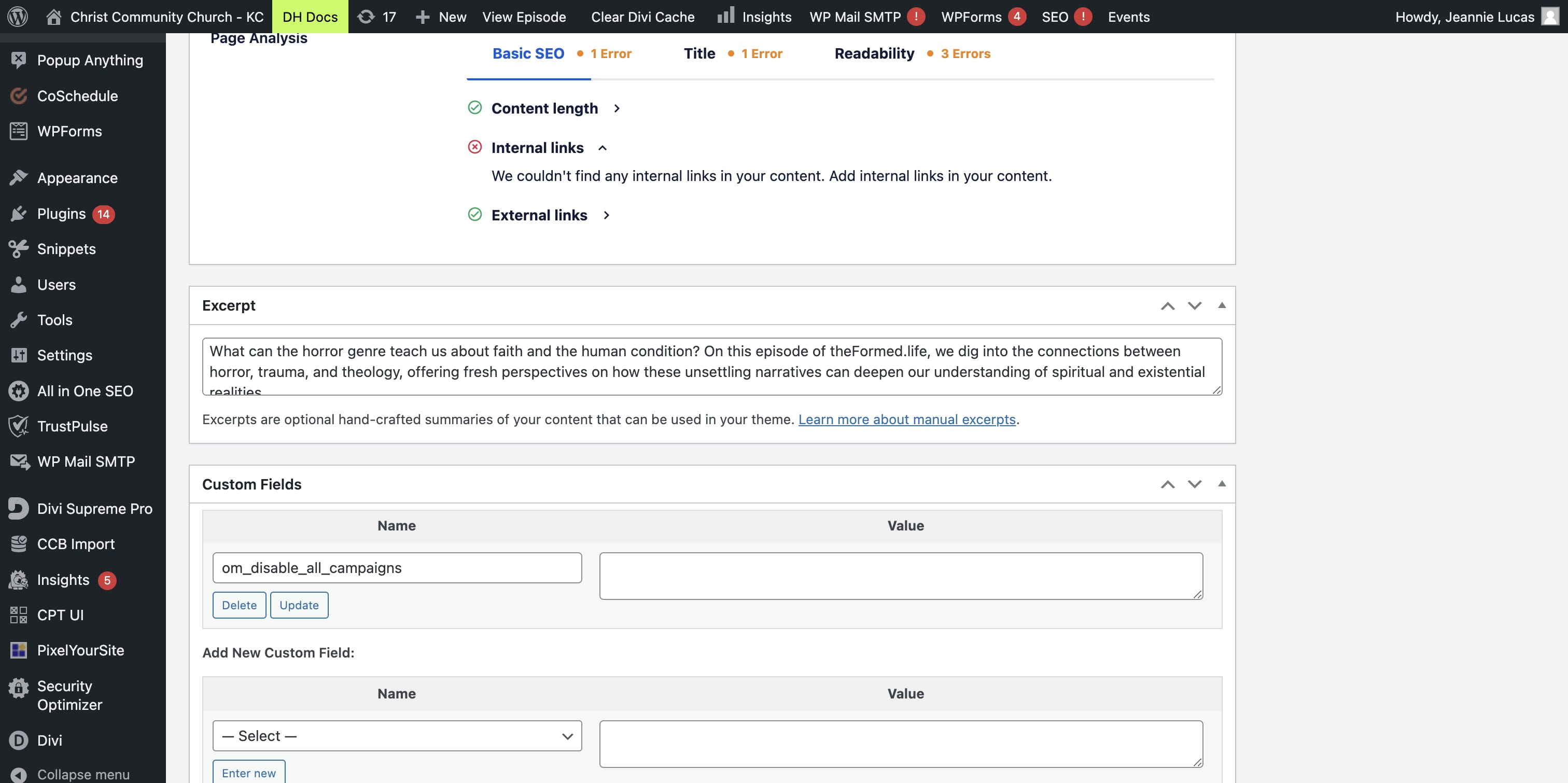
COPY the edited EXCERPT text.
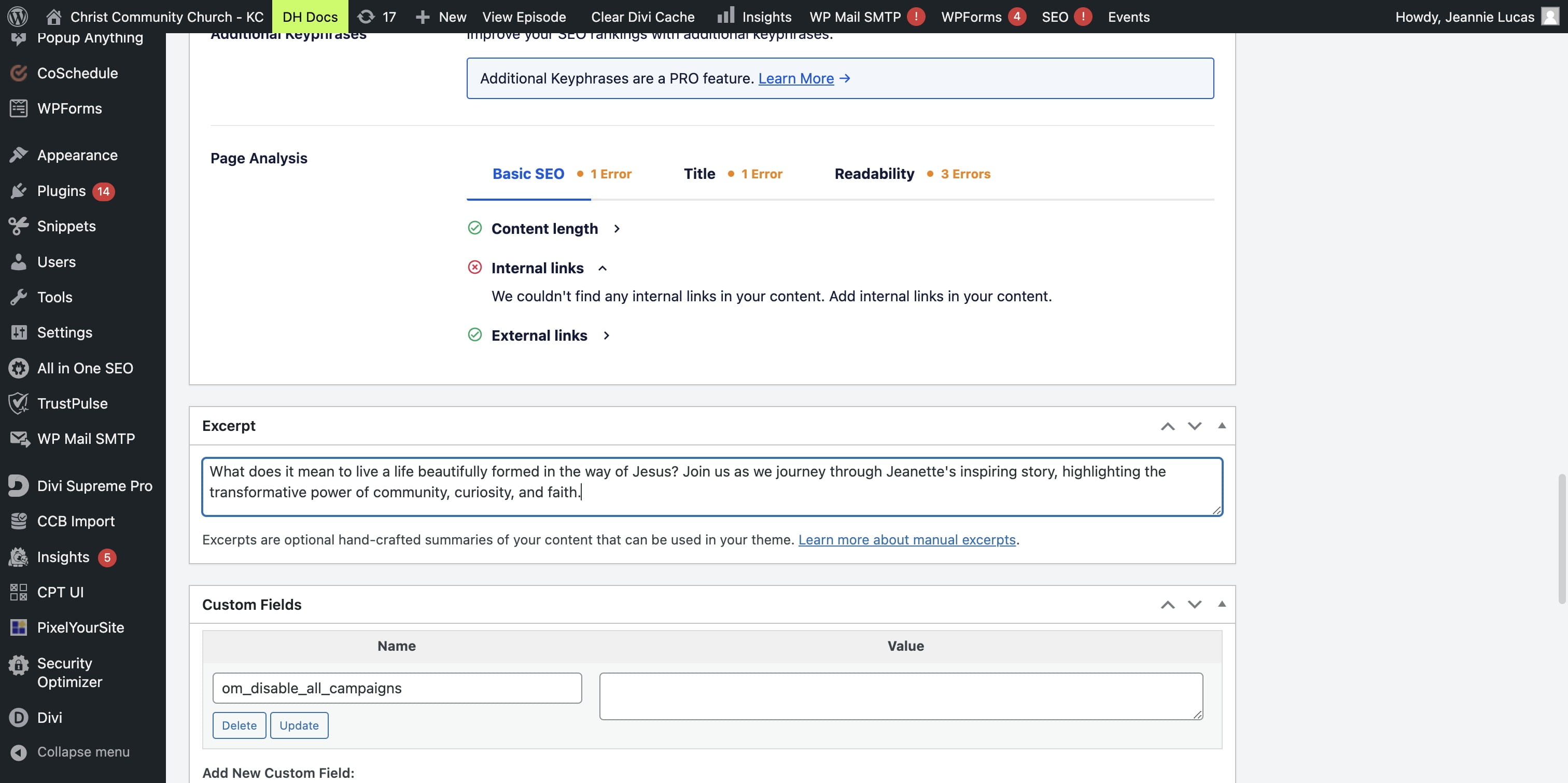
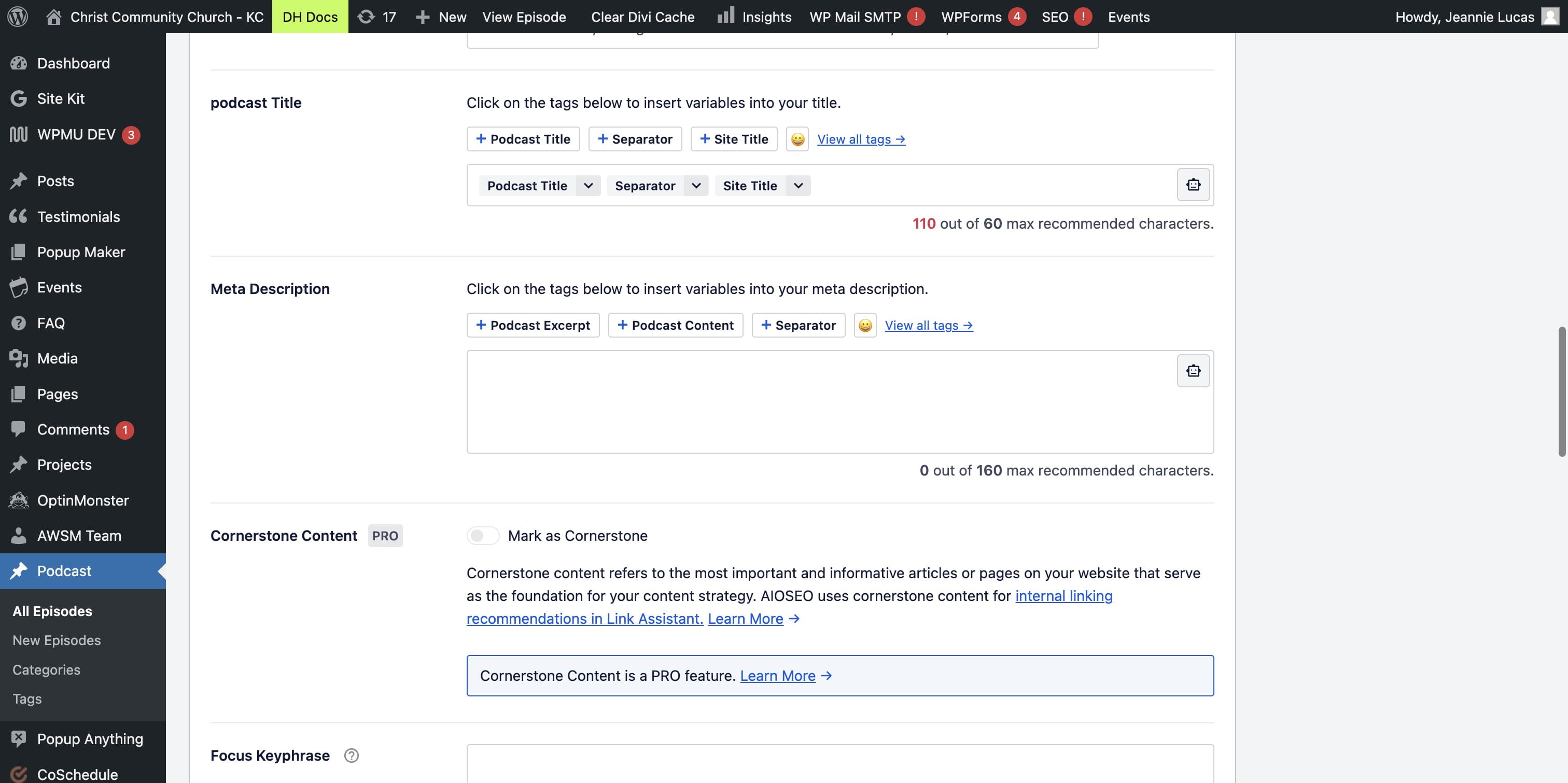
PASTE the text into the Meta Description.
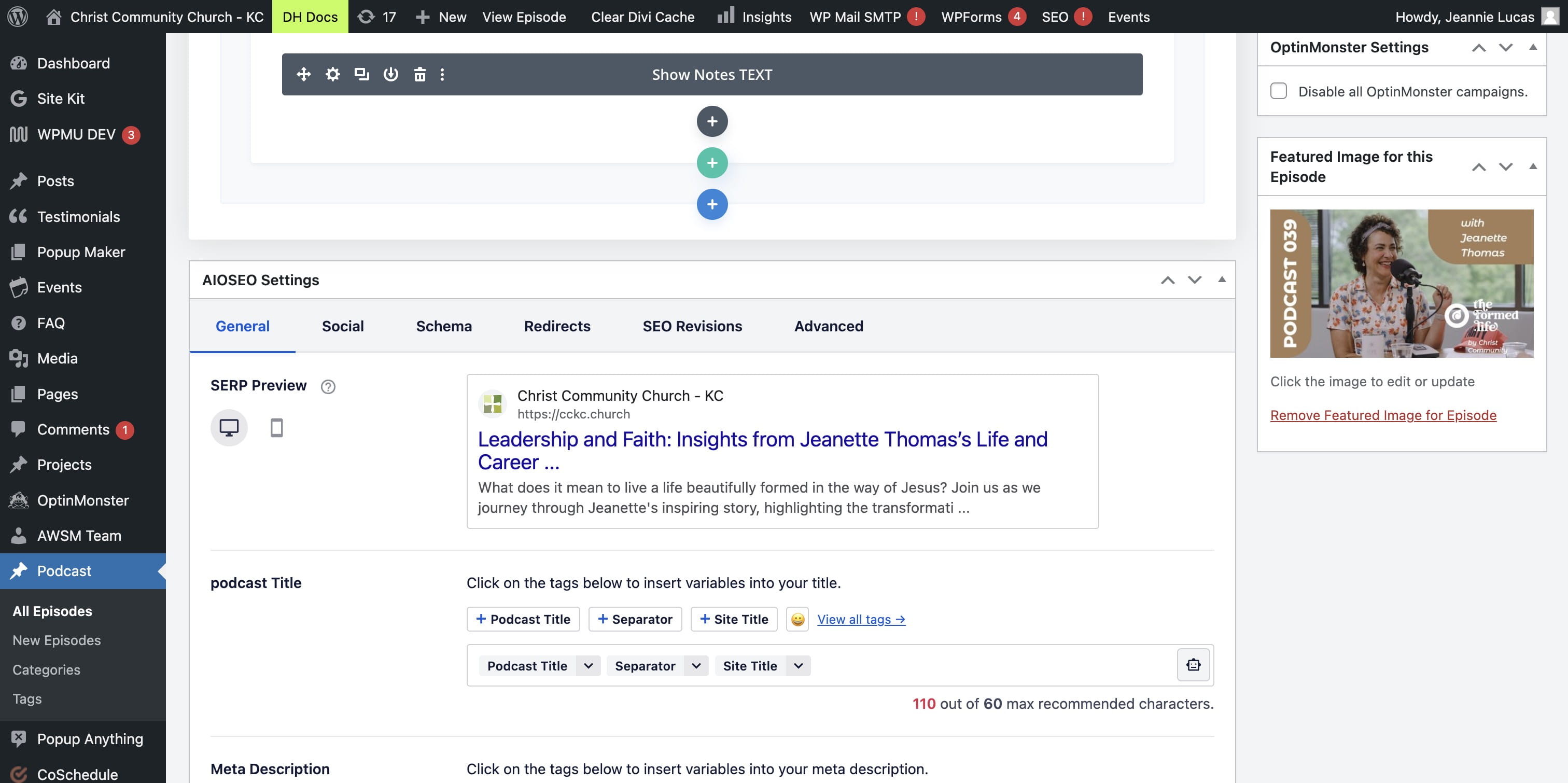
You should now see the SERP Preview with updated text!
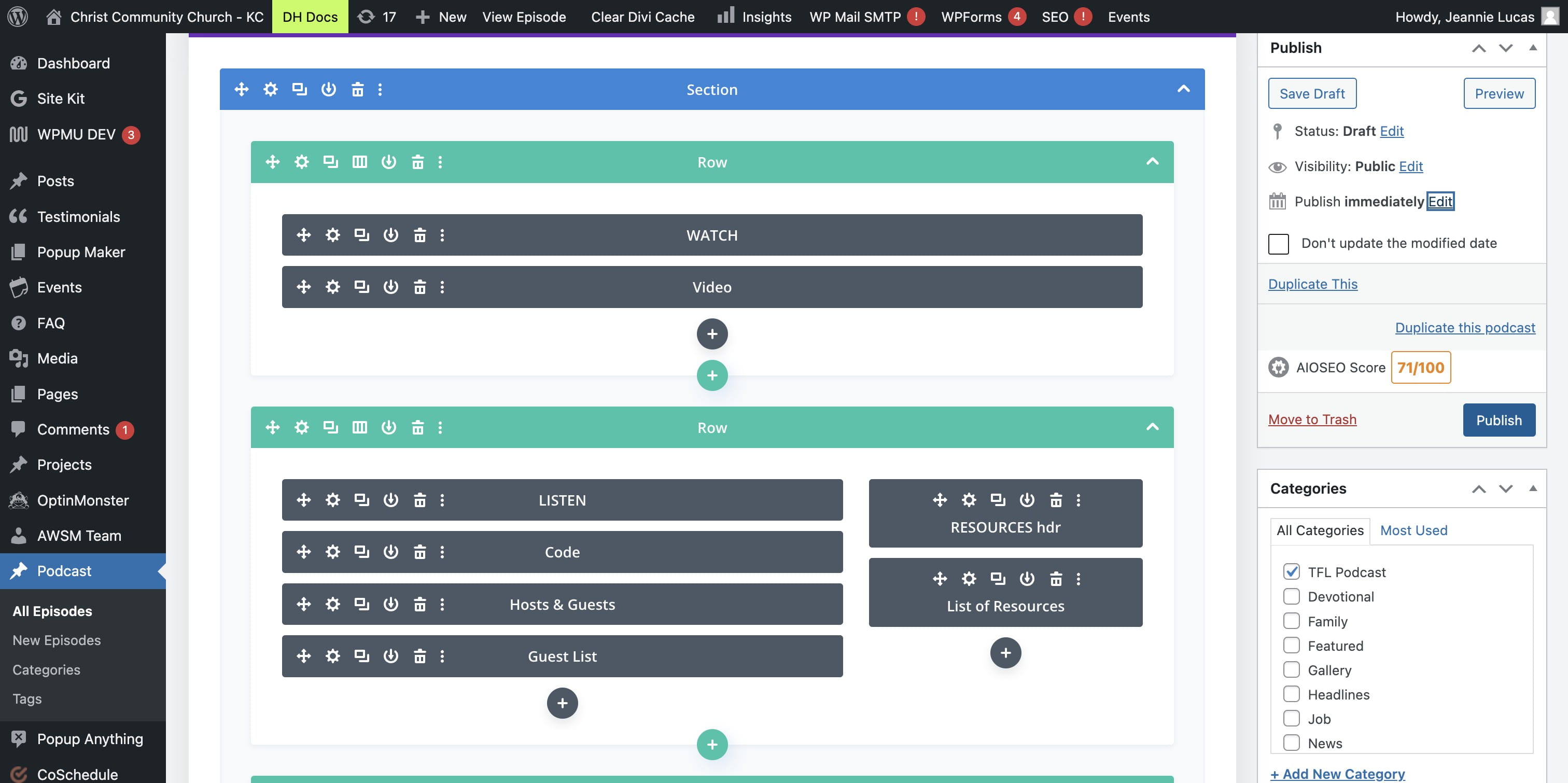
Set the PUBLISH DATE to the appropriate THURSDAY @ 1:00 am and choose SCHEDULE
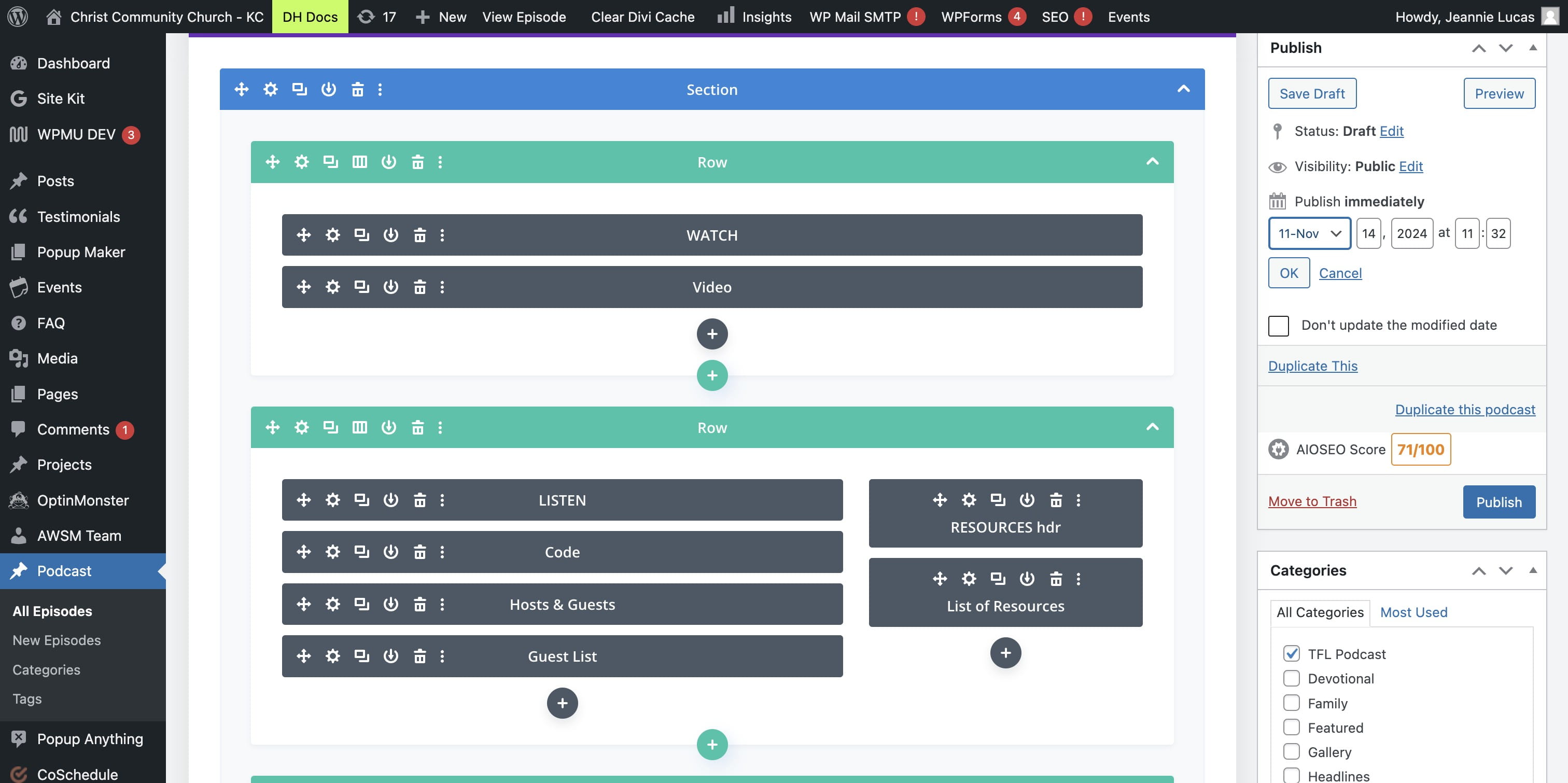
Click here
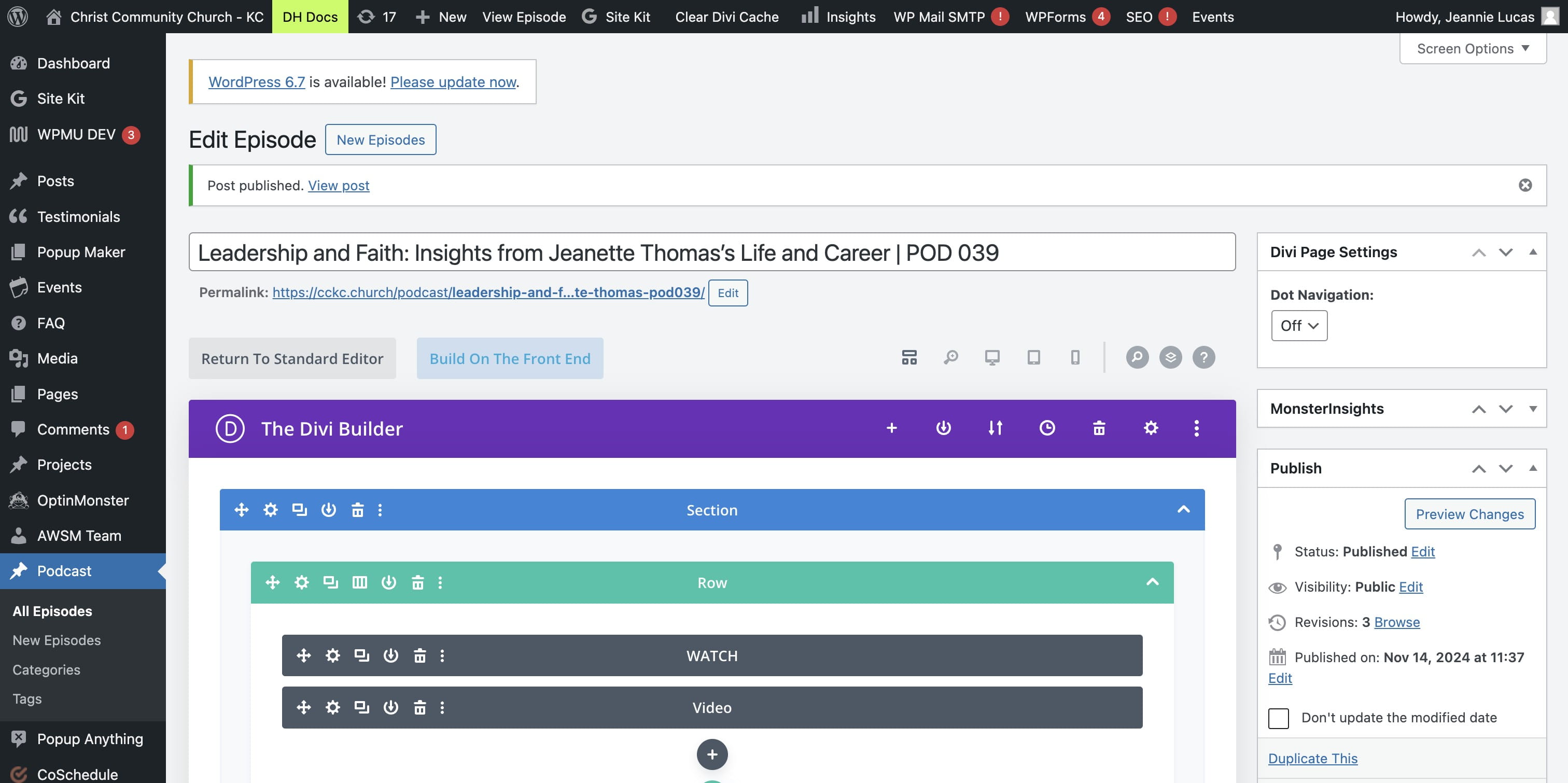
Click on "Build On The Front End"
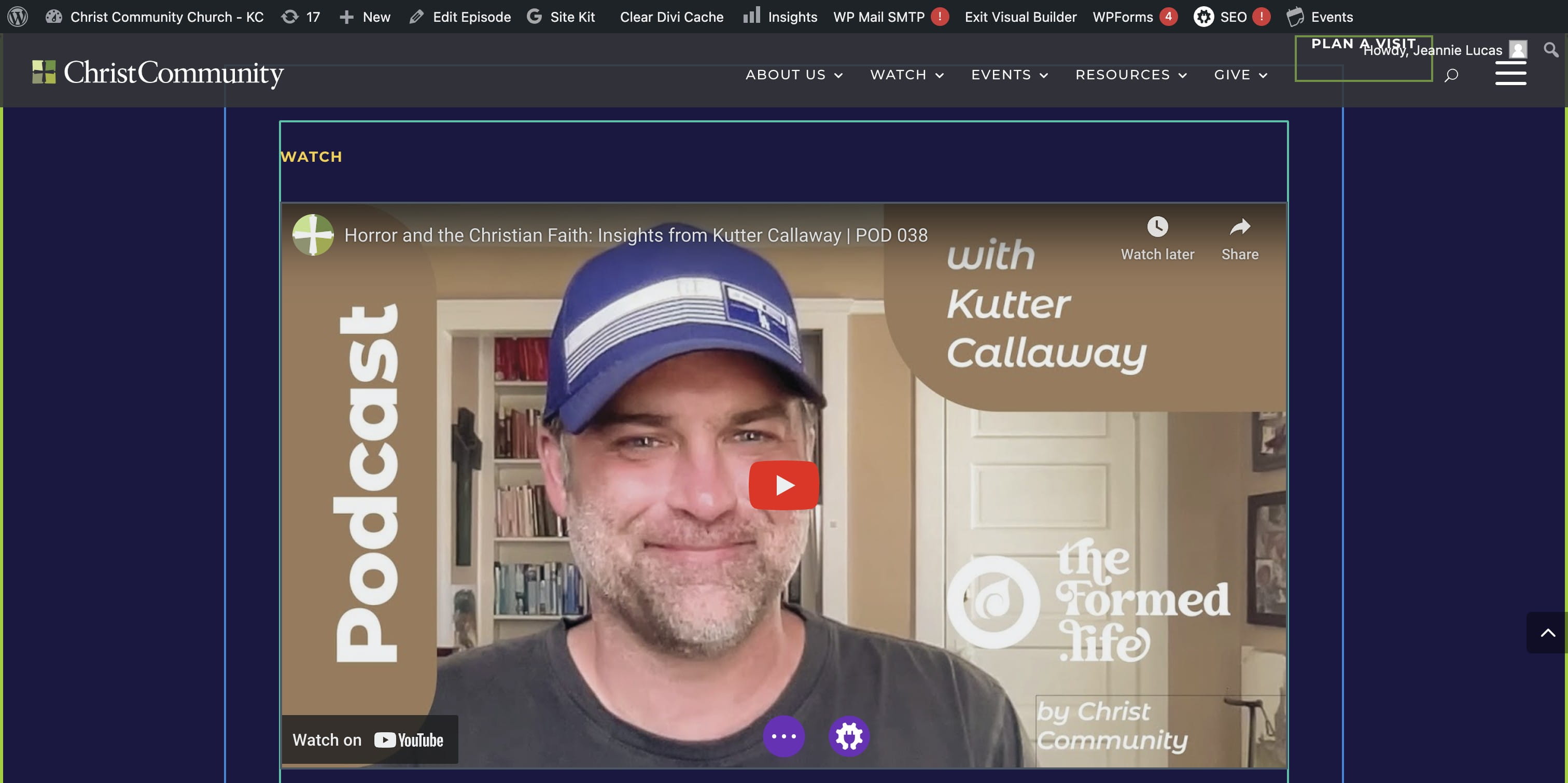
SELECT the VIDEO GEAR to edit the YouTube source.
COPY the URL from the ClickUp task for this episode.
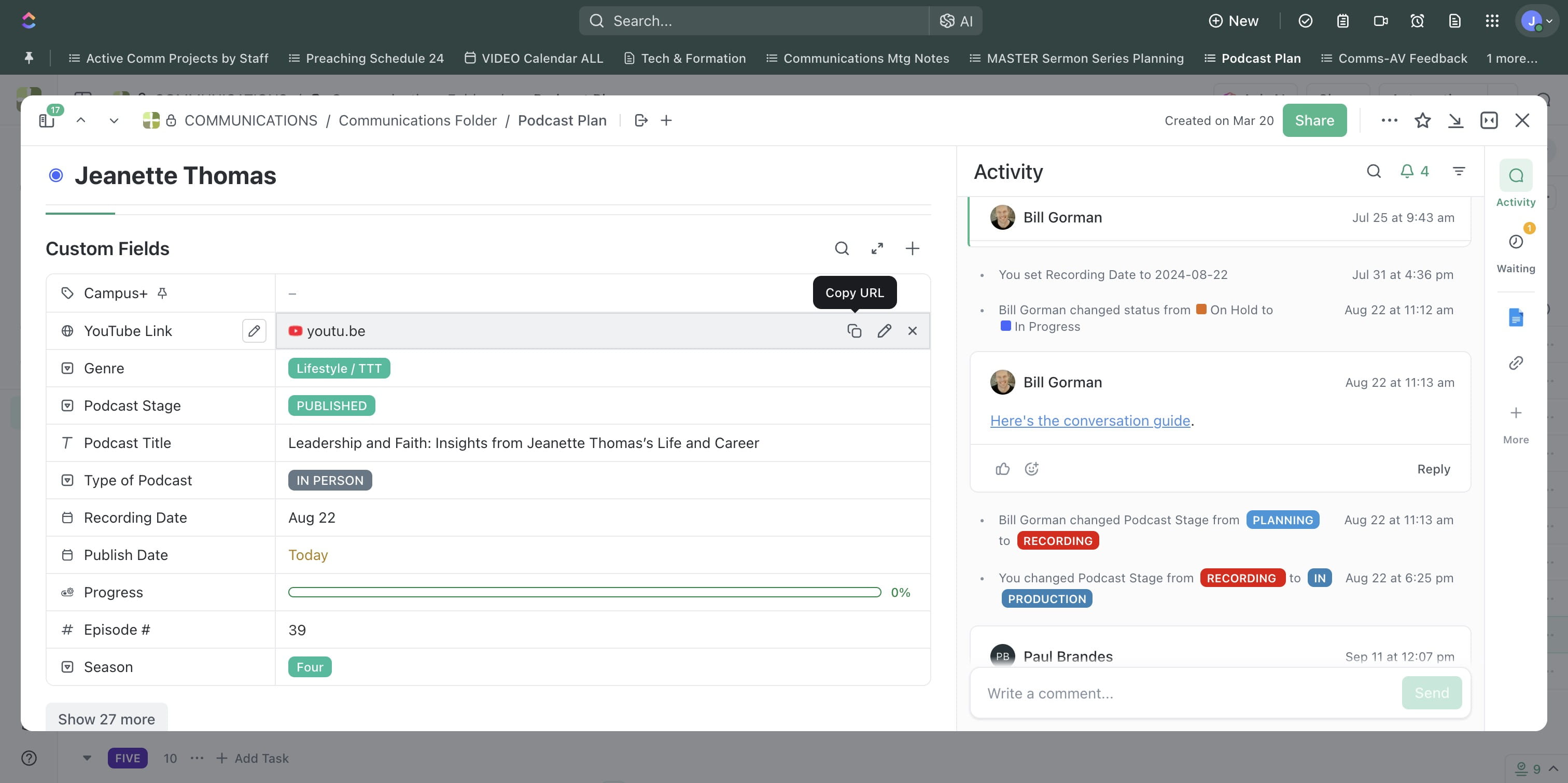
Click here
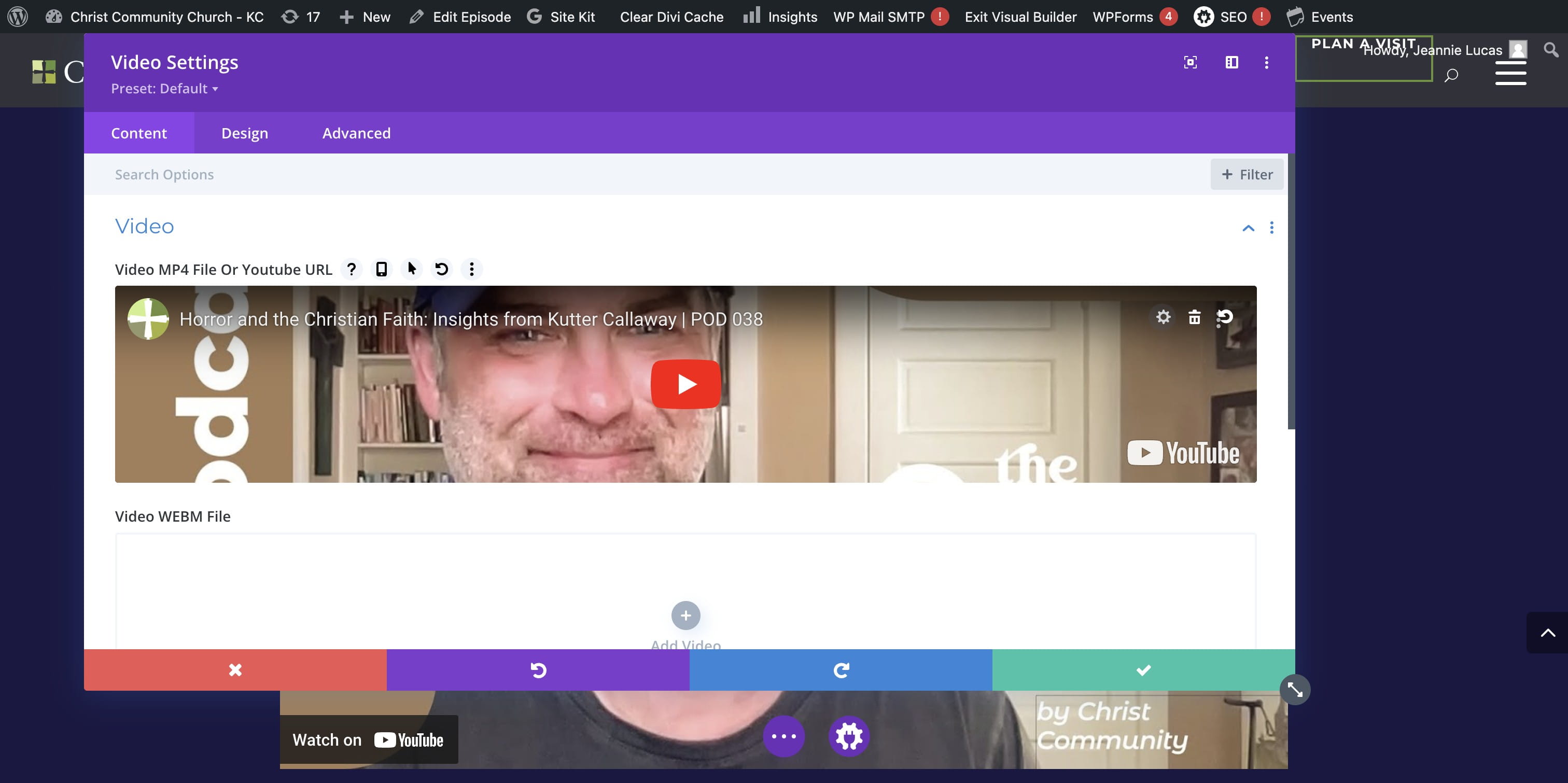
Click on "Insert from URL"
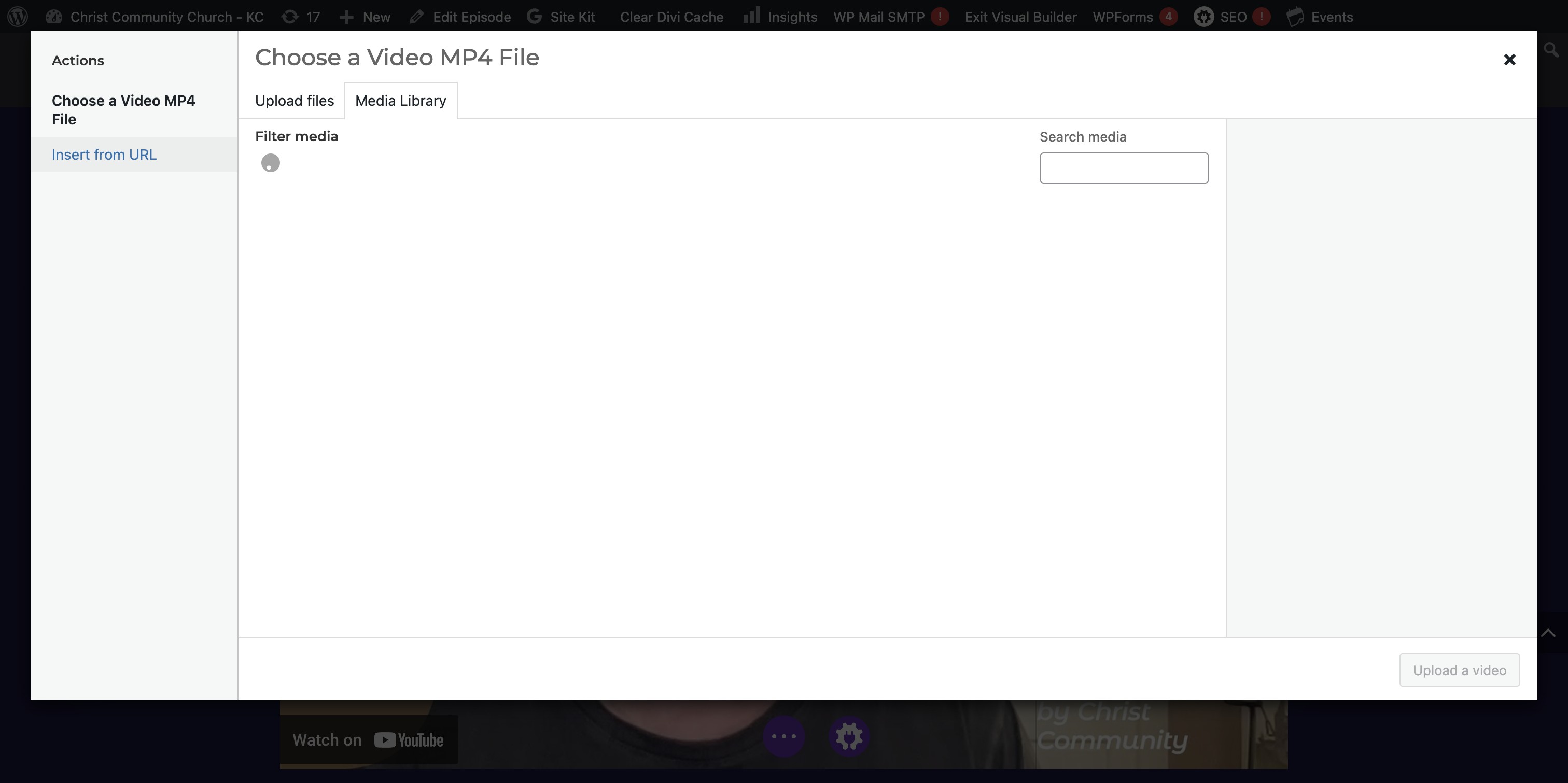
Click on "Link Text"
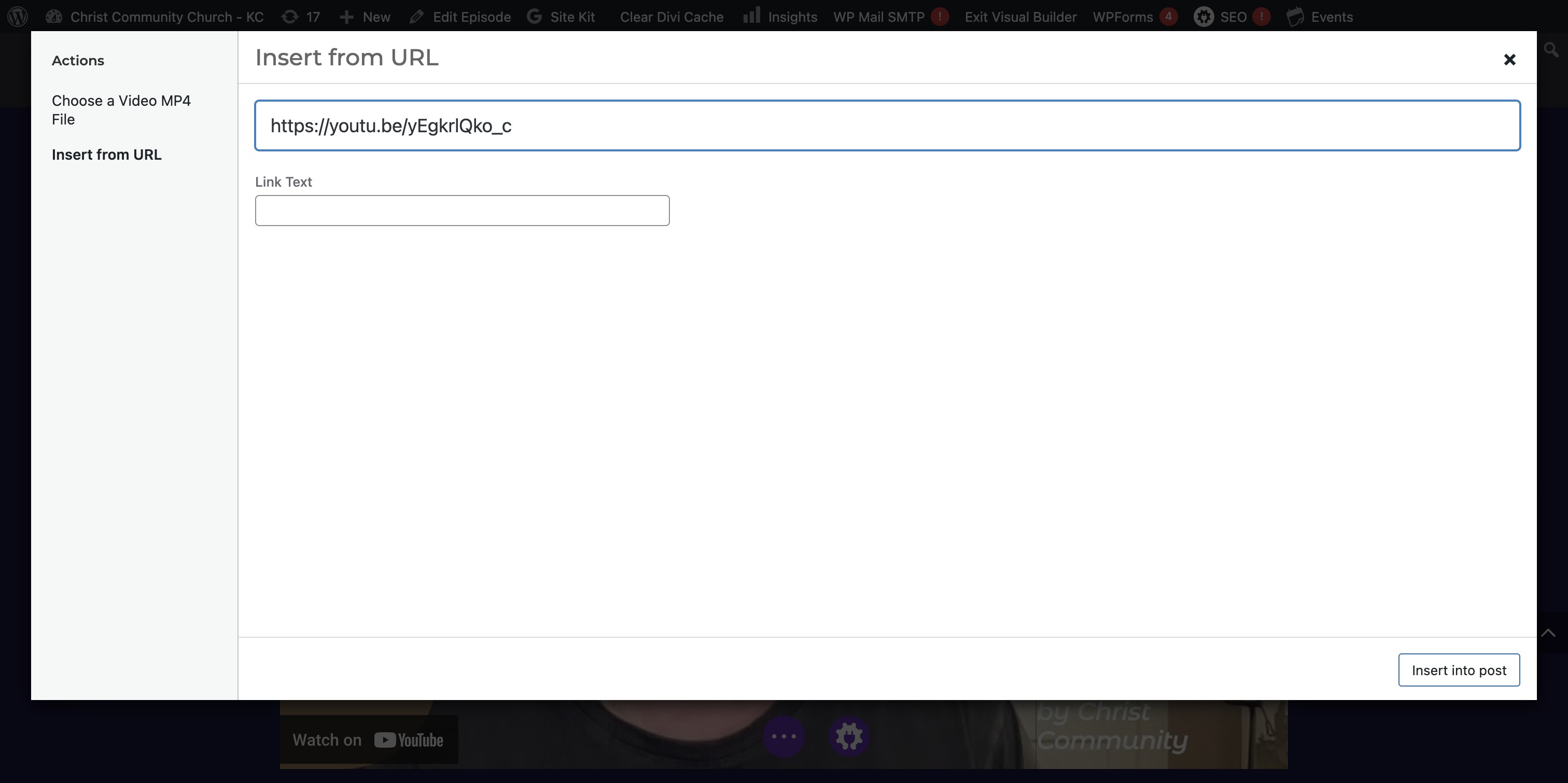
PASTE into the INSERT FROM URL Click on "Insert into post"
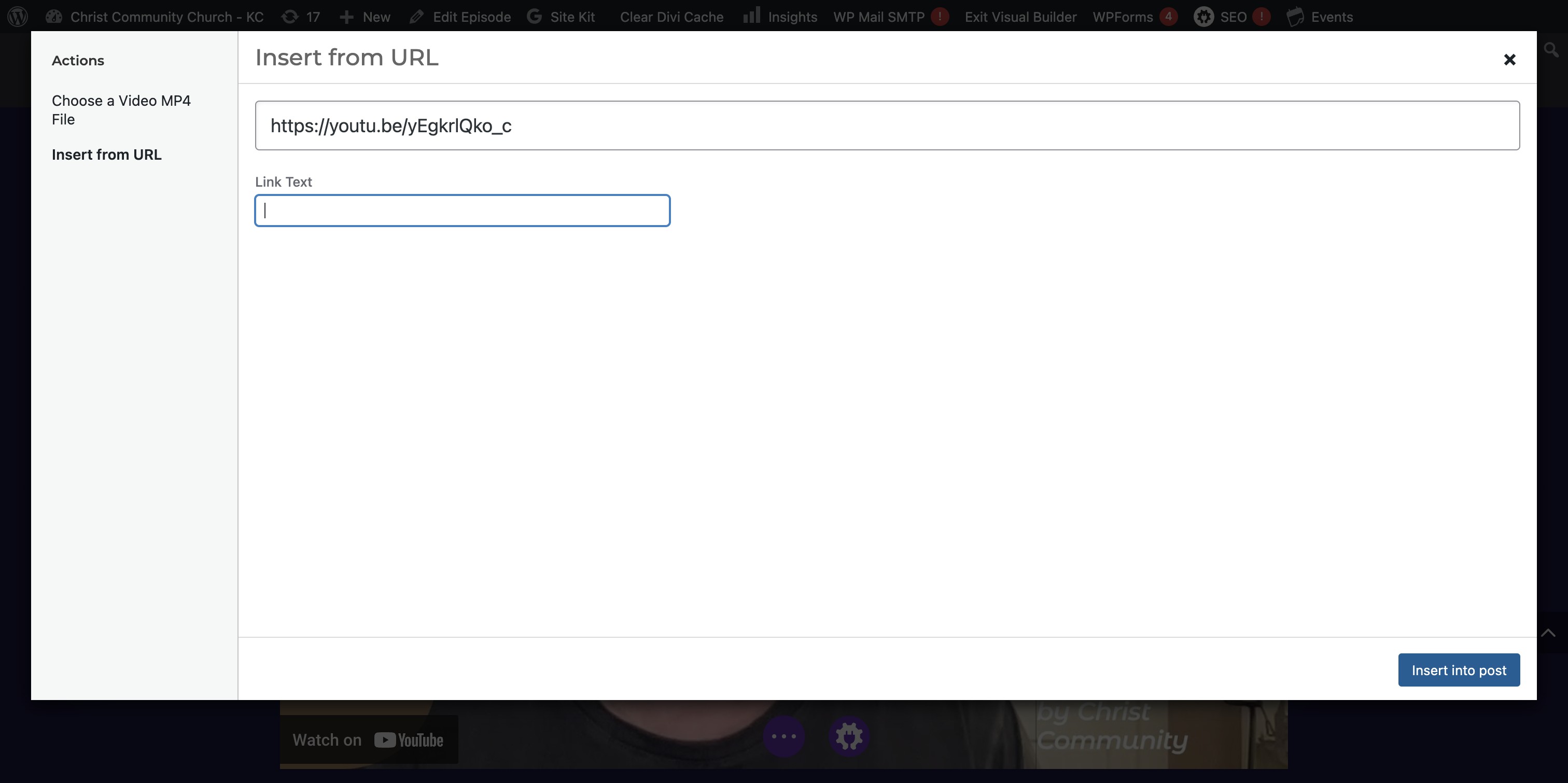
Click here
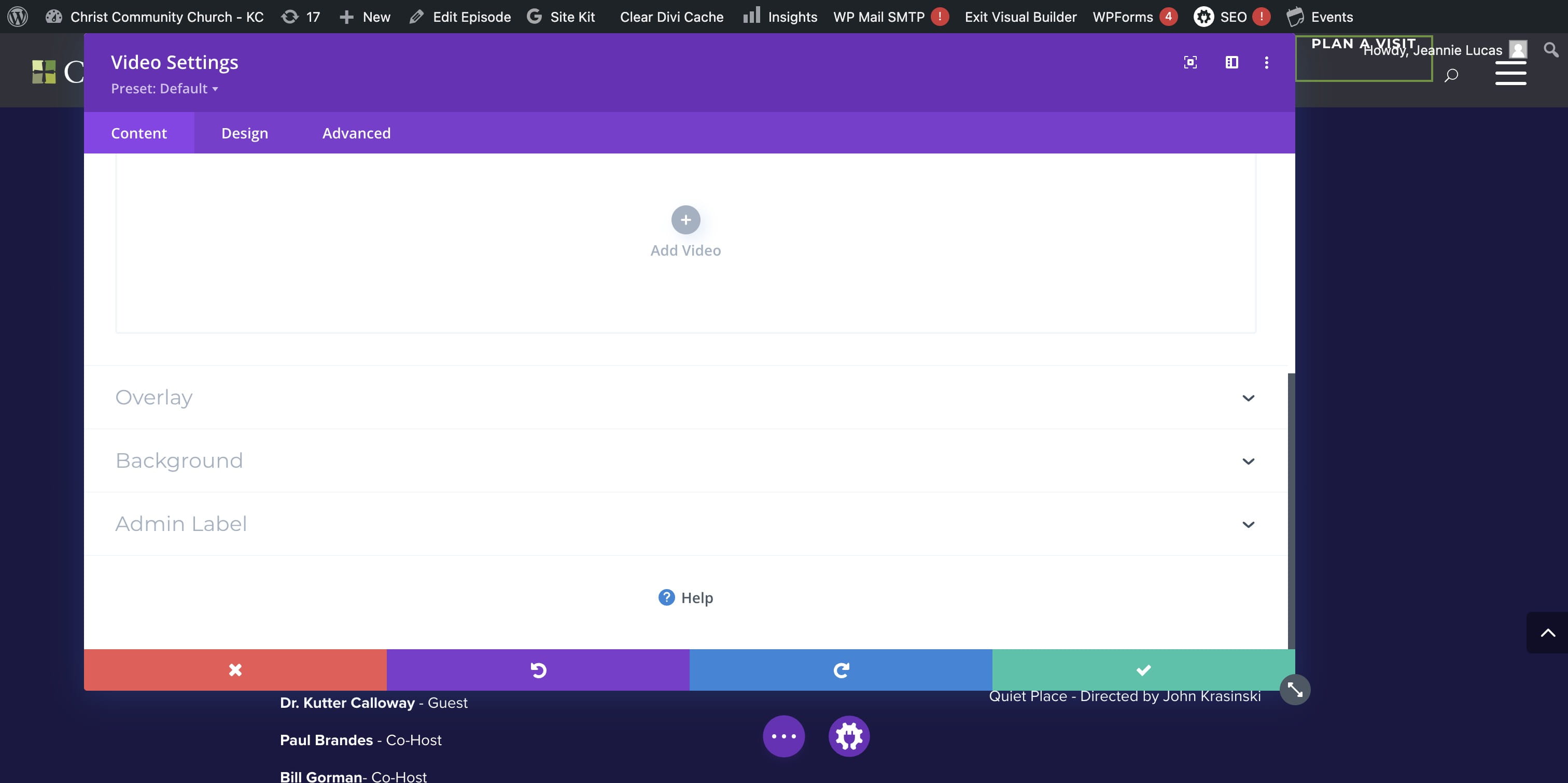
If the video is LIVE it will show up here. (Sorry, this didn't work in my example, but should work for you!)
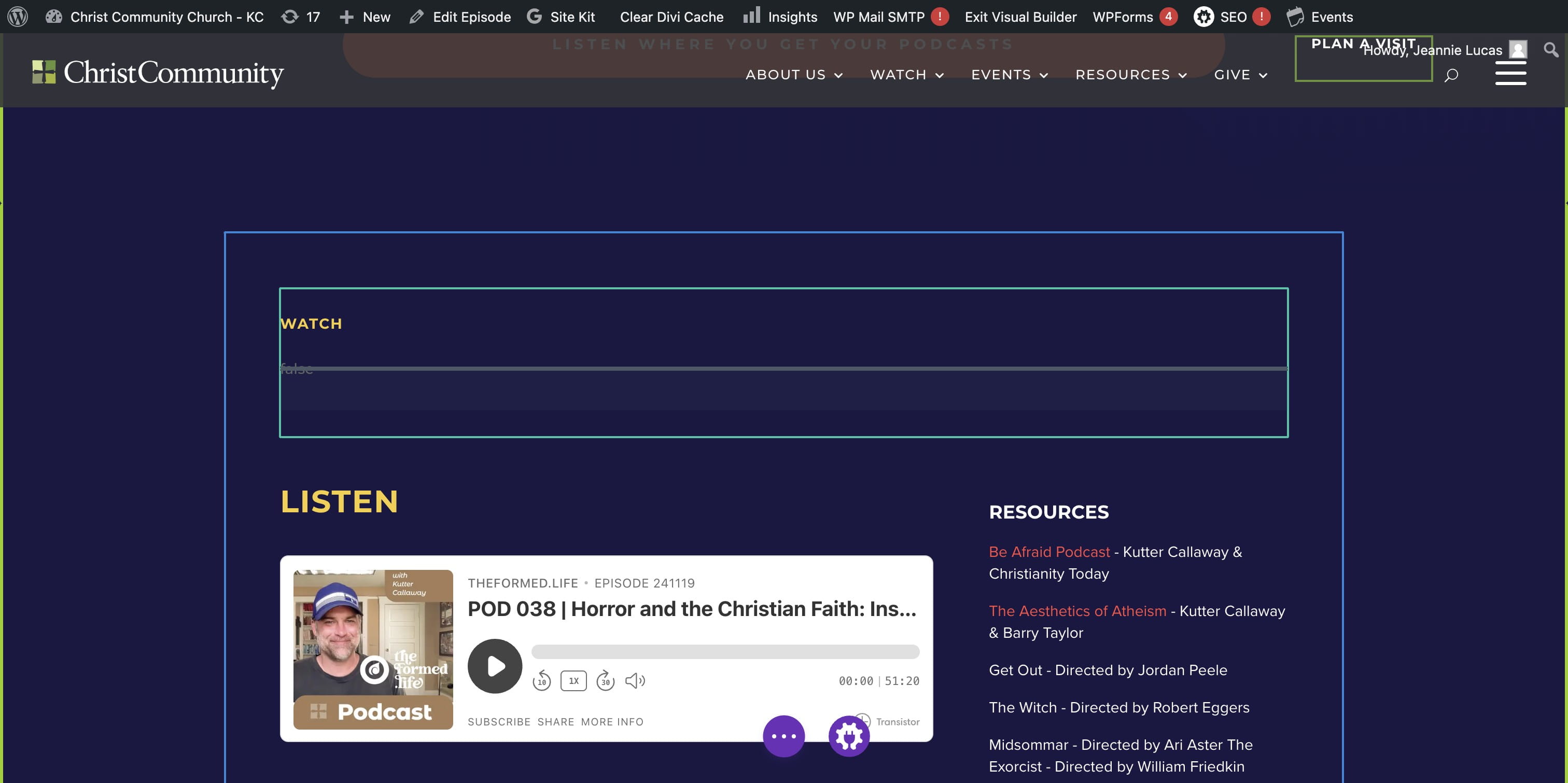
Update all the other content on the EPISODE page.
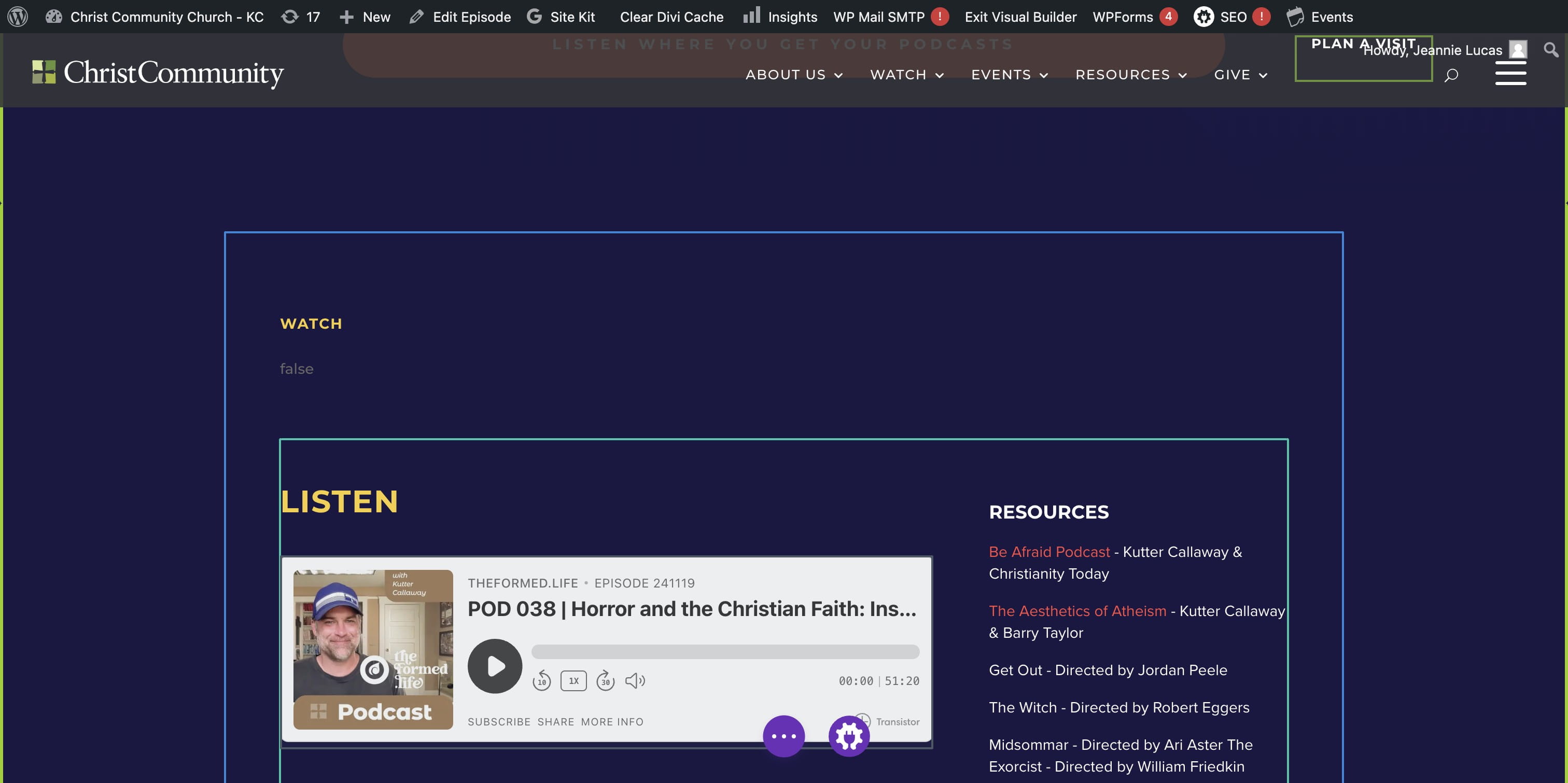
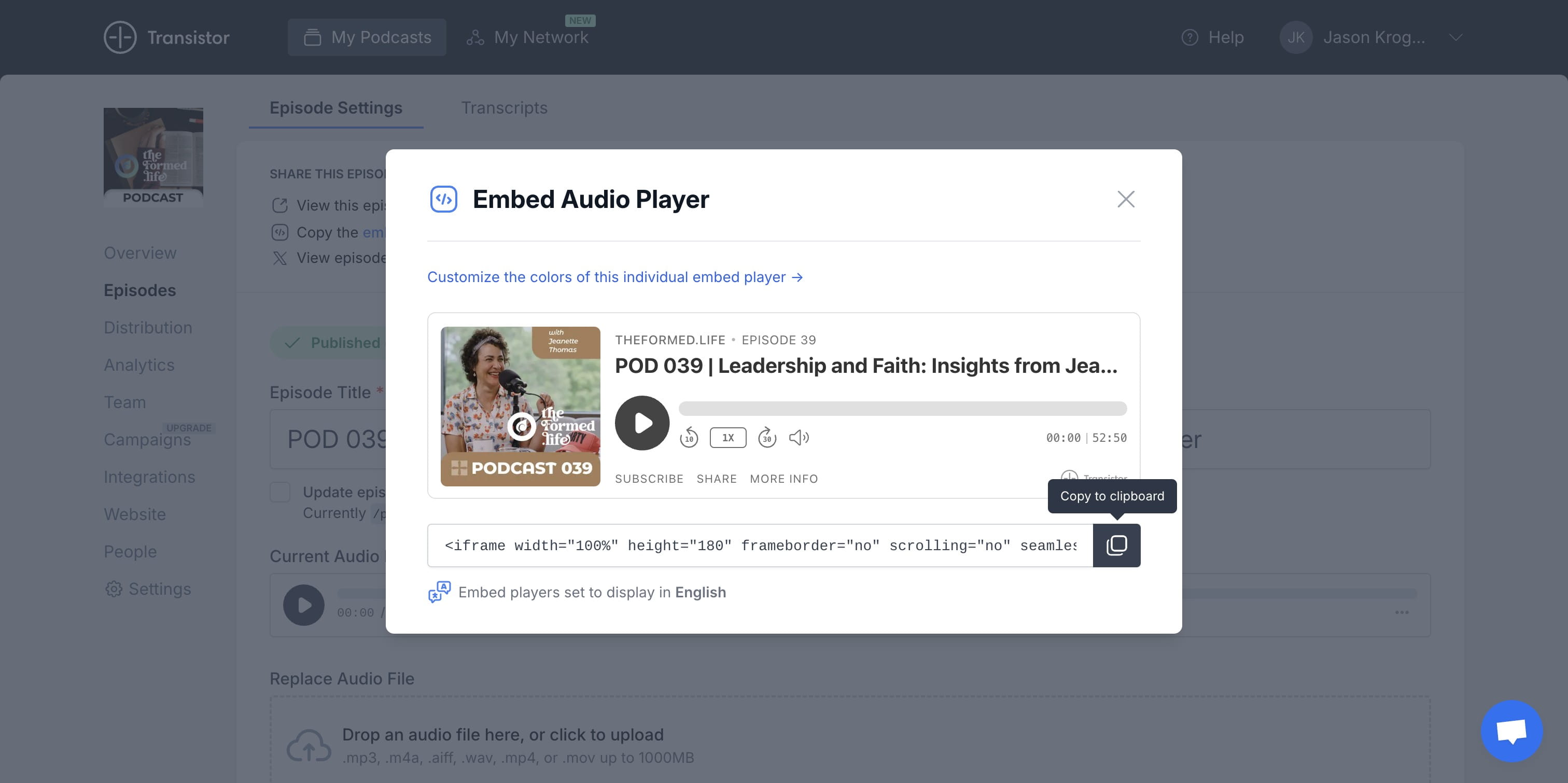
NAVIGATE to Transistor.fm. Use the "embed audio player HTML" code and COPY
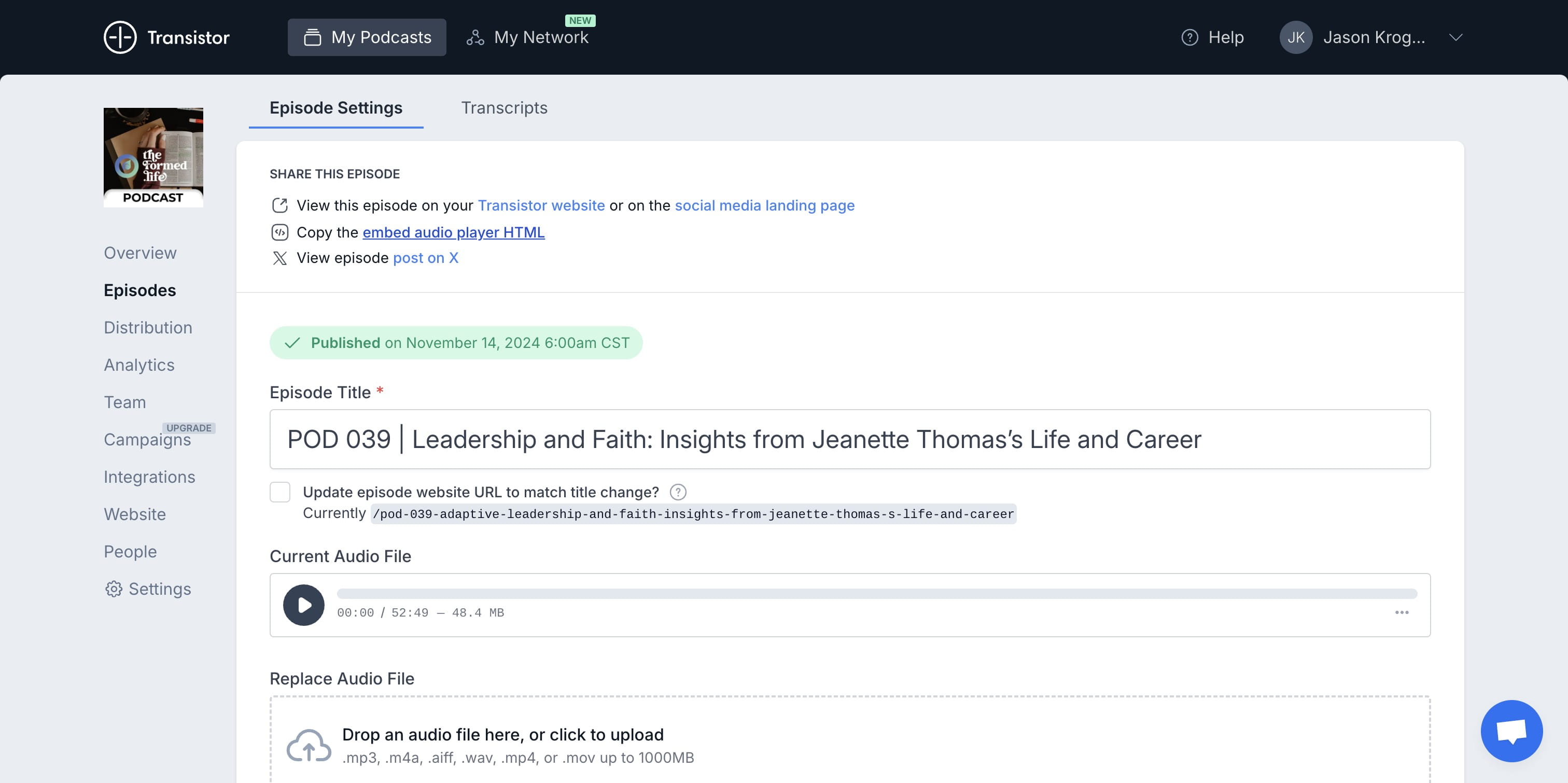
Click here to copy within Transistor.fm
Click on ""https://share.transistor.fm/e/c5263b78""
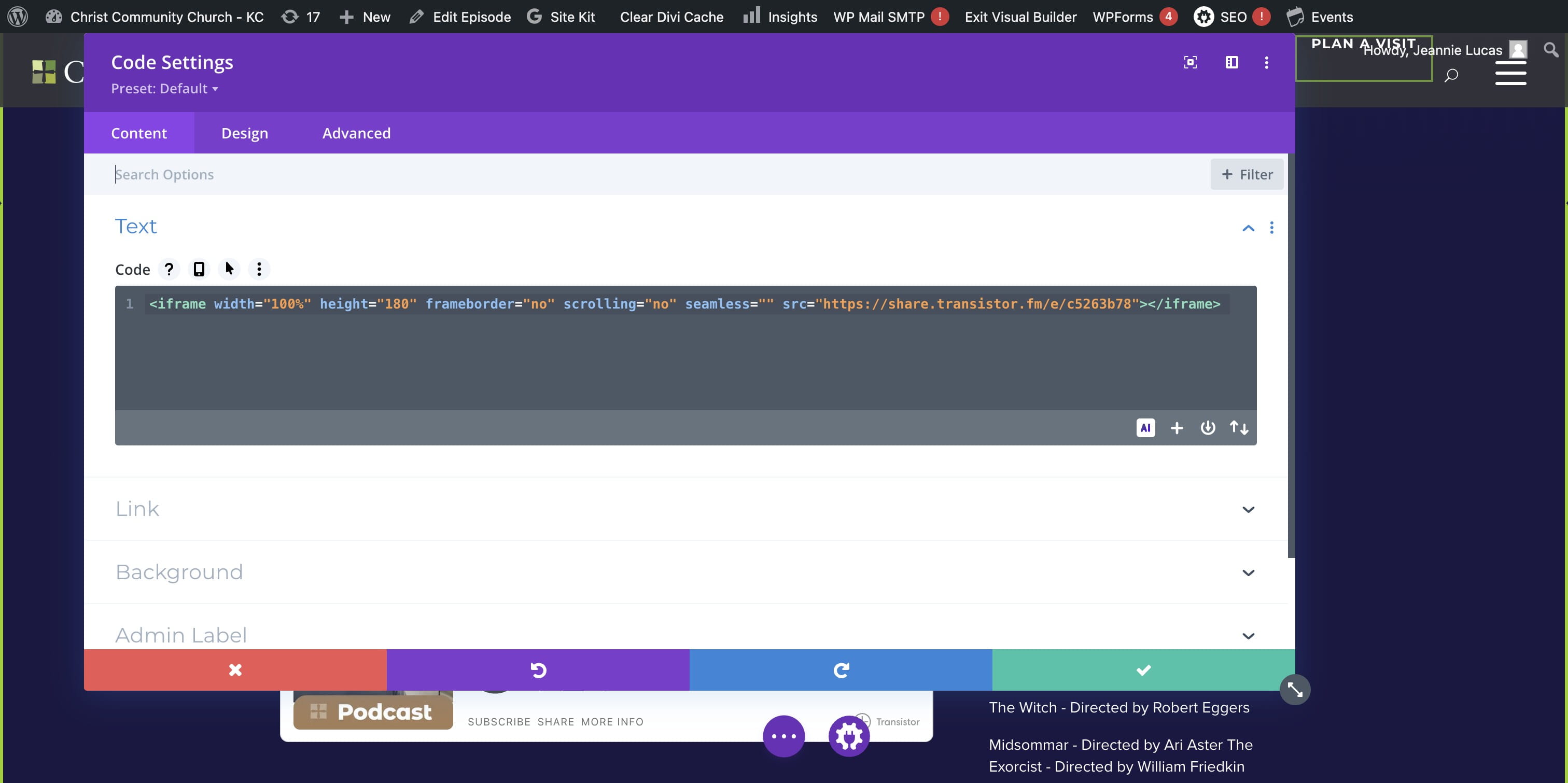
CUT the existing code, and PASTE in the new code.
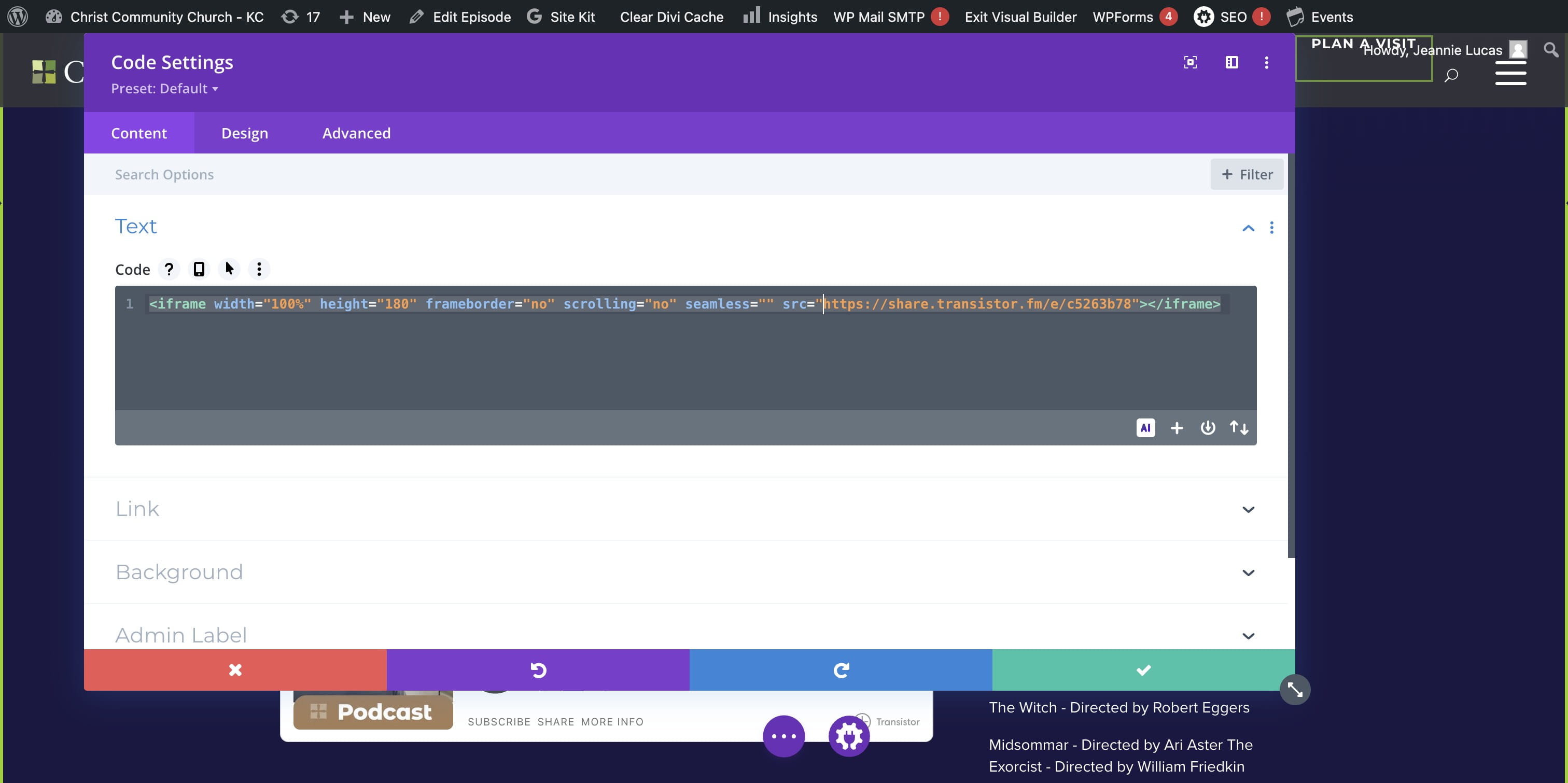
NEW Episode audio should show up now on your webpage.
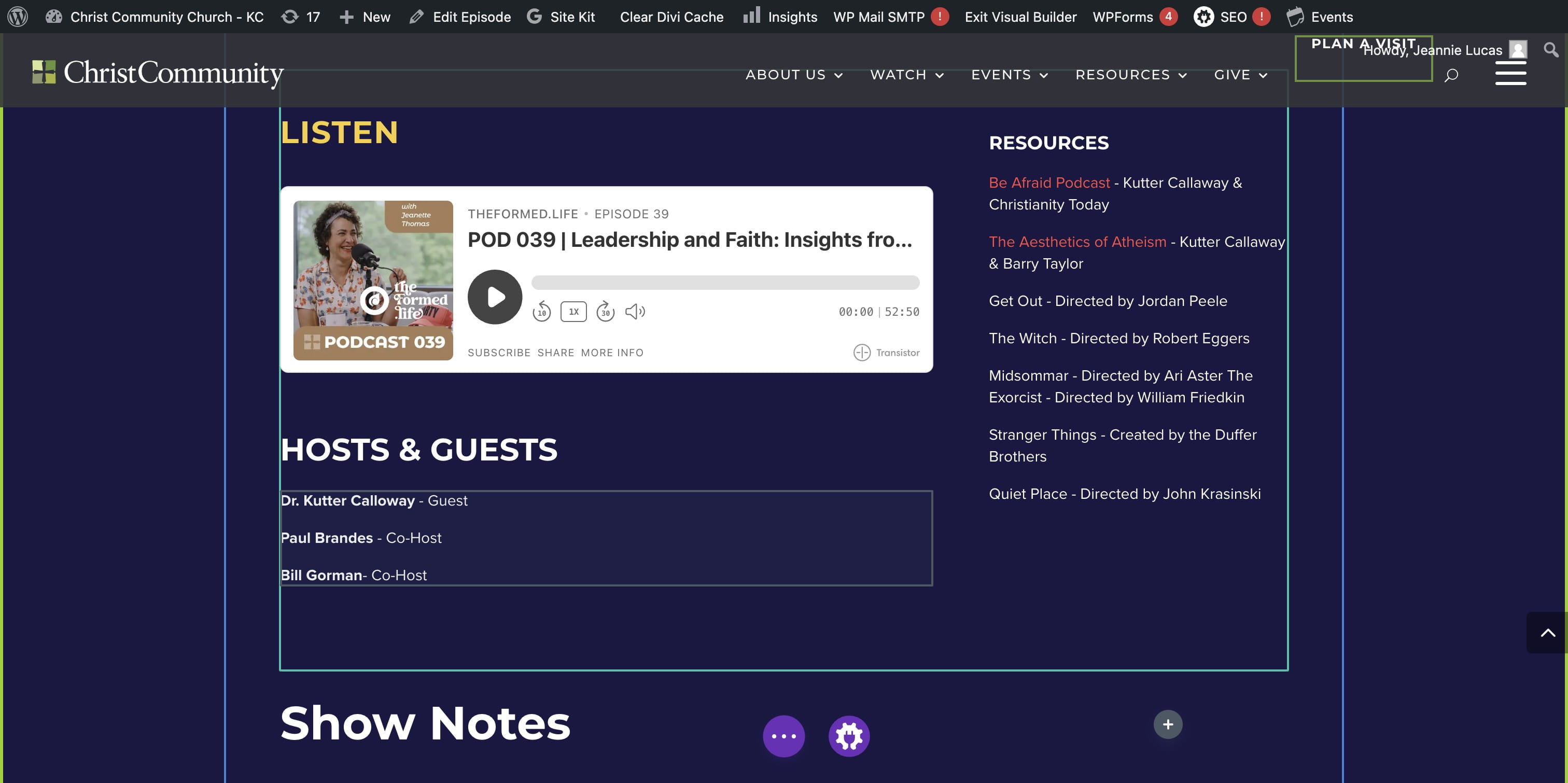
Continue editing the remaining Show Notes using the Conversation Guide (Show Notes) Google Doc.
SAVE your edits, EXIT VISUAL BUILDER and double-check your changes!