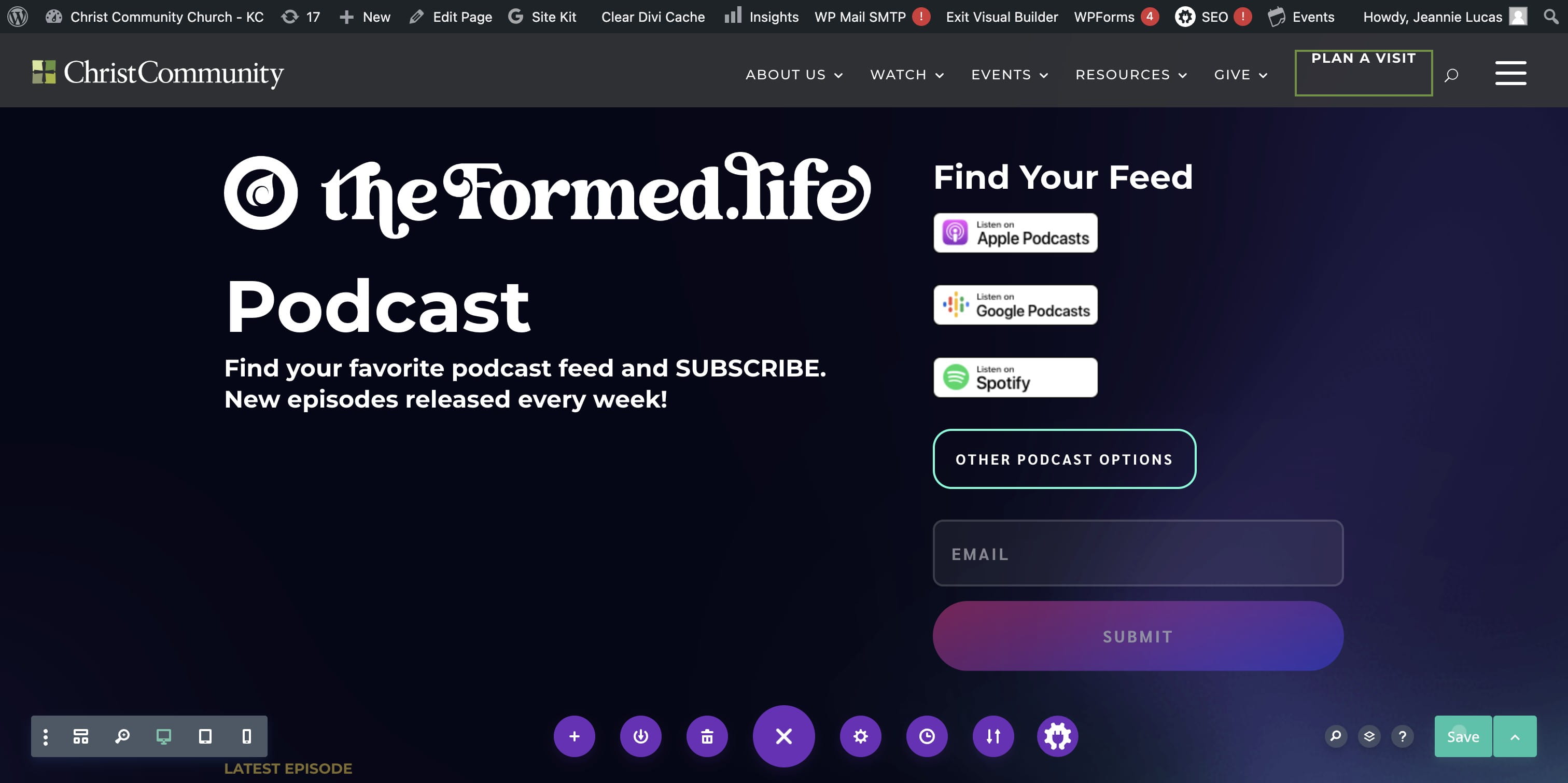
PODCAST - Updating the Podcast Homepage - Step 2
Click on "PODCAST – theFormed.life"
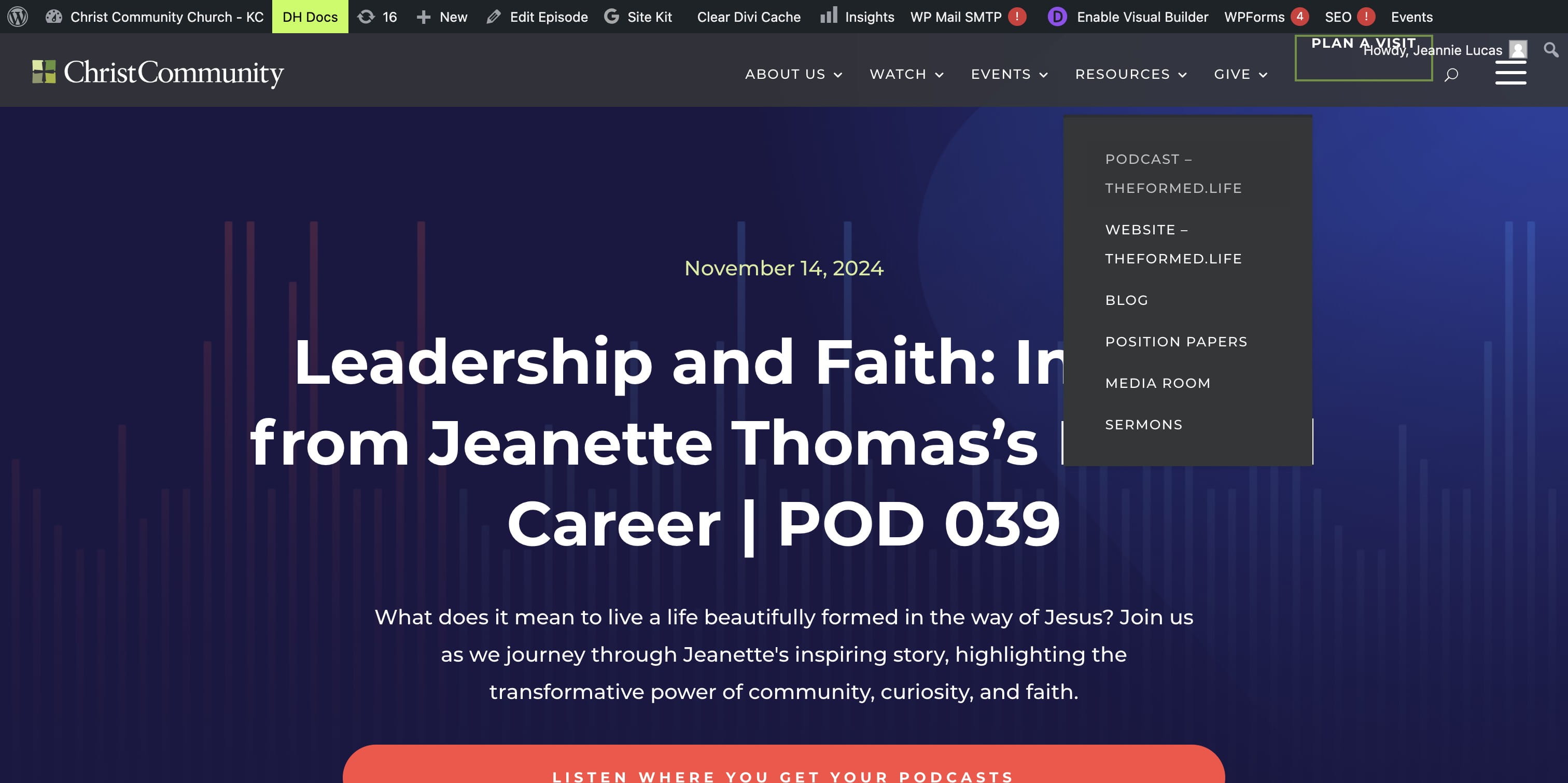
Click on "Enable Visual Builder"
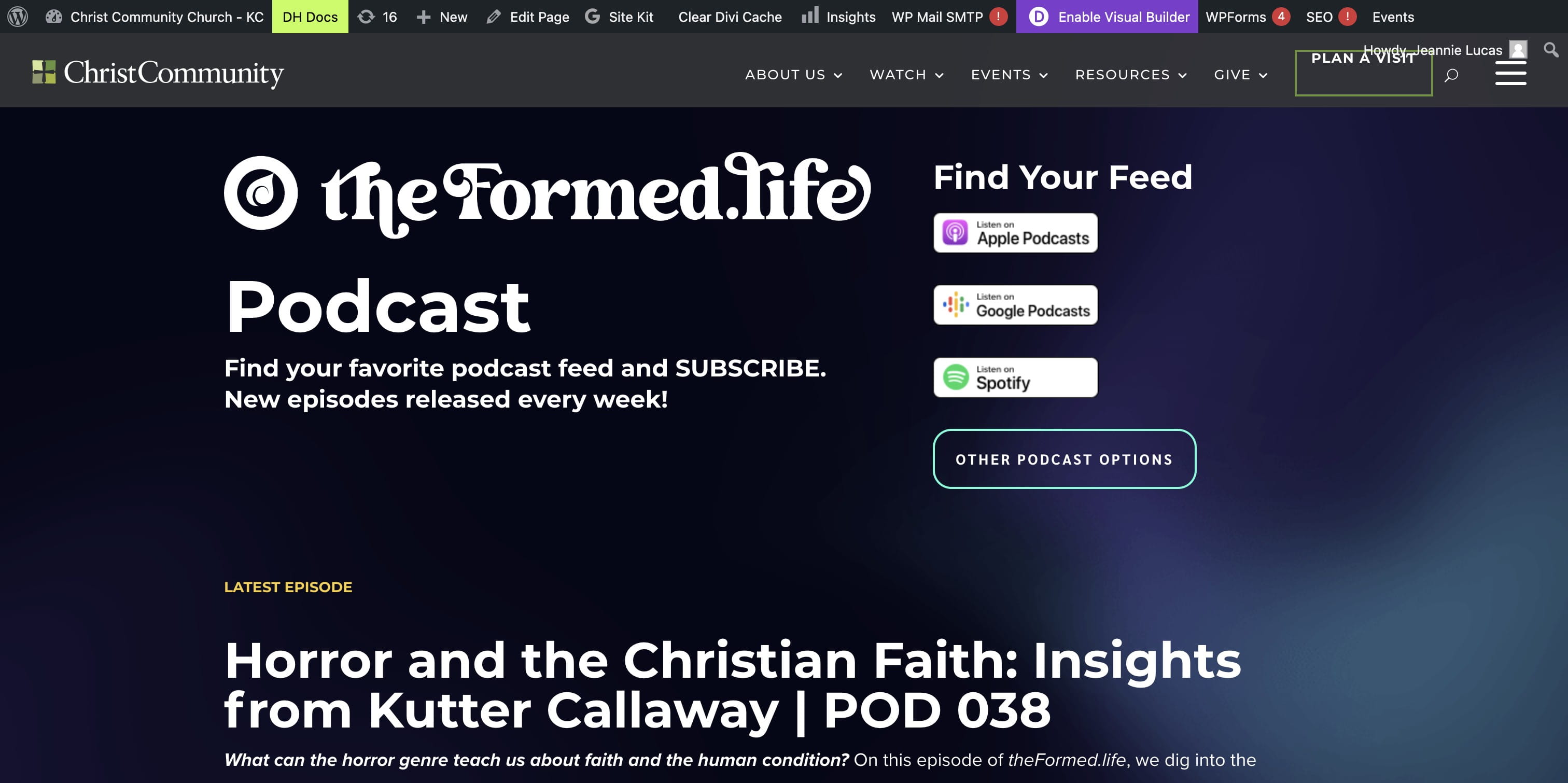
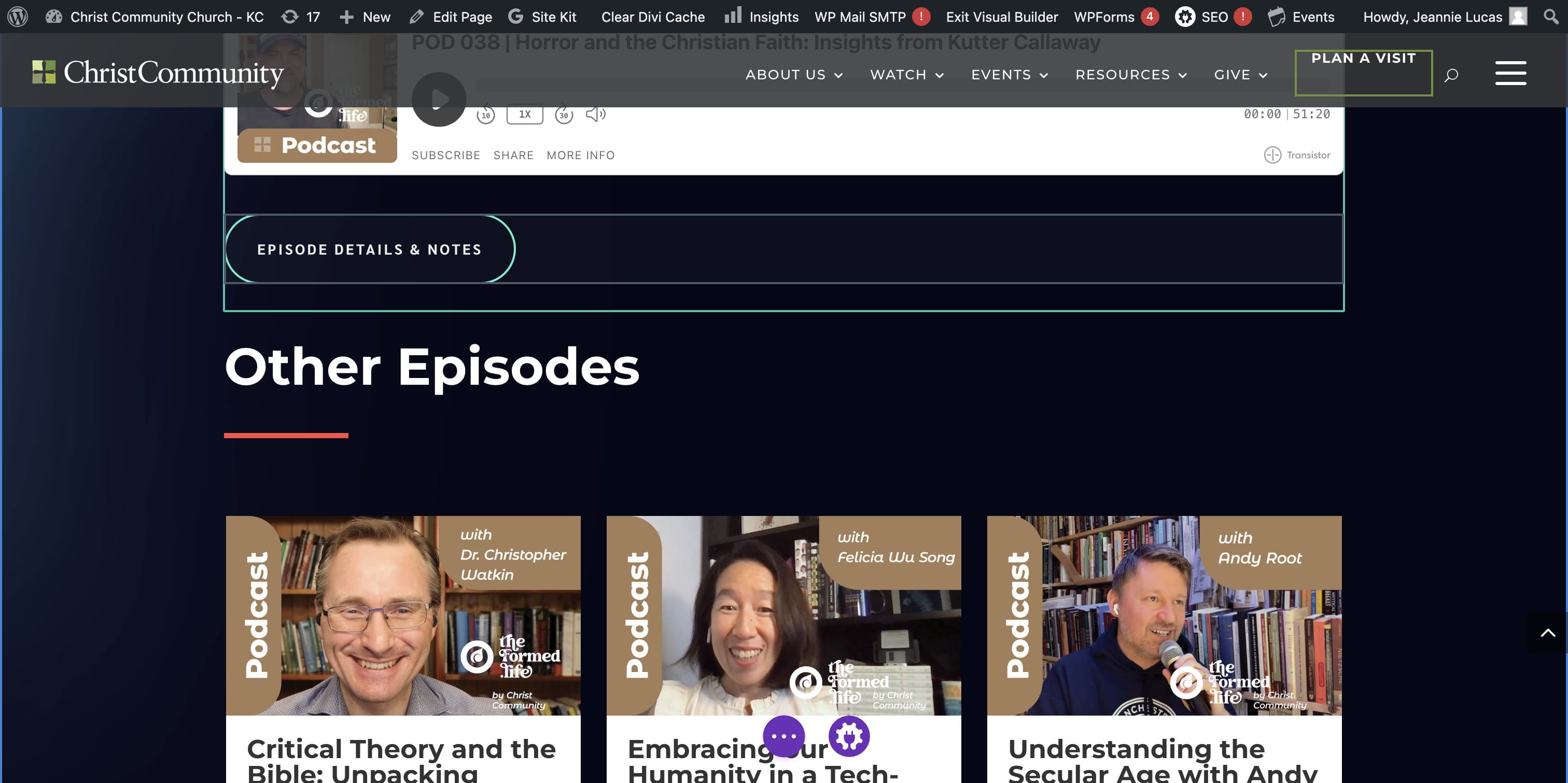
SELECT the Episode Button to edit the URL
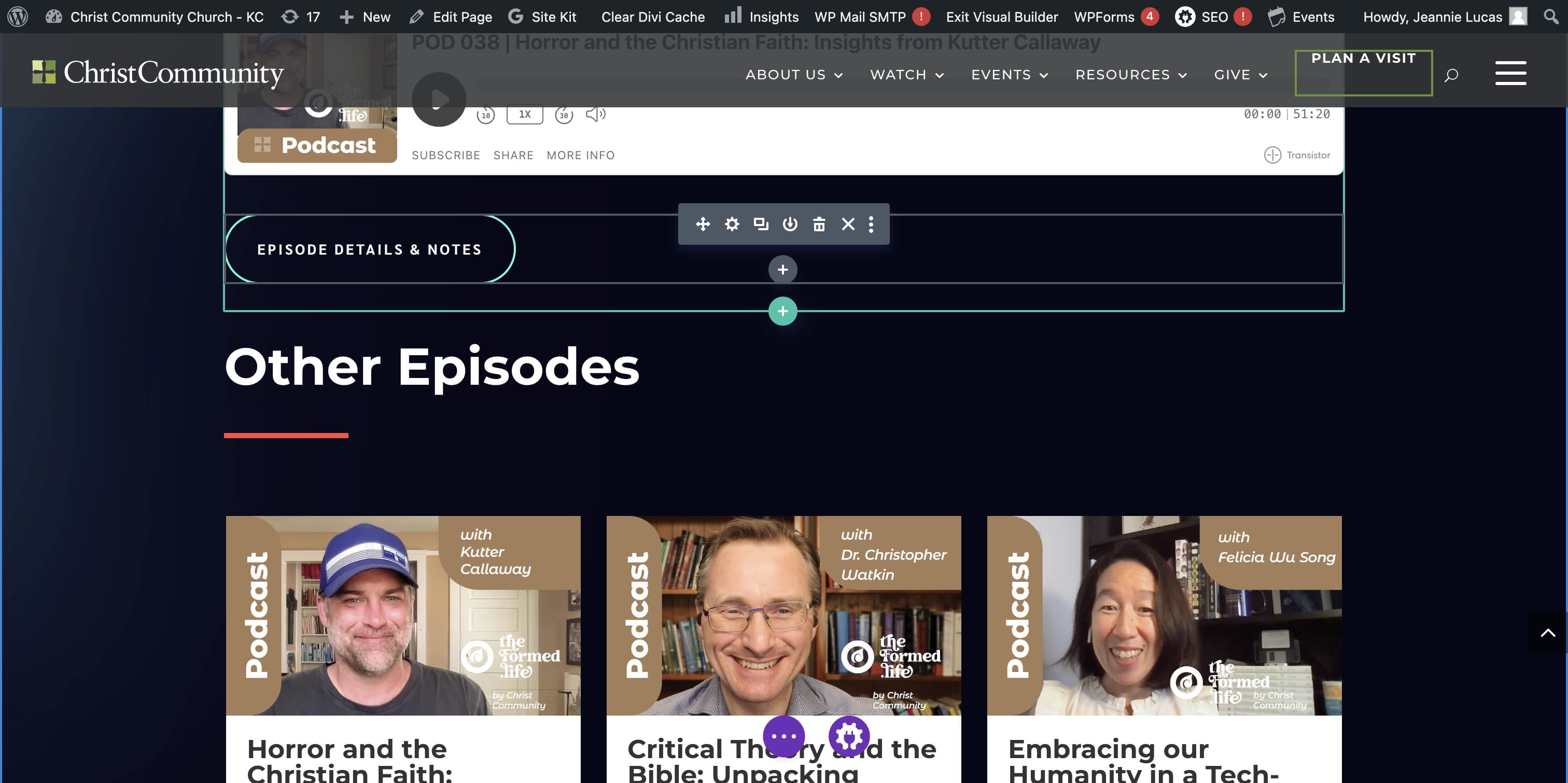
CLICK the Gear ICON
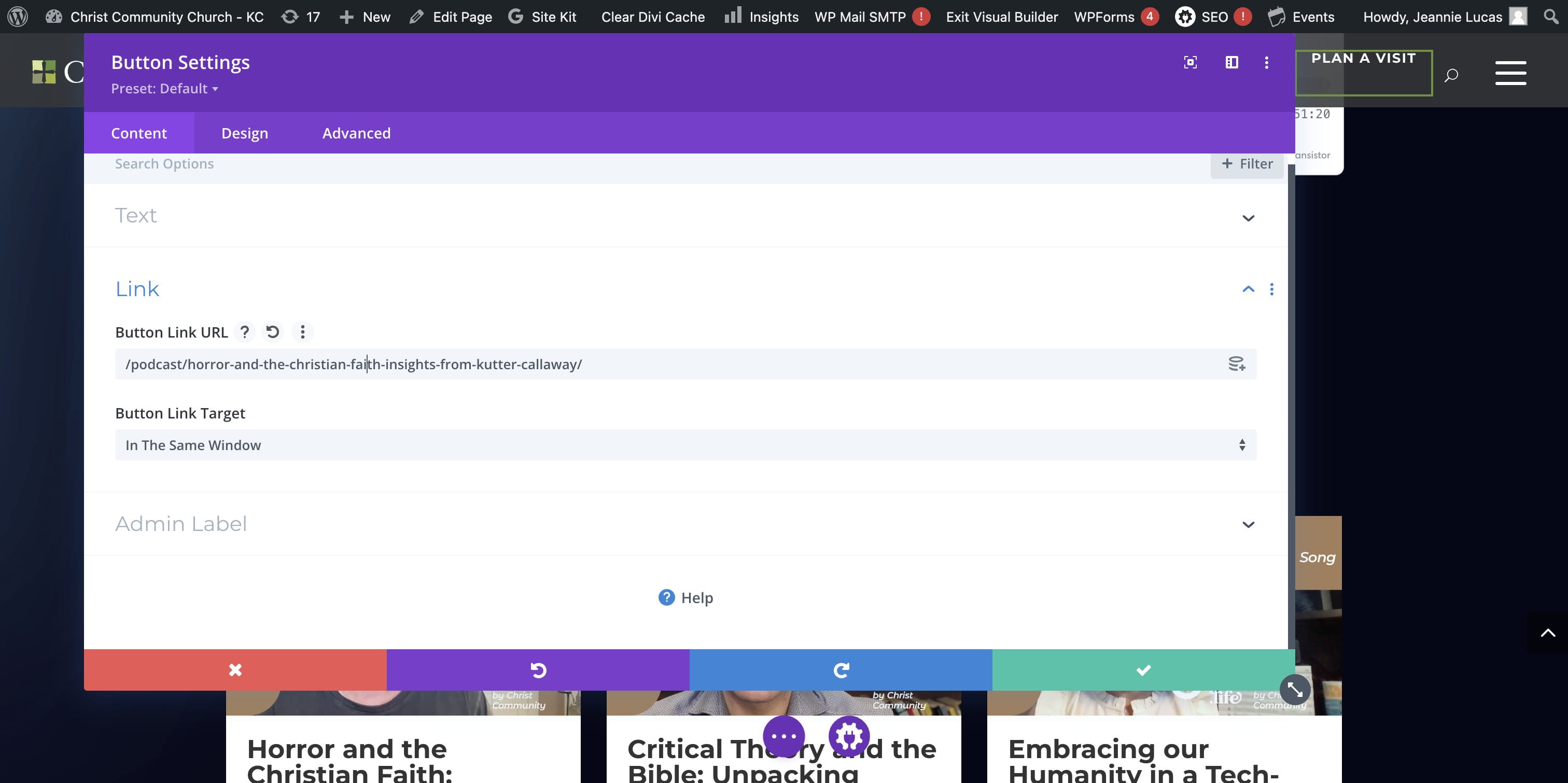
CLICK the Button link URL and PASTE in the URL from the PODCAST EPISODE LANDING PAGE
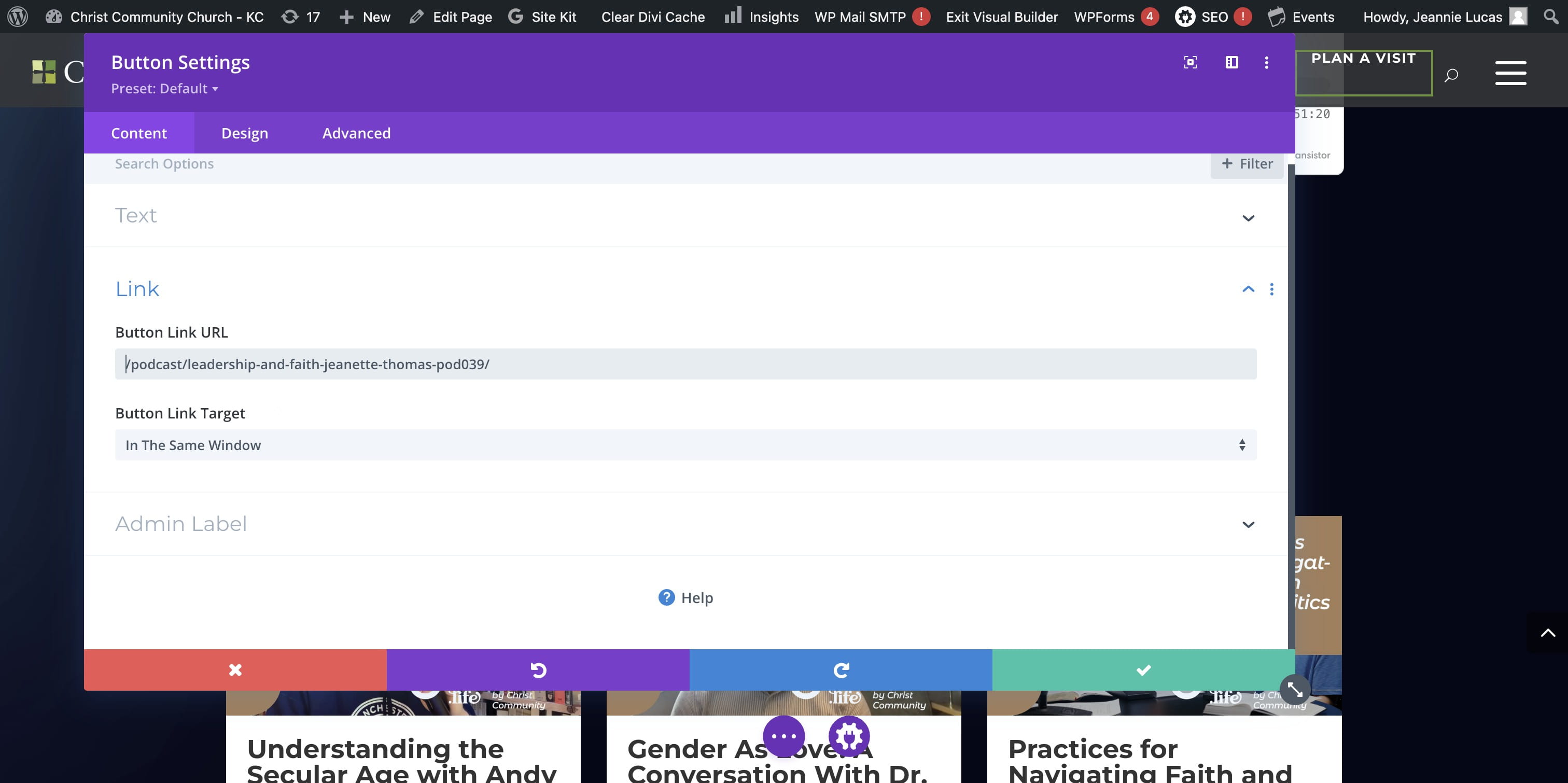
NOTE: You can delete the "https://cckc.church/" before the /podcast/...
CLICK the Episode Audio section to edit the source.
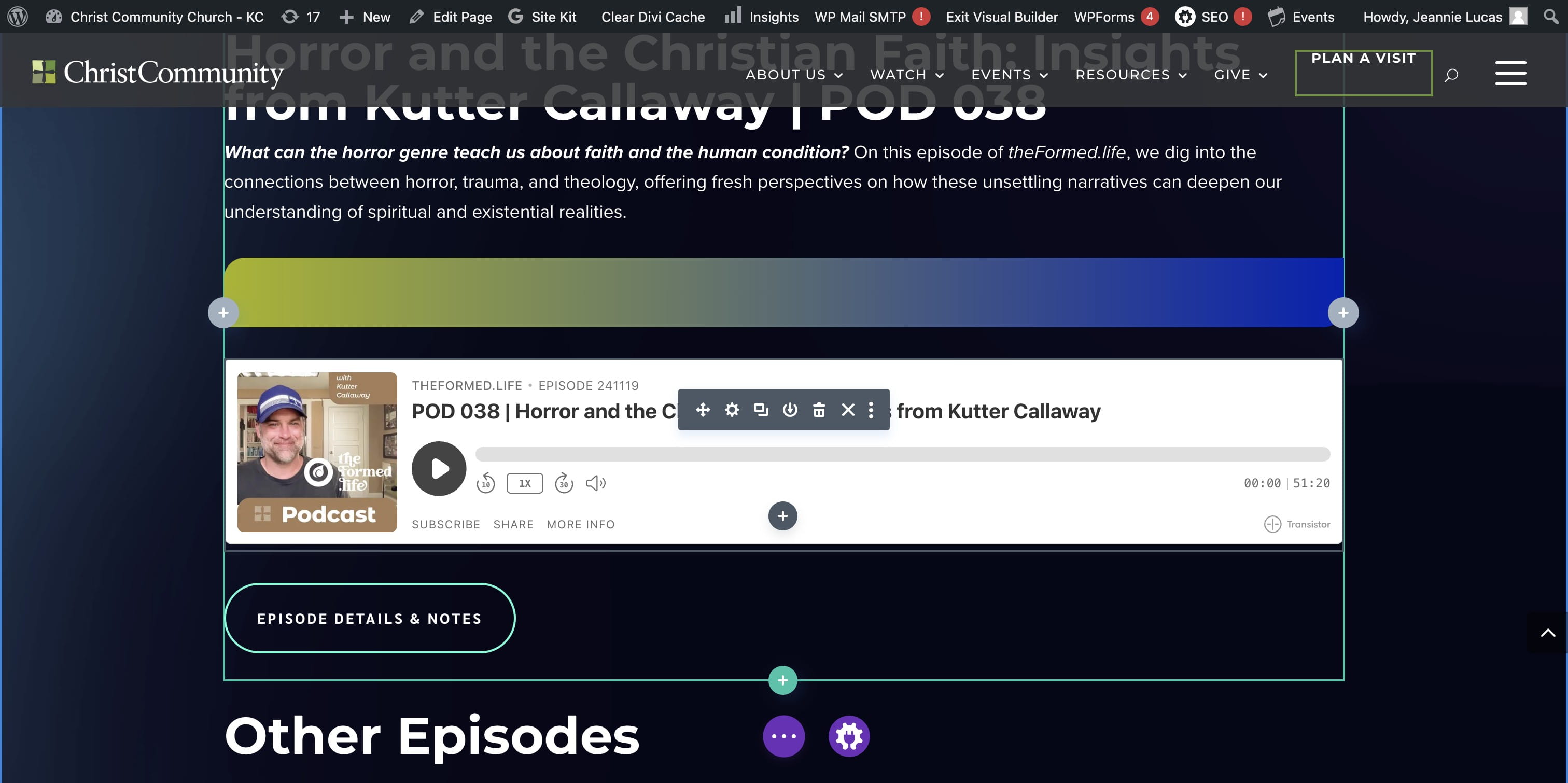
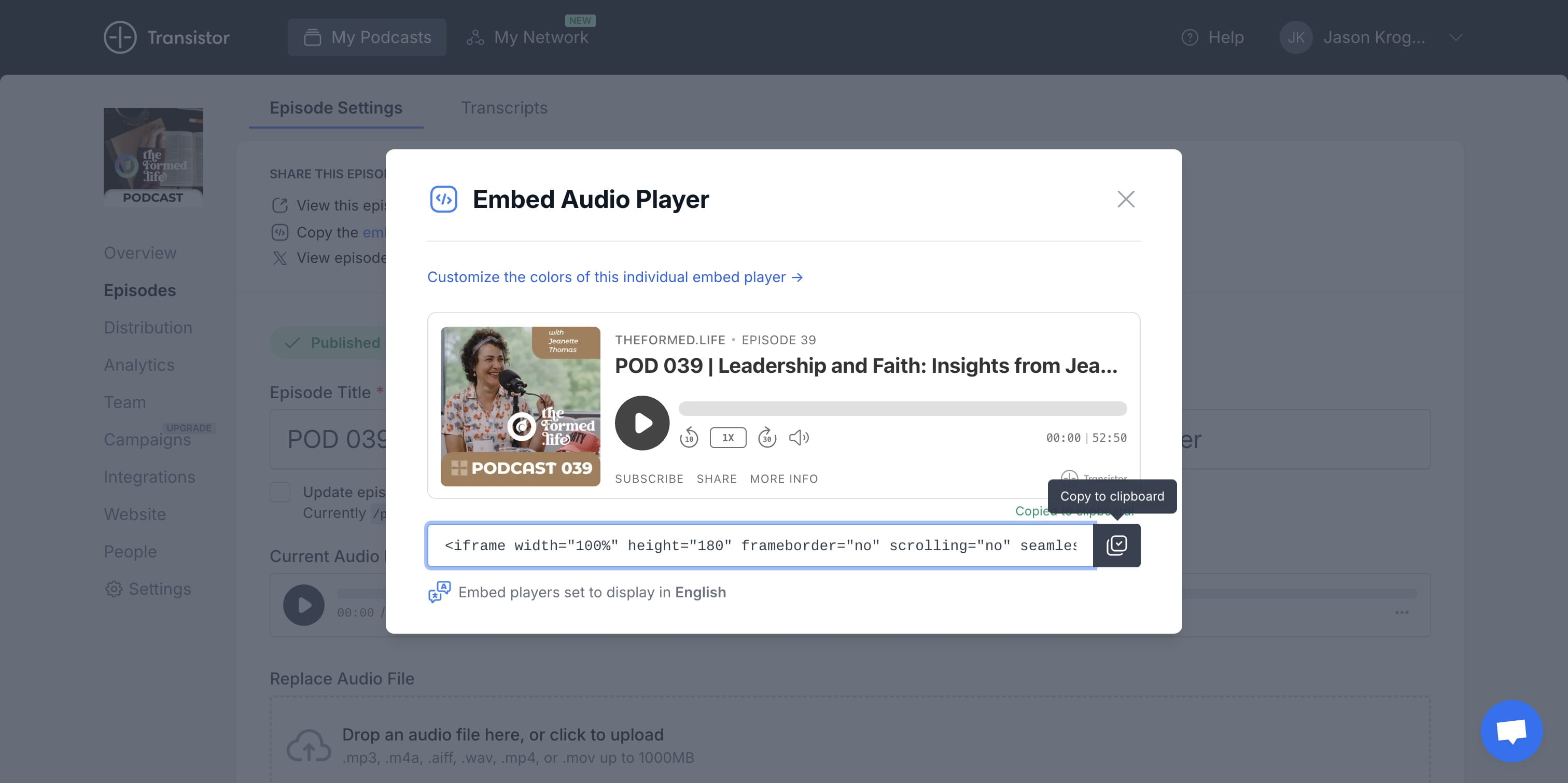
NAVIGATE to the Episode in TRANSISTOR.fm and copy the EMBED AUDIO PLAYER code.
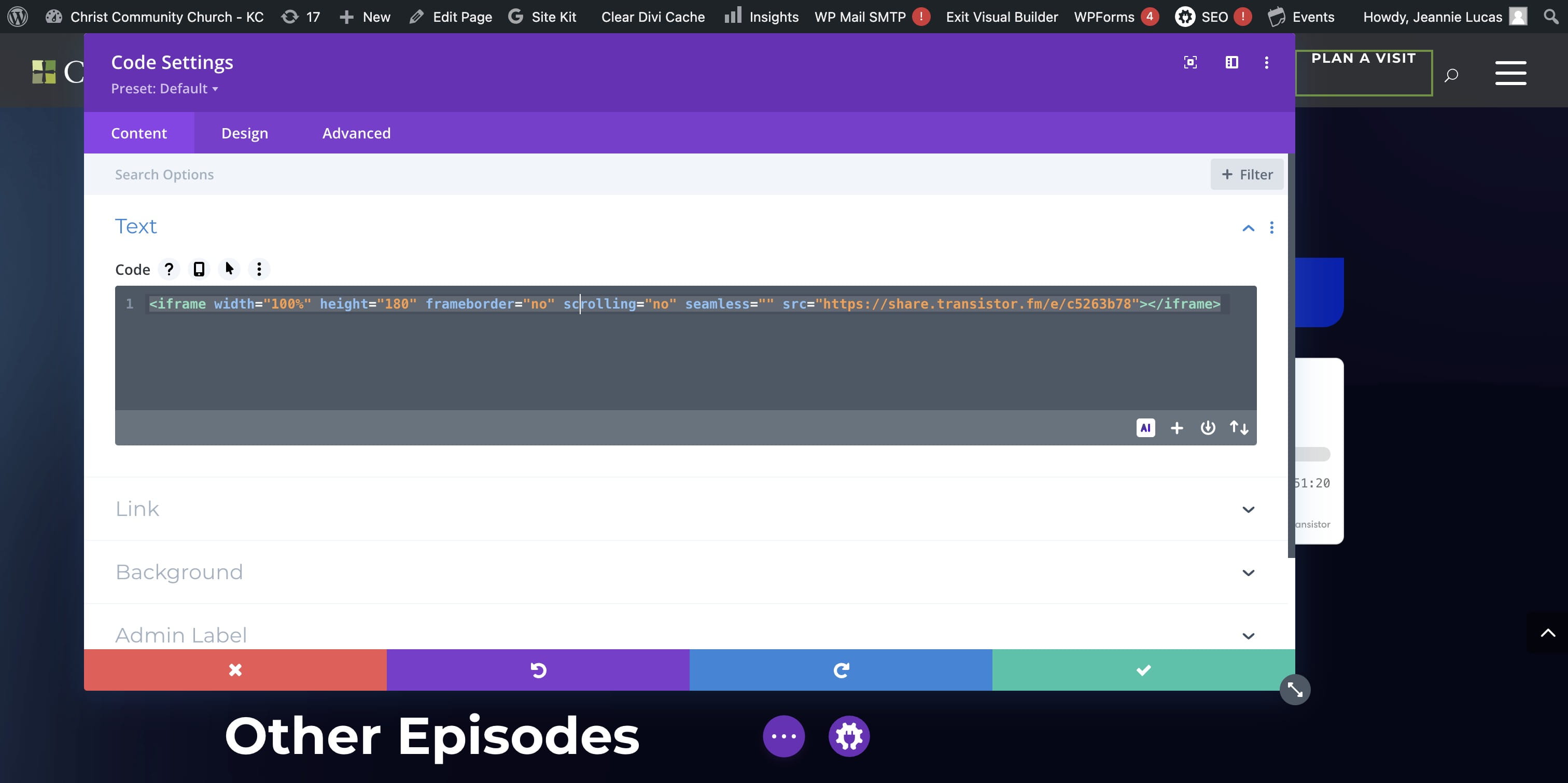
NAVIGATE back to the Podcast Landing Homepage. In CODE SETTINGS, DELETE the current code and PASTE in the EMBED AUDIO PLAYER code from Transistor.fm
USE the Google Doc of Show Notes to copy and paste the Title and Intro Paragraph into the PODCAST Homepage
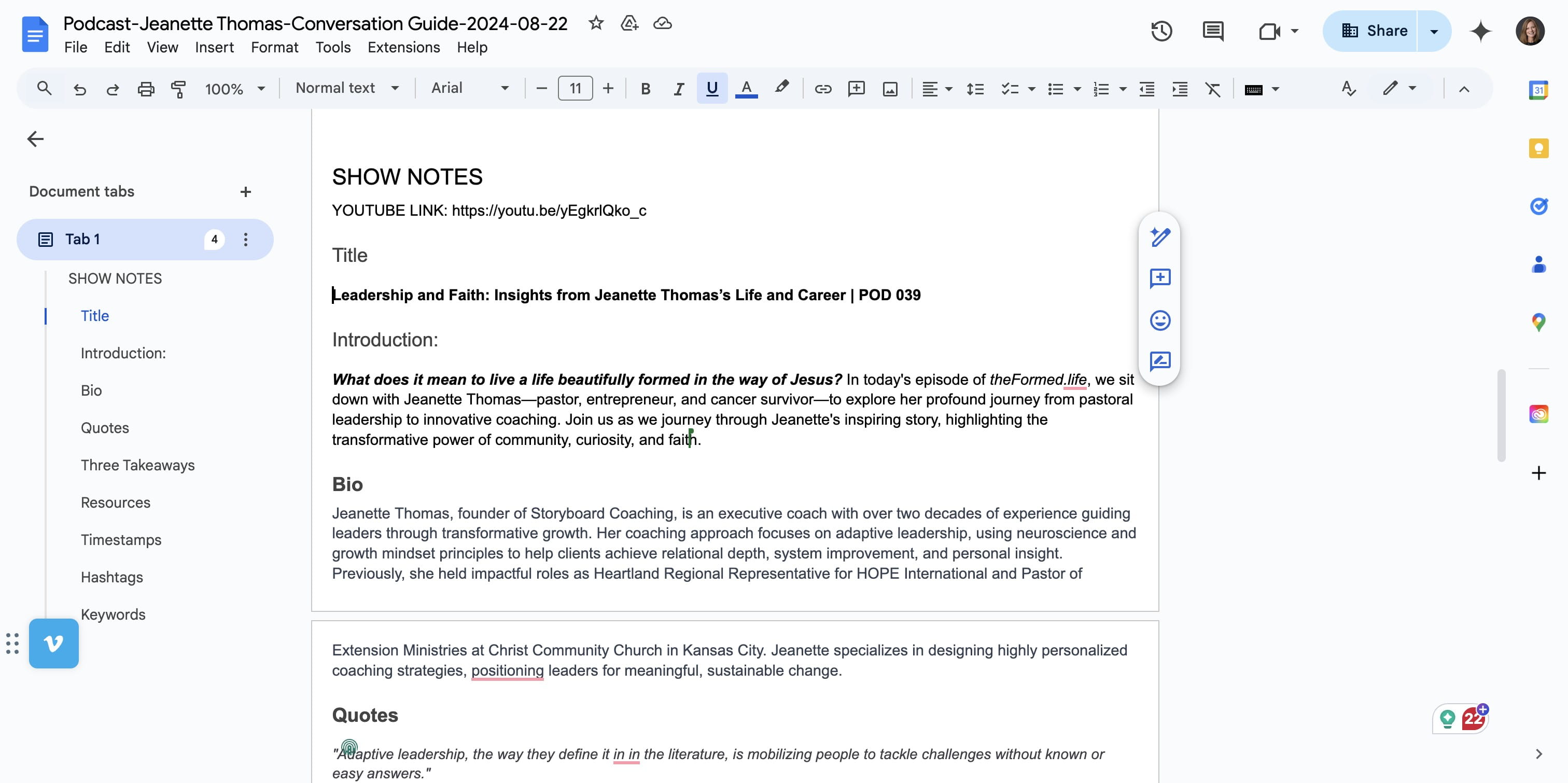
EDIT the Title with "| POD0XX" the podcast episode number at the end of the title.
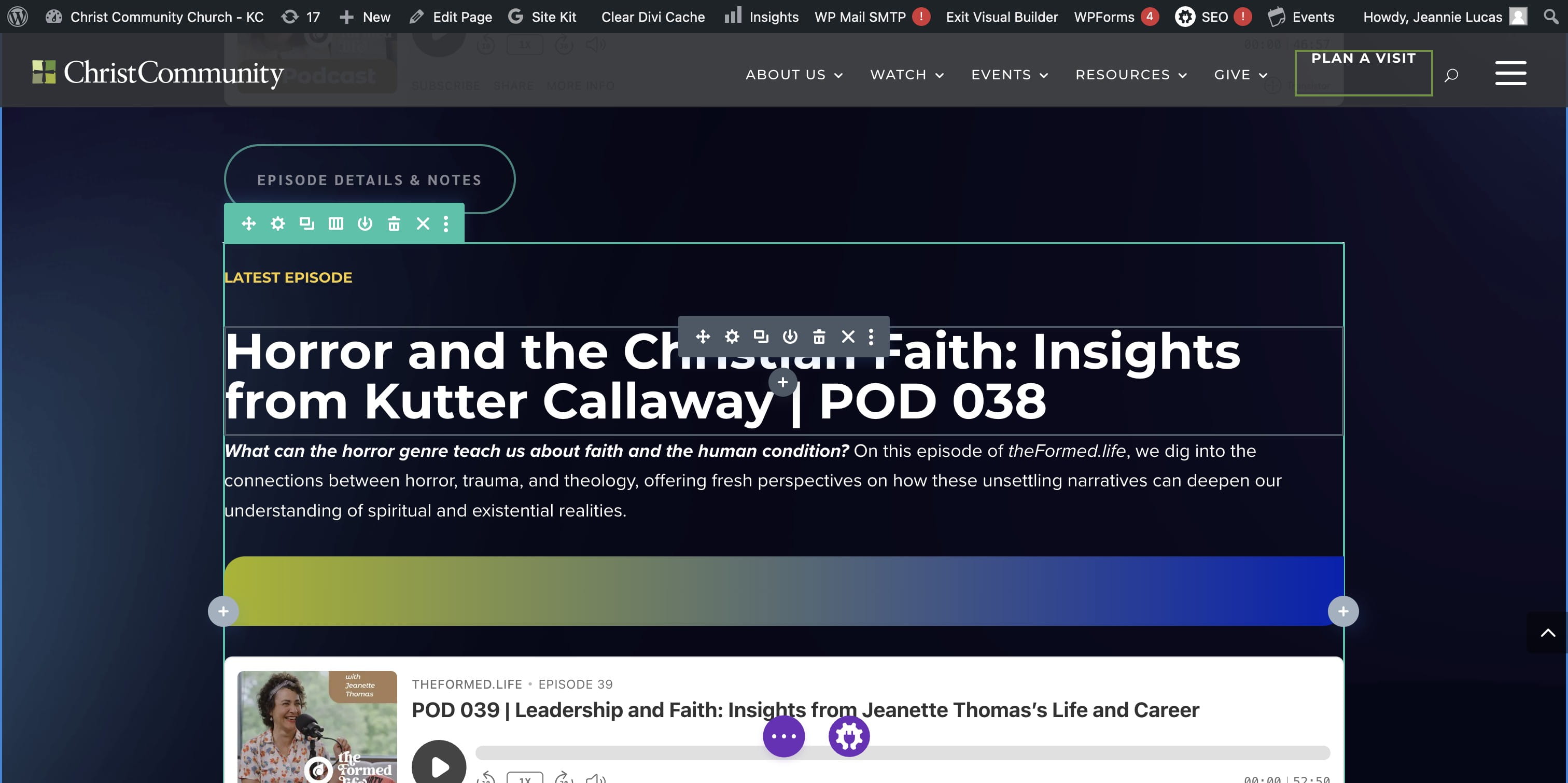
COPY and PASTE the intro paragraph.
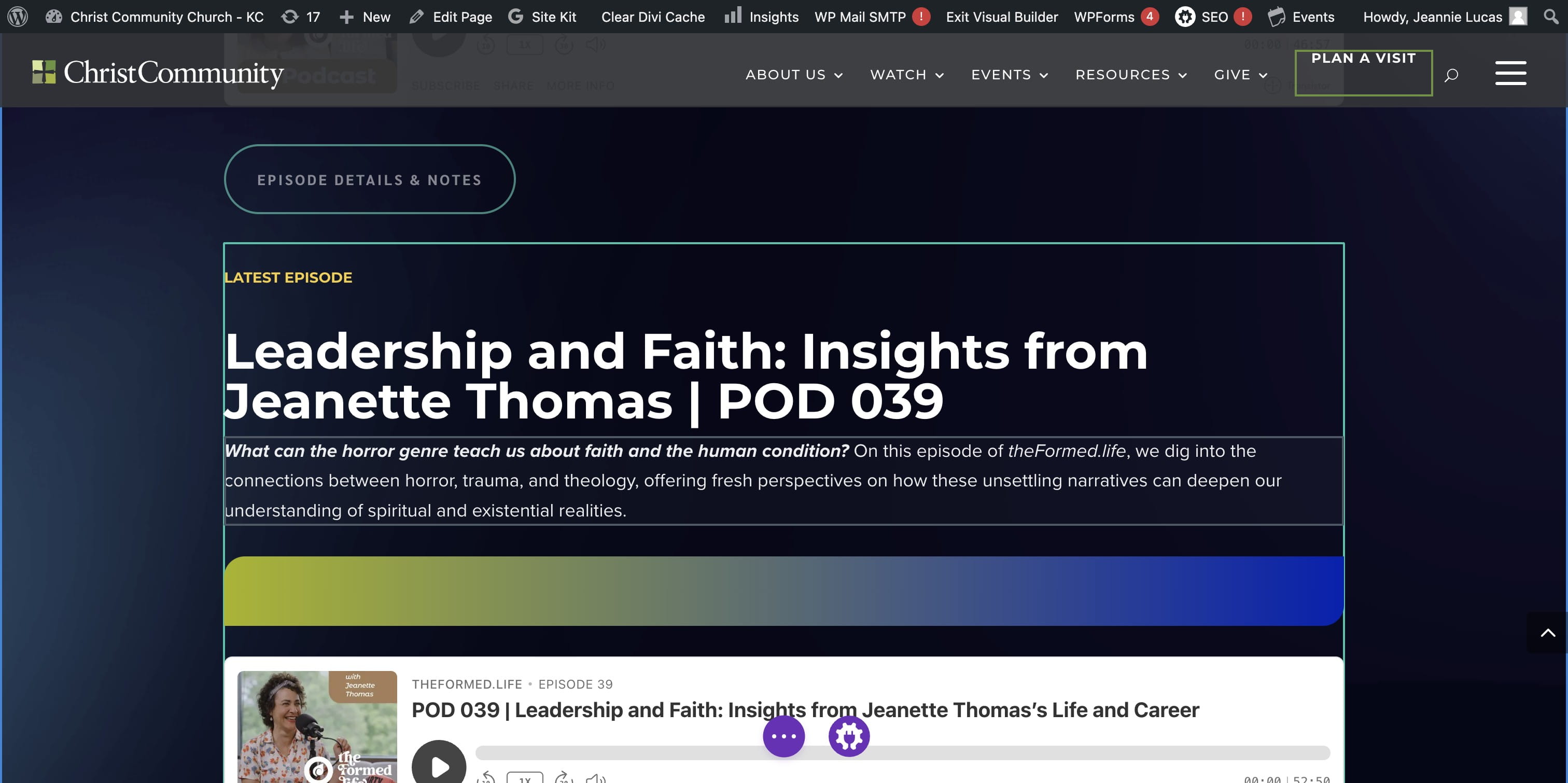
SAVE and EXIT VISUAL BUILDER