HOW TO: Take Attendance in CCB
Navigate to CCB CCEFC Home page - https://ccefc.ccbchurch.com/index.php
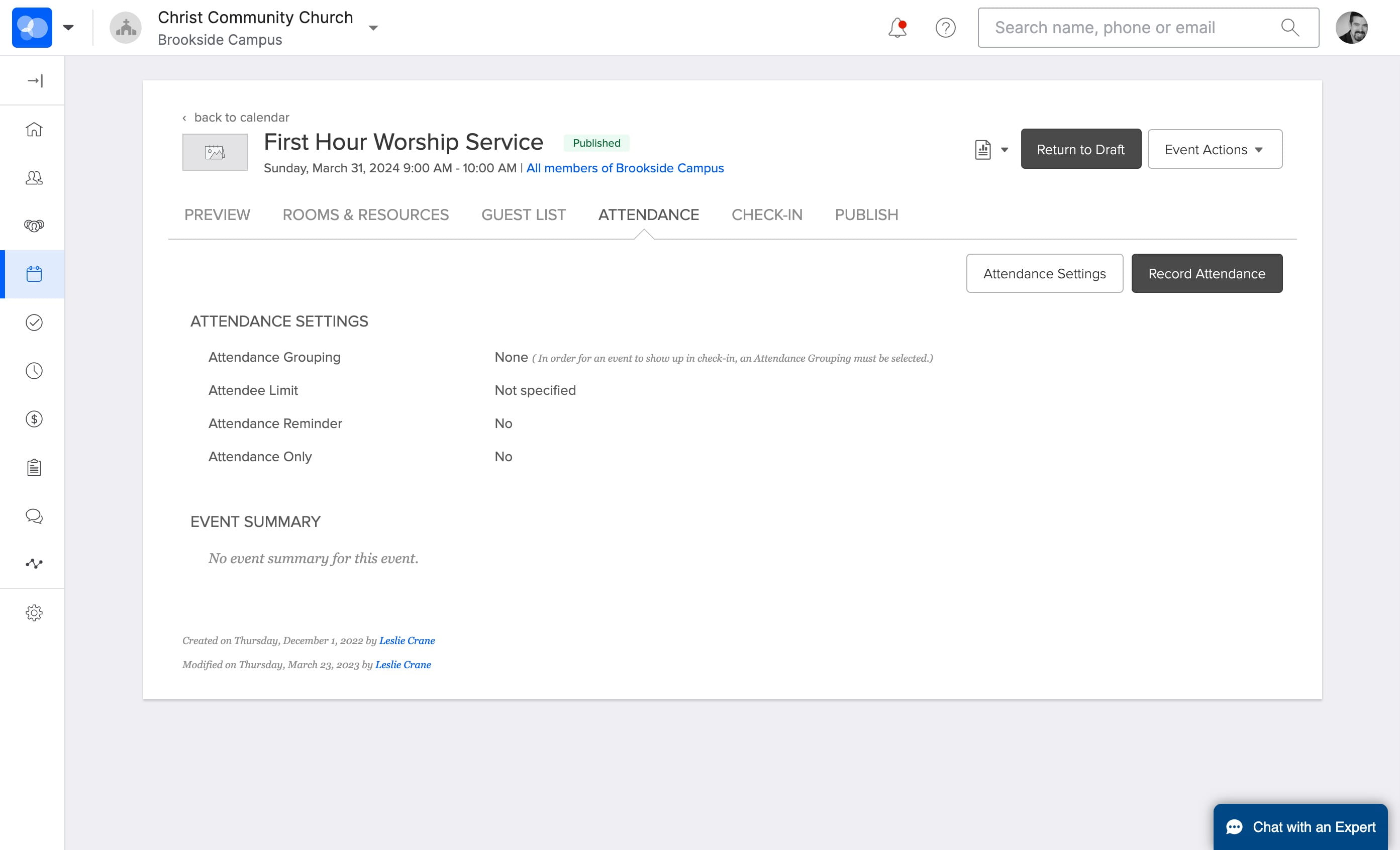
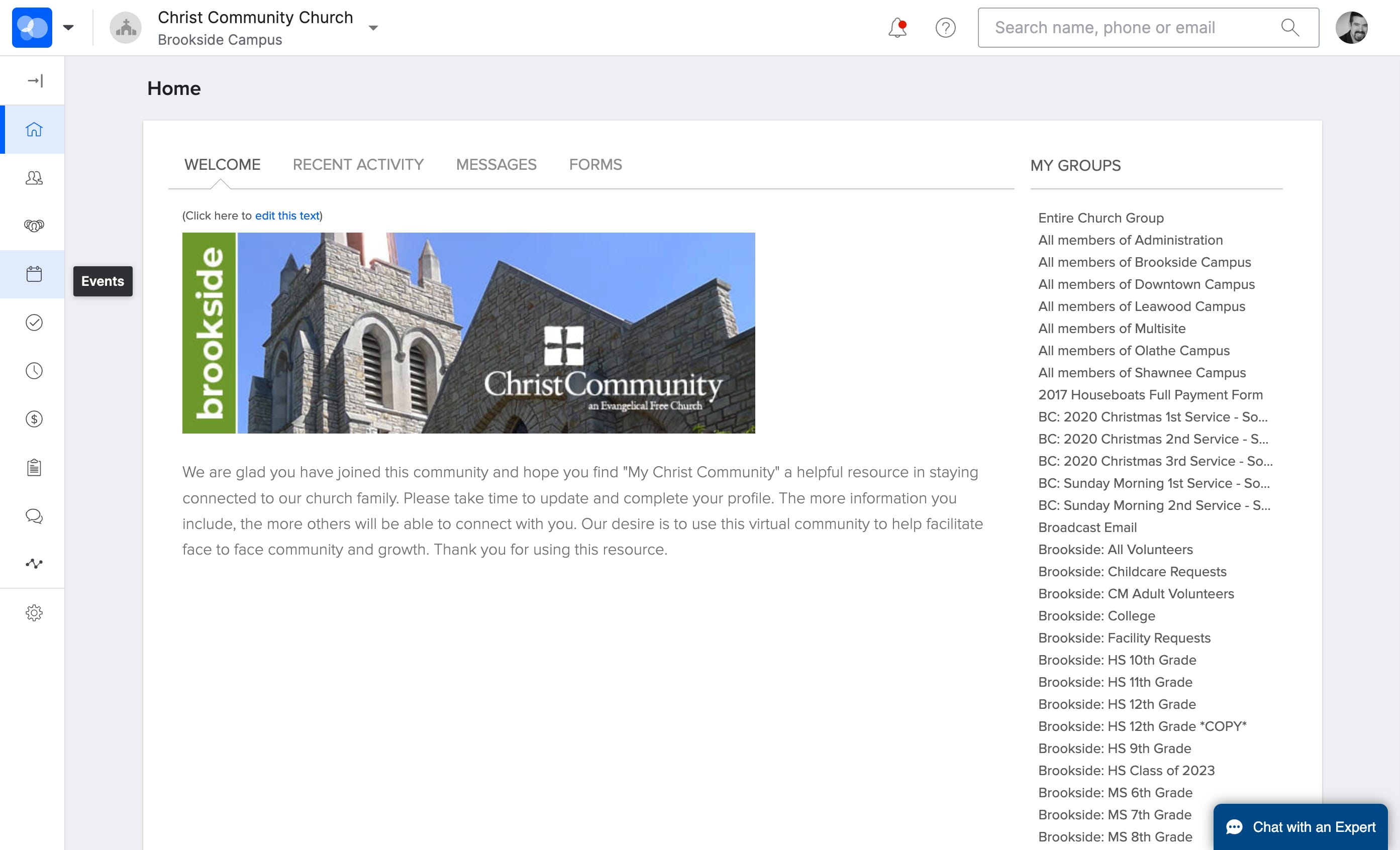
Click on Events
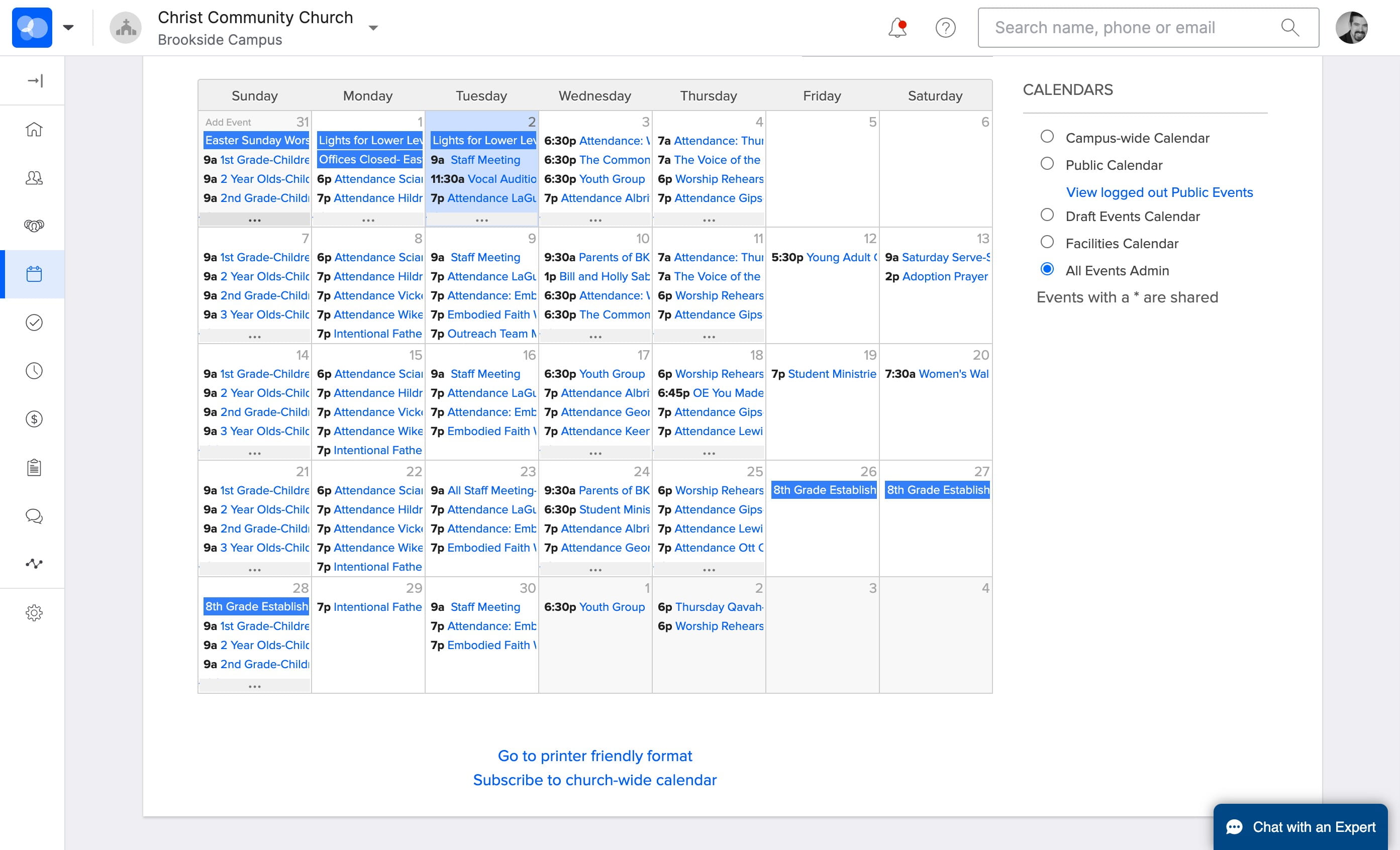
Click on "..." to see all your events
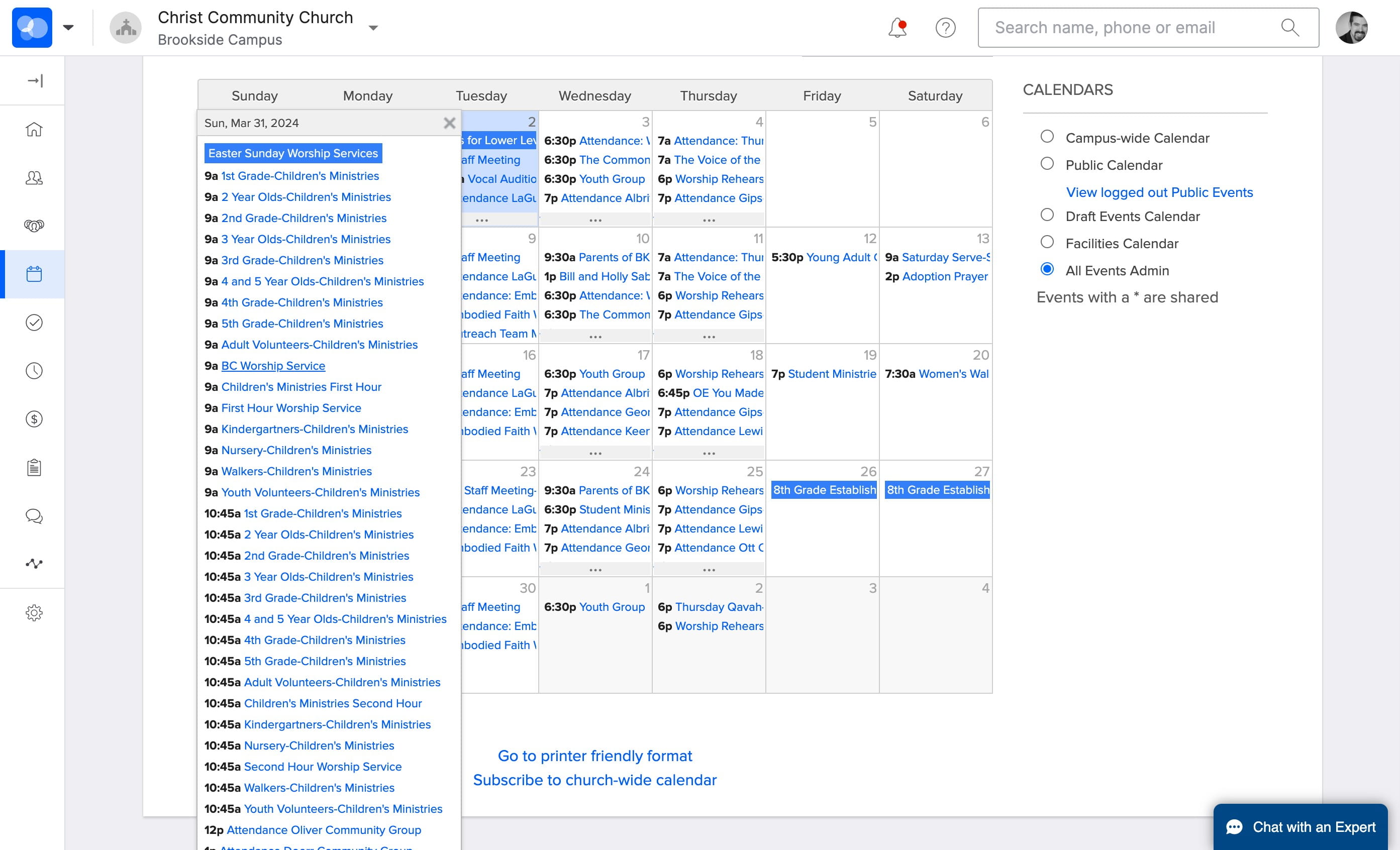
Click on "Campus Worship Service" OR your "First Hour Worship Service" event
Click on "Manage Event"
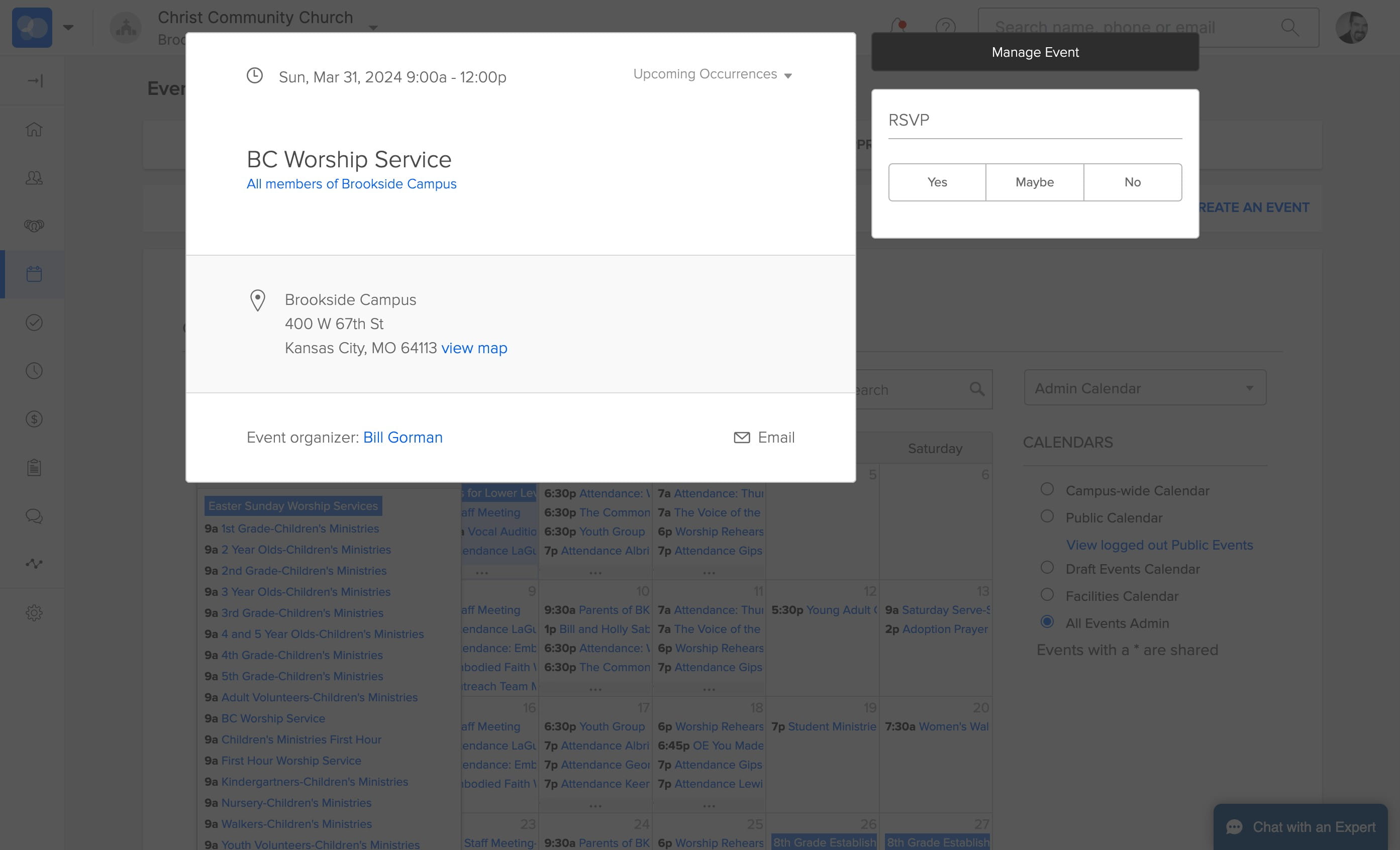
Click on "Attendance"
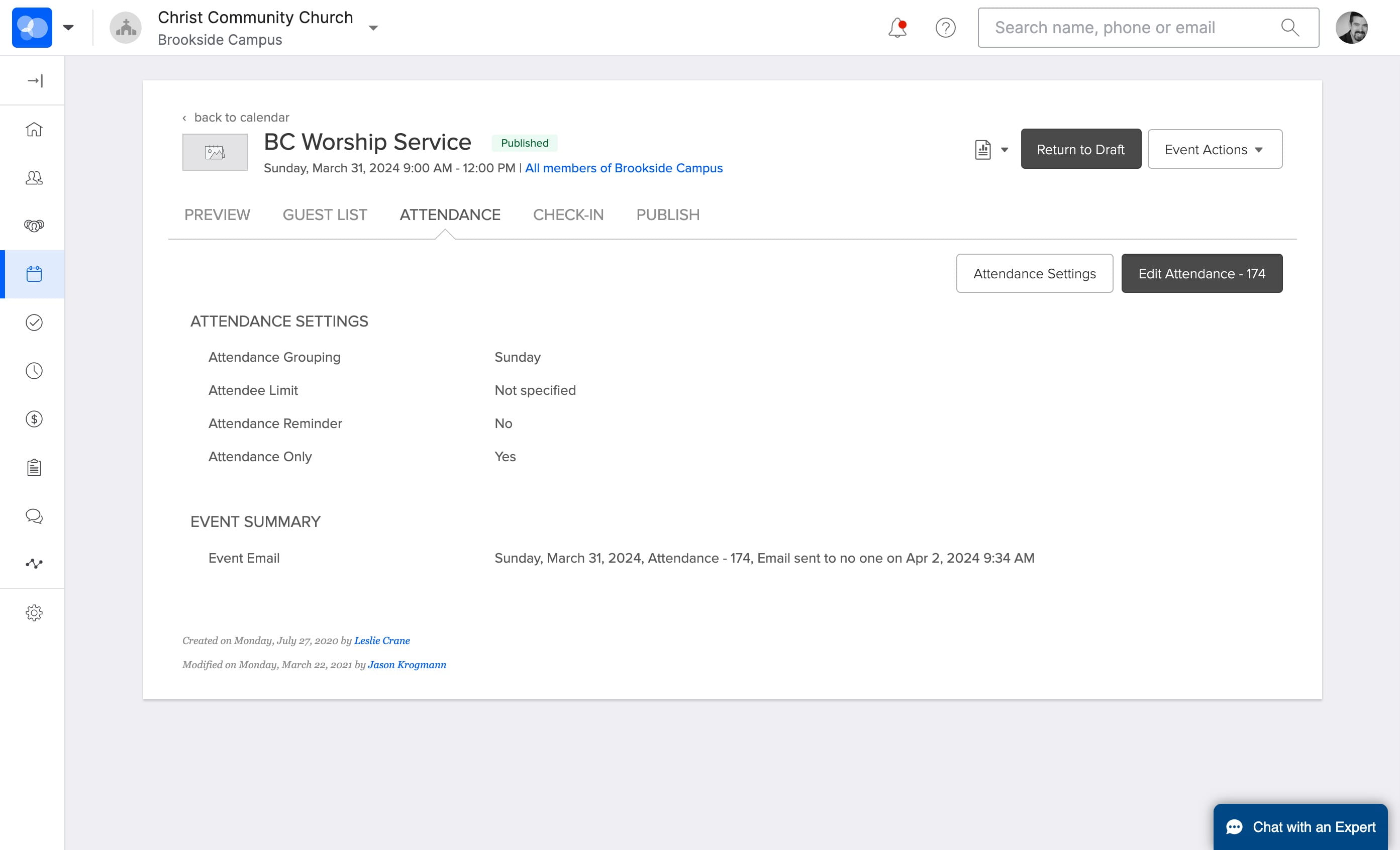
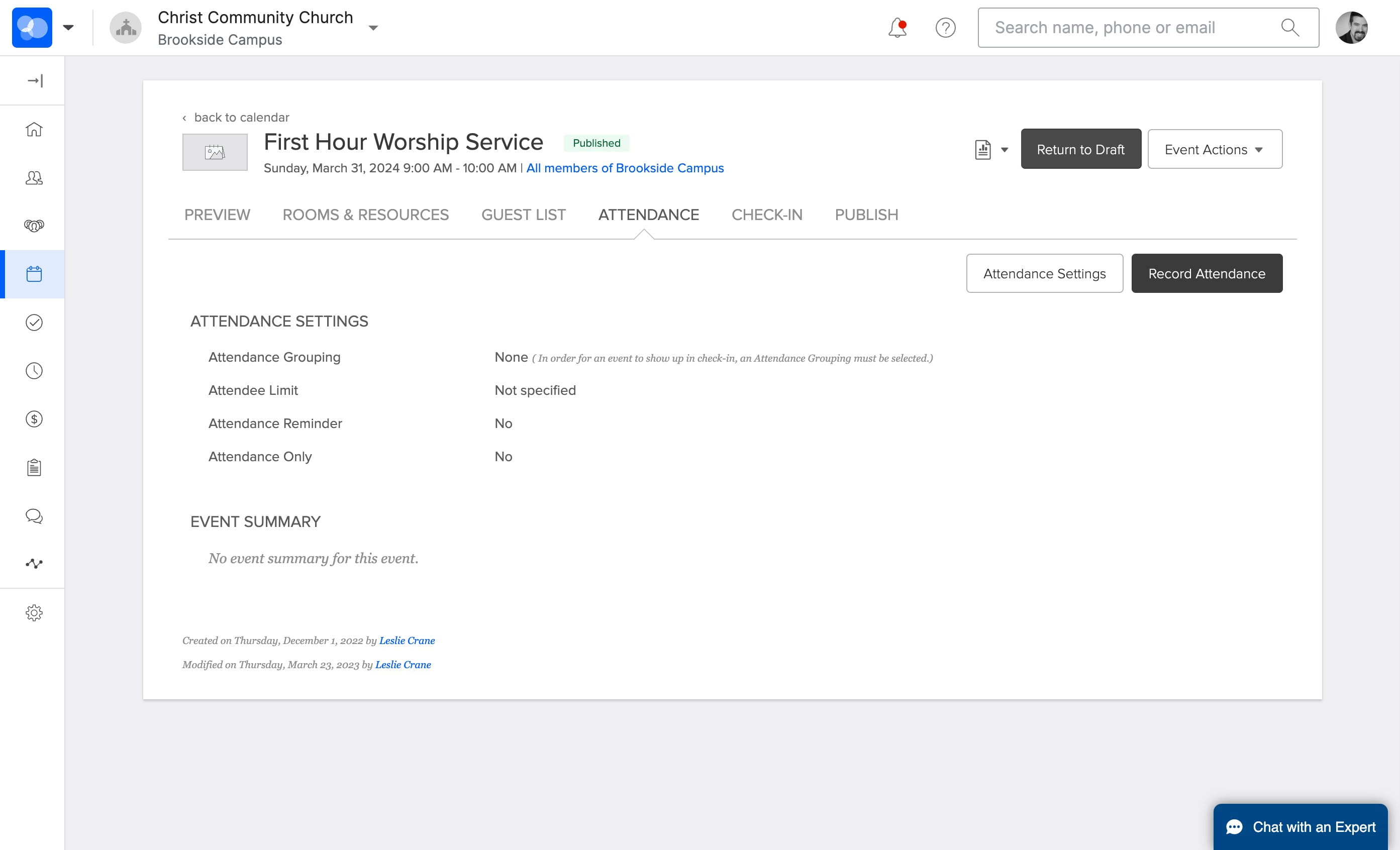
Click on "Record Attendance"
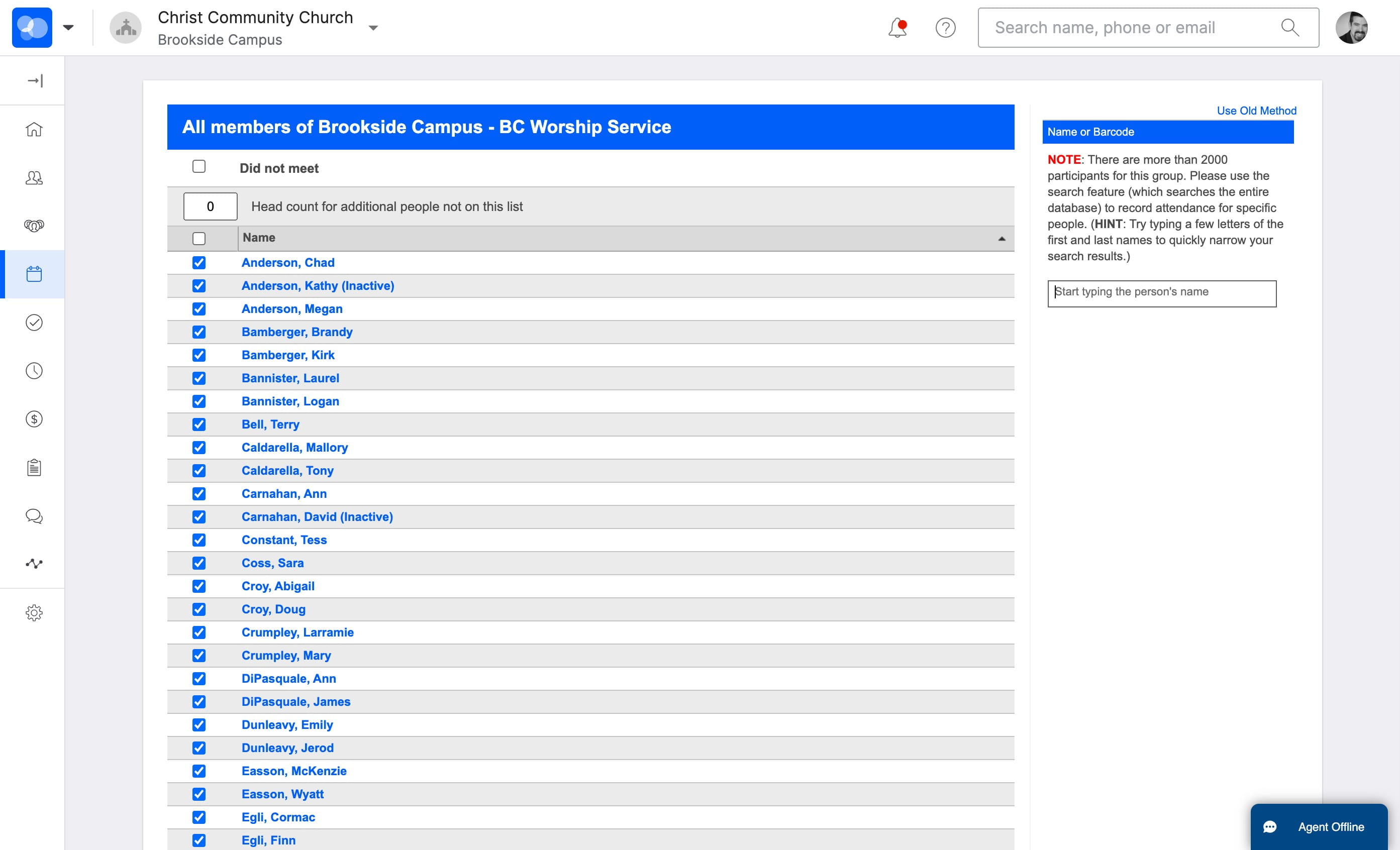
Enter the attendees name from the clipboard here
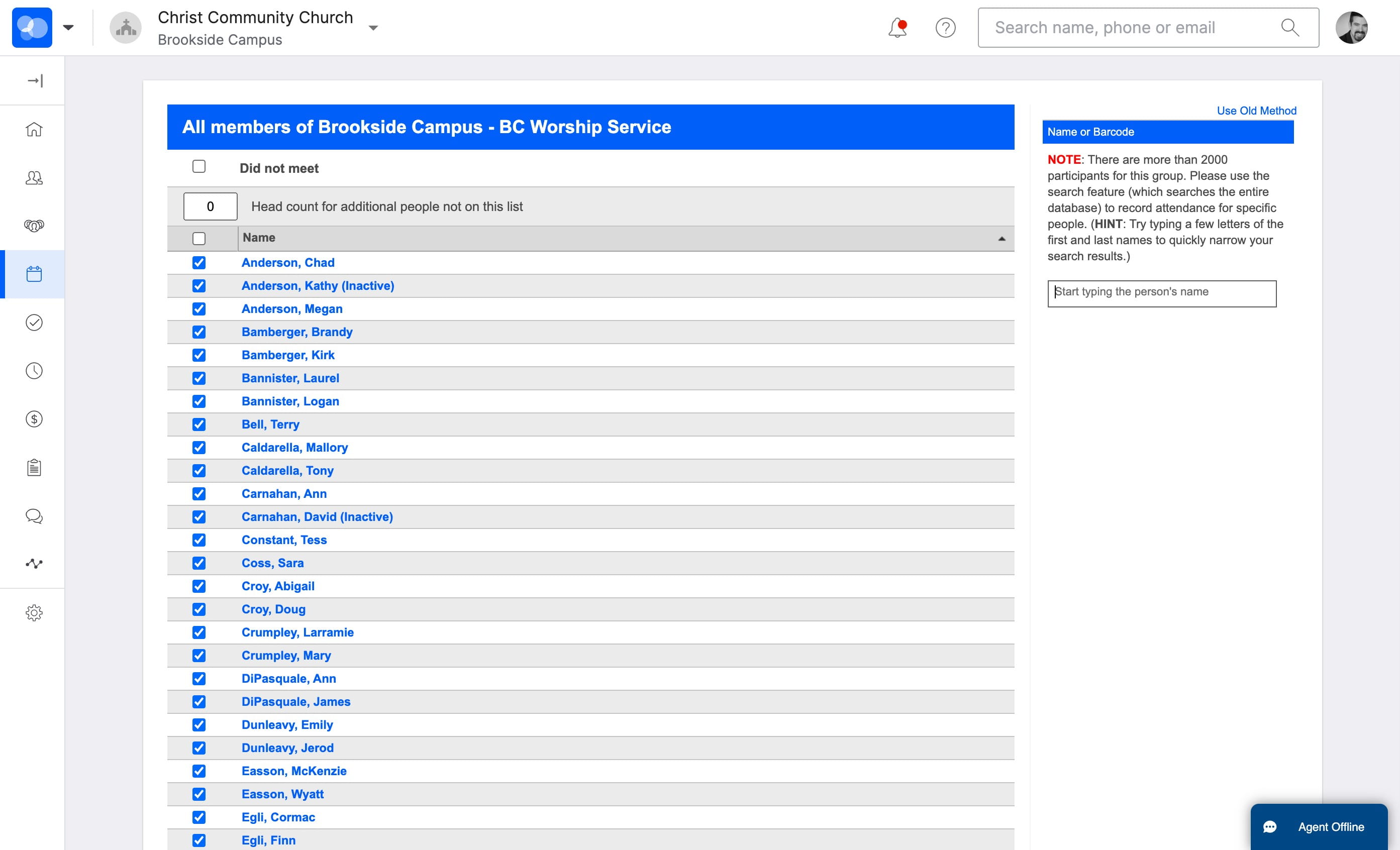
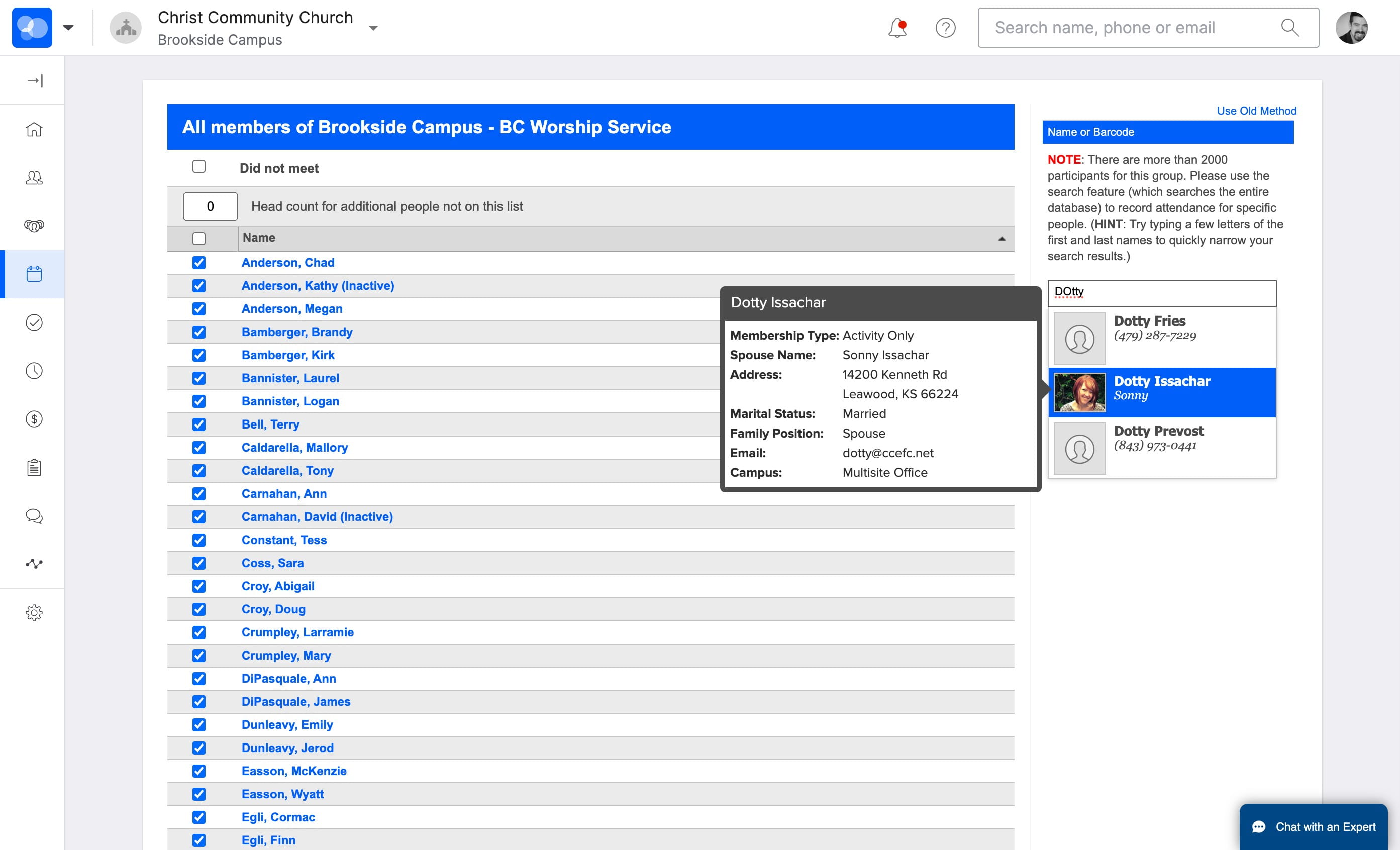
Click on the person's name or hit enter if they are the only one
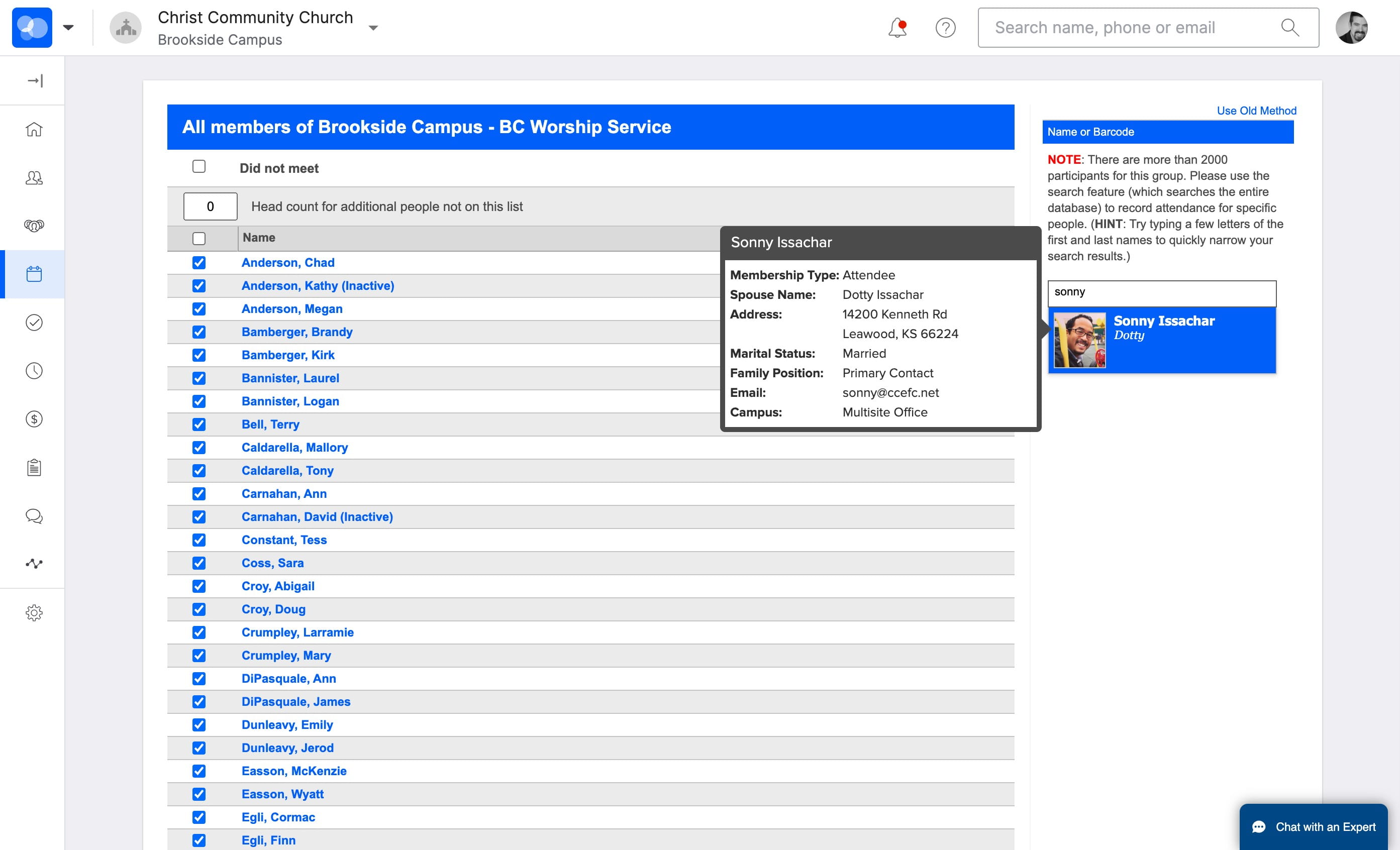
Click here if you need to add additional people
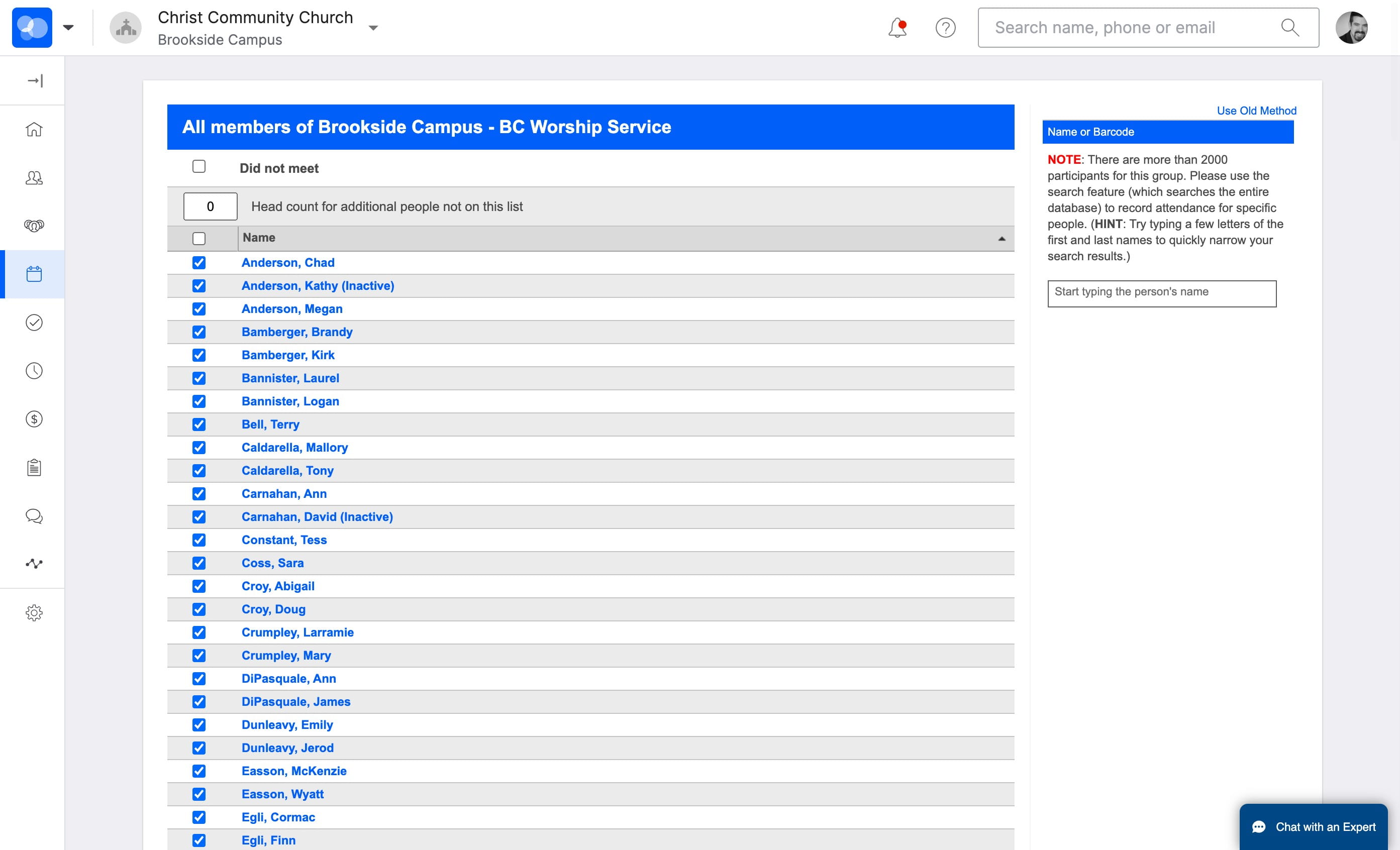
Repeat as needed
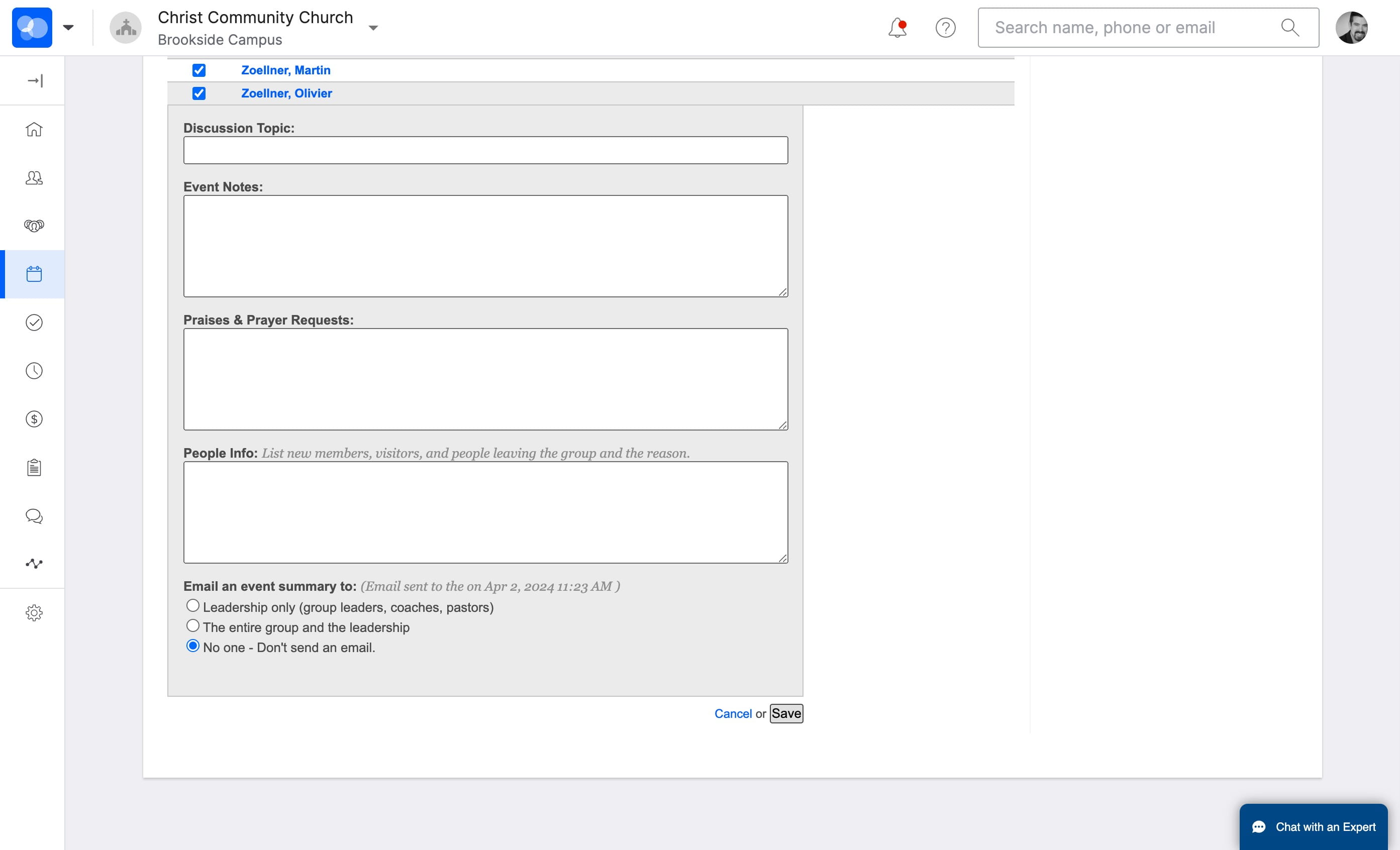
Click "No one" for the Email Summary
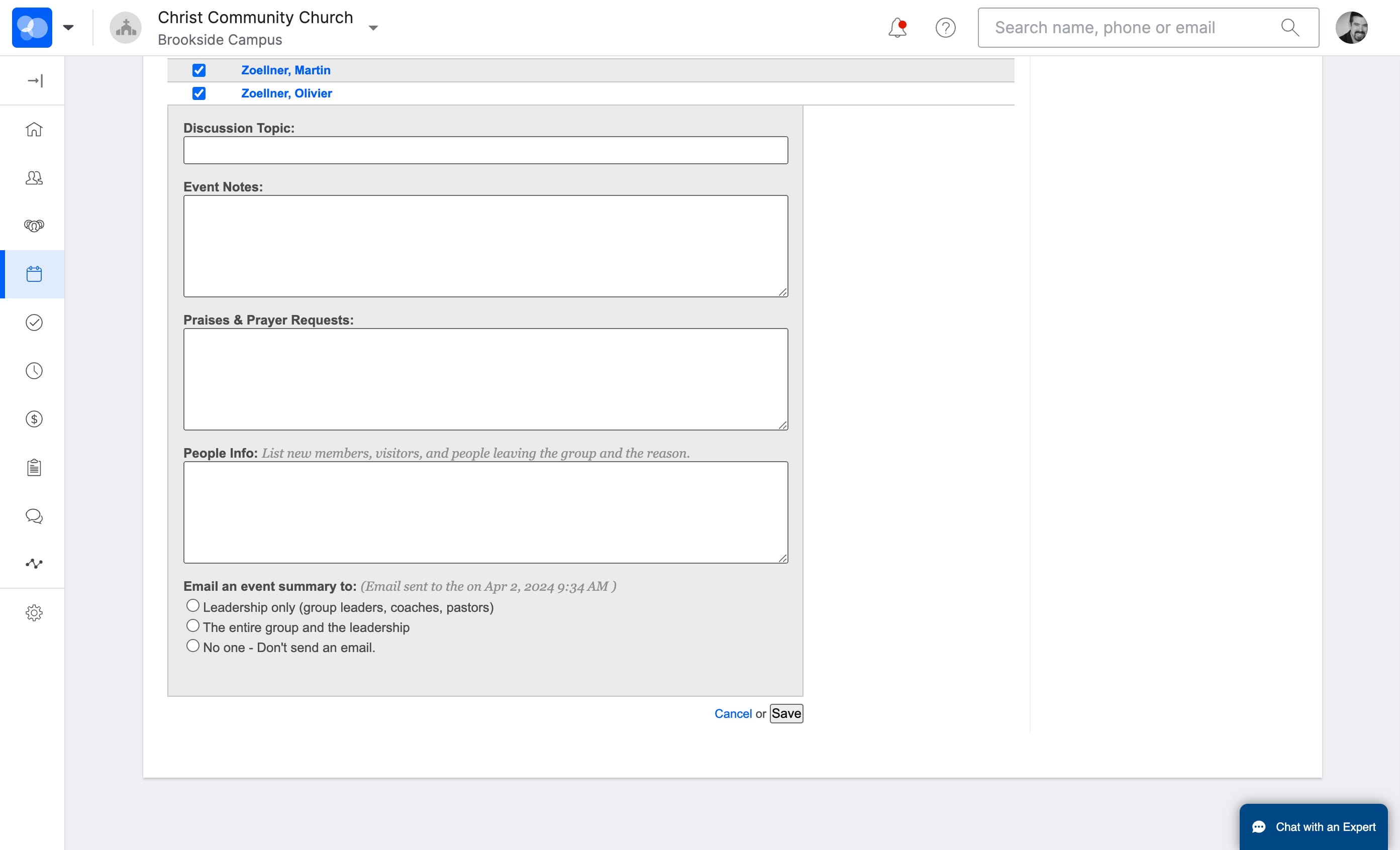
Click to Save when done
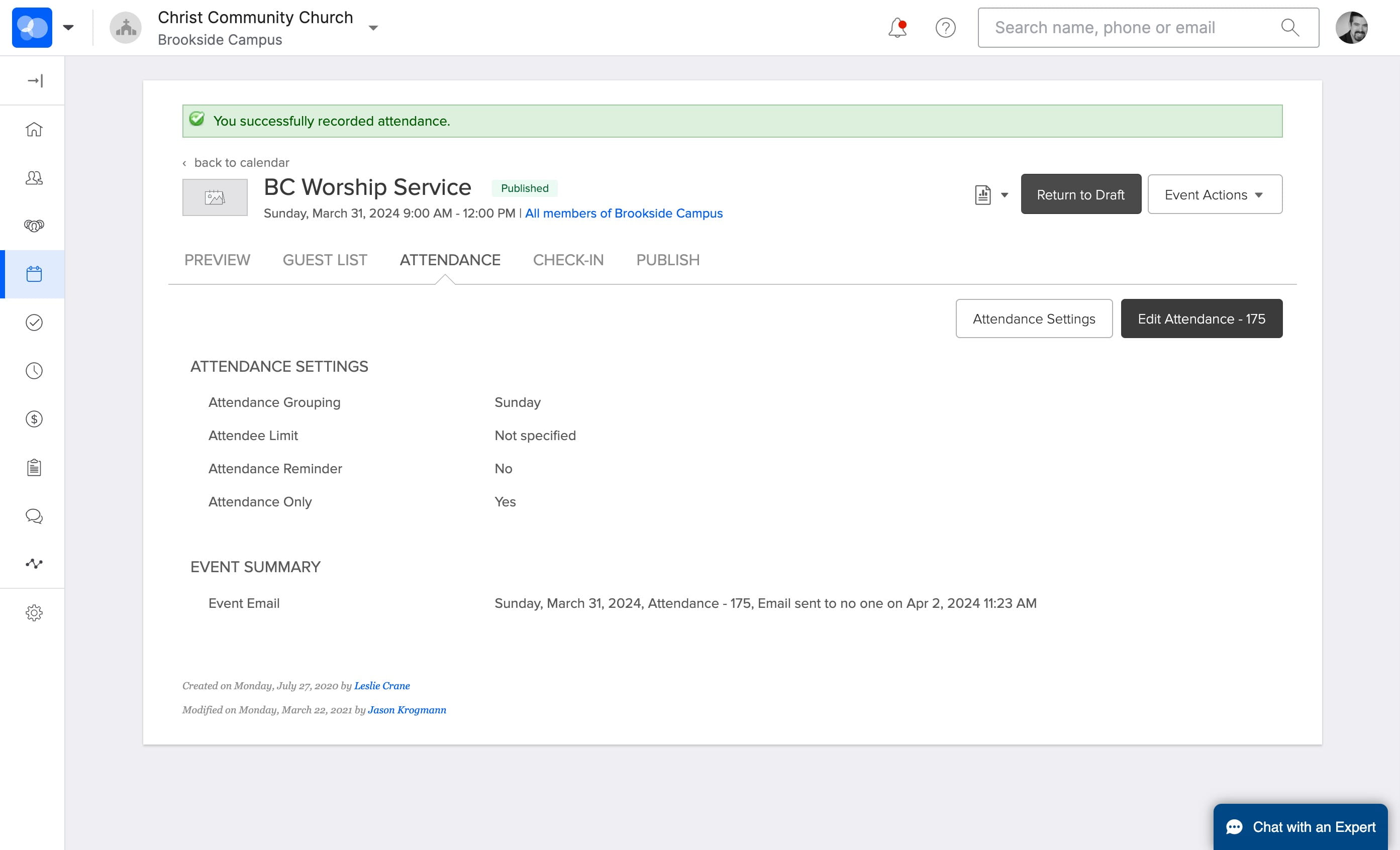
Make note of the number of attendees
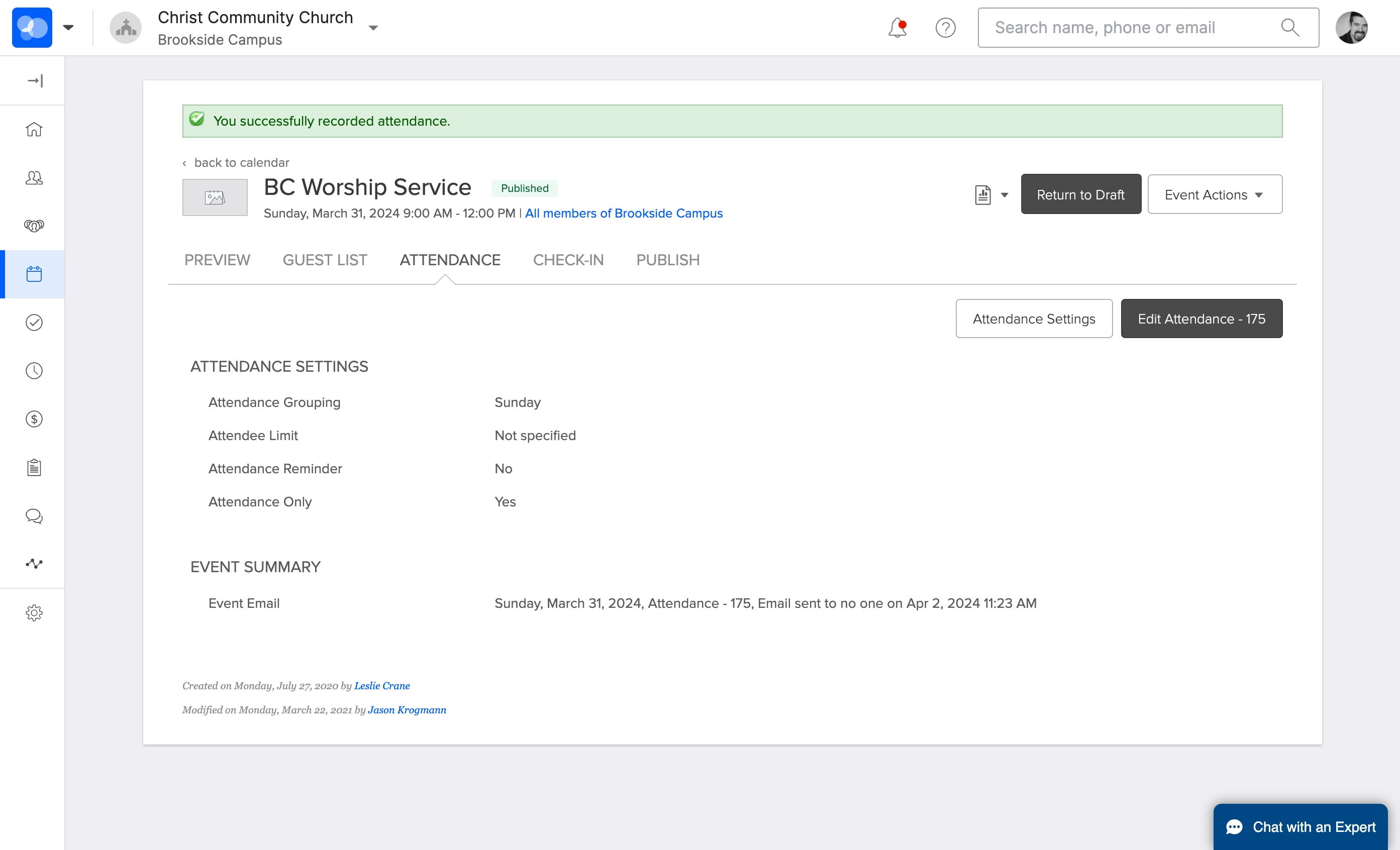
Subtract the number of attendees from the clipboards (the number indicated on the button) from the Head Count number from in the Worship Center. Make note of the Number.
Click on "Edit Attendance - ###"
Use the Number from step 15 and enter it in the Head Count Field
Scroll down. Click on "No one - Don't send an email."
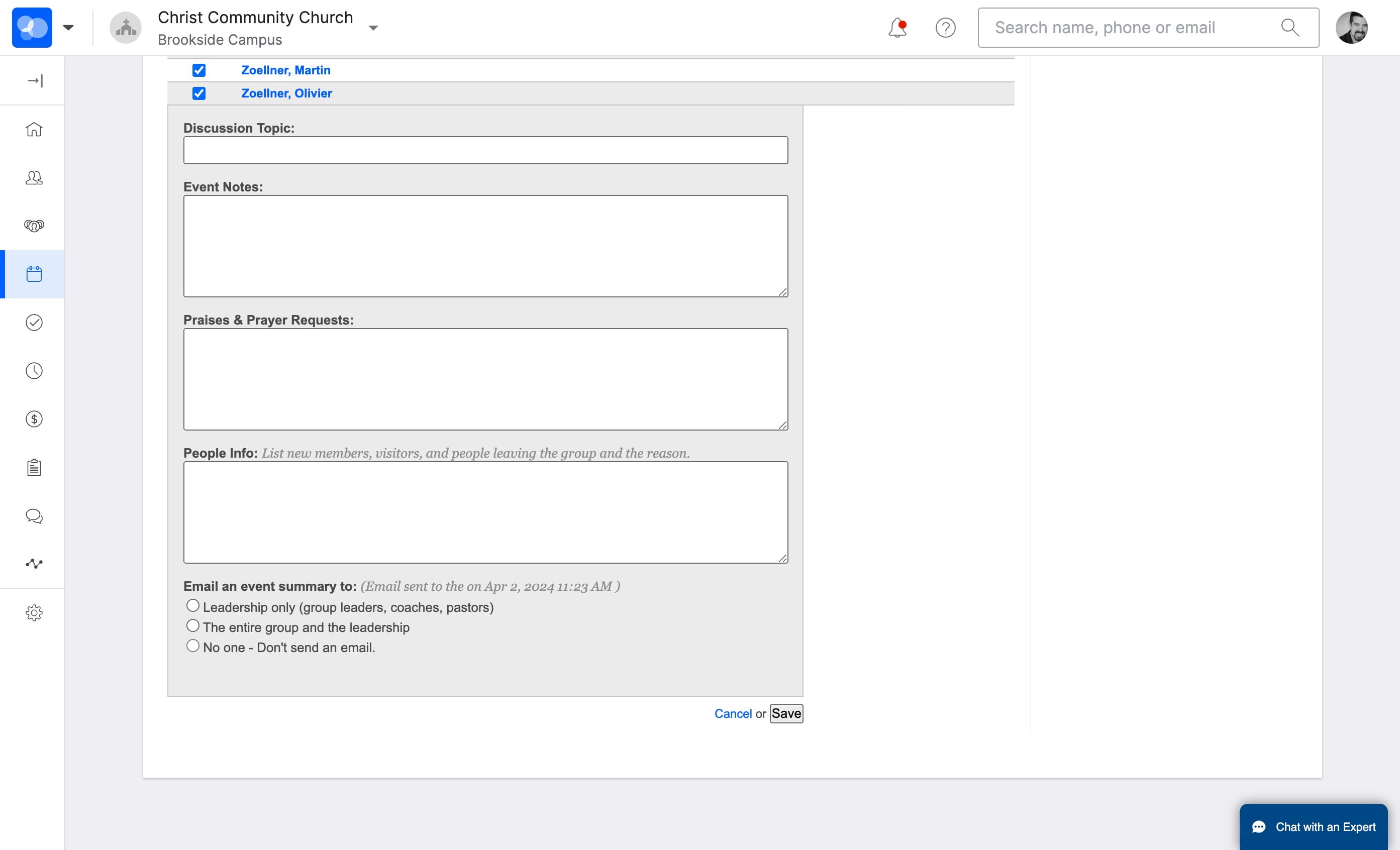
Click to Save when done
If you enter Attendance for both Services
If you need to add addional Services, click on "back to calendar"
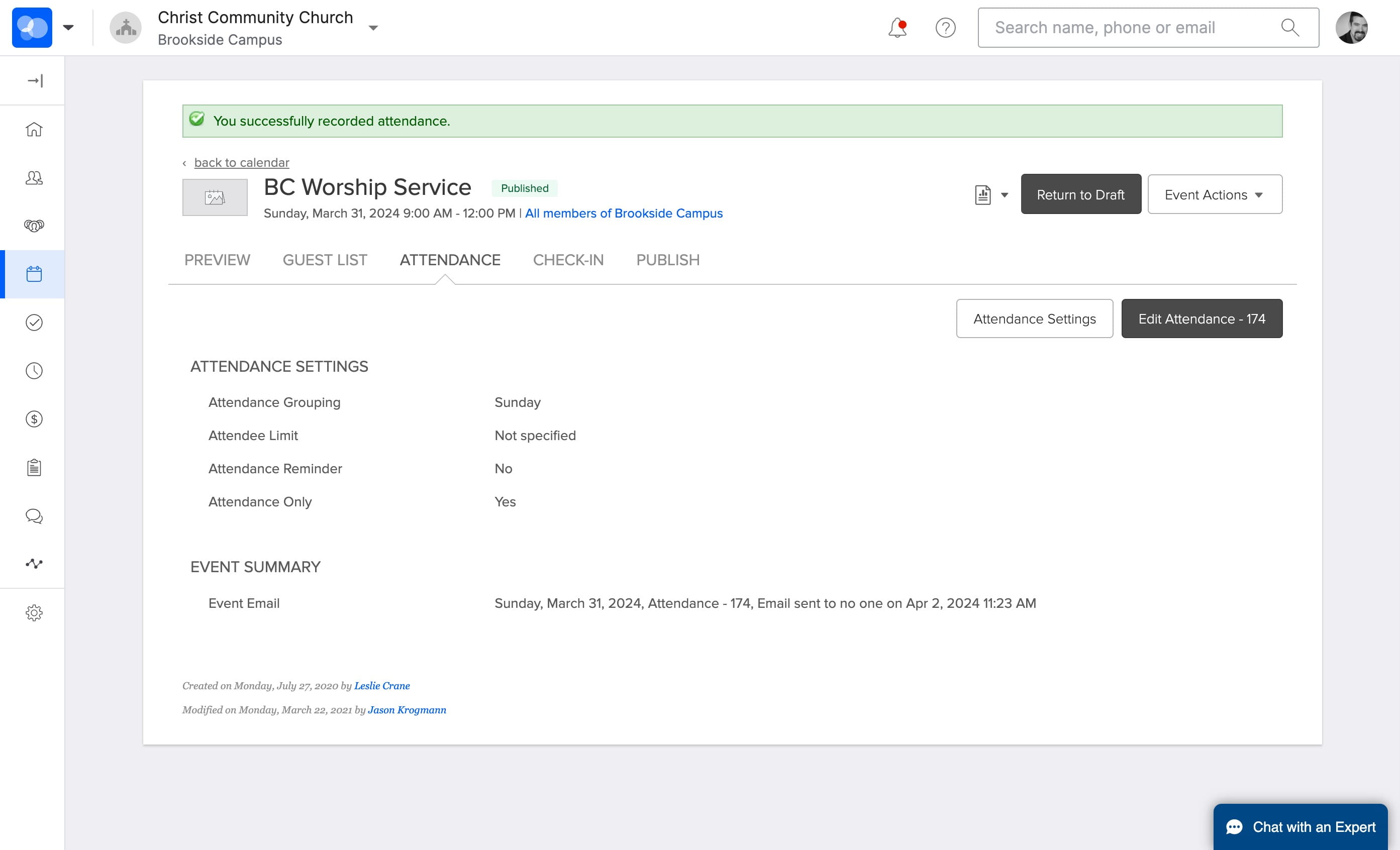
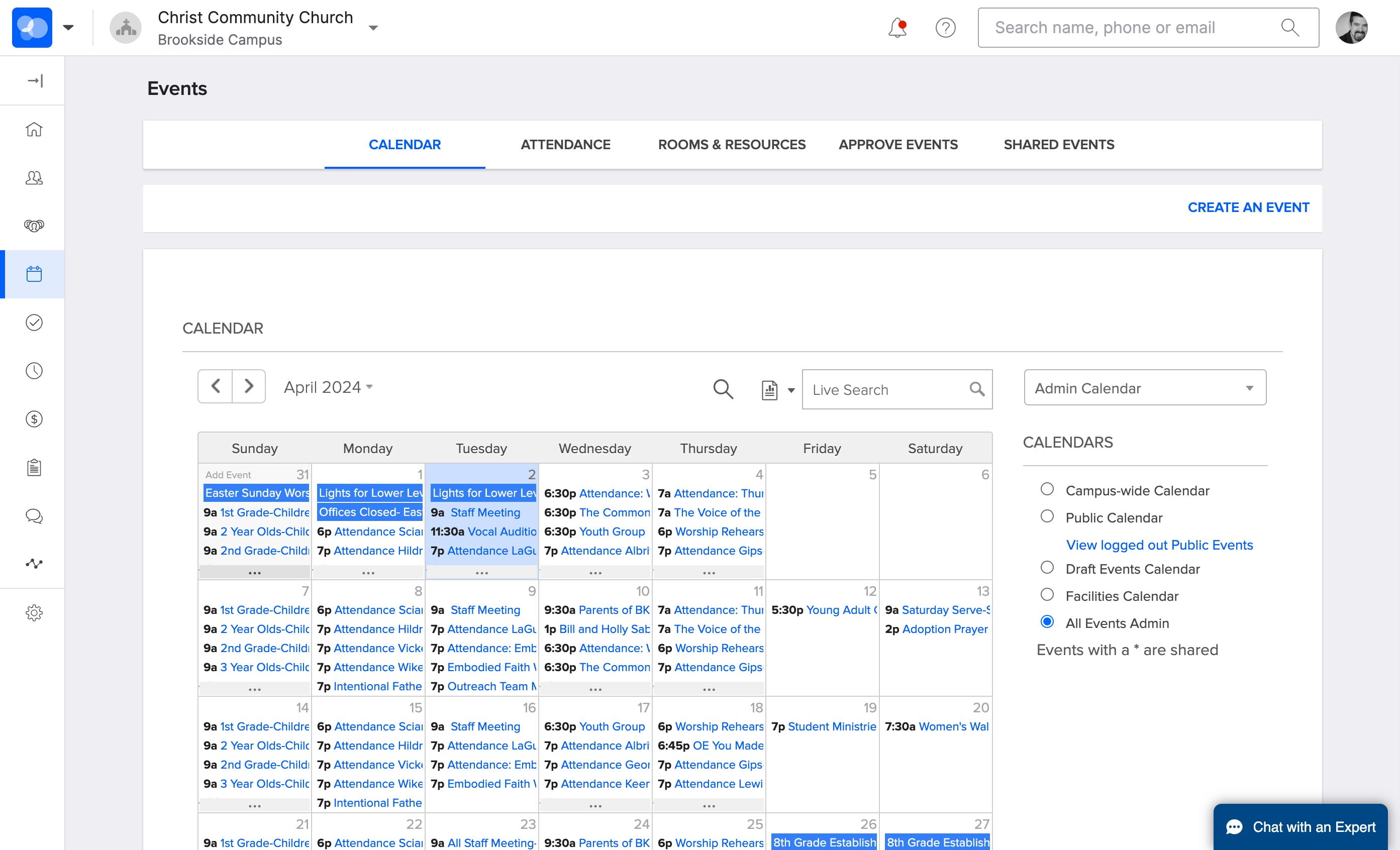
Click on "..." to see your list of events
Click on "Second Hour Worship Service"
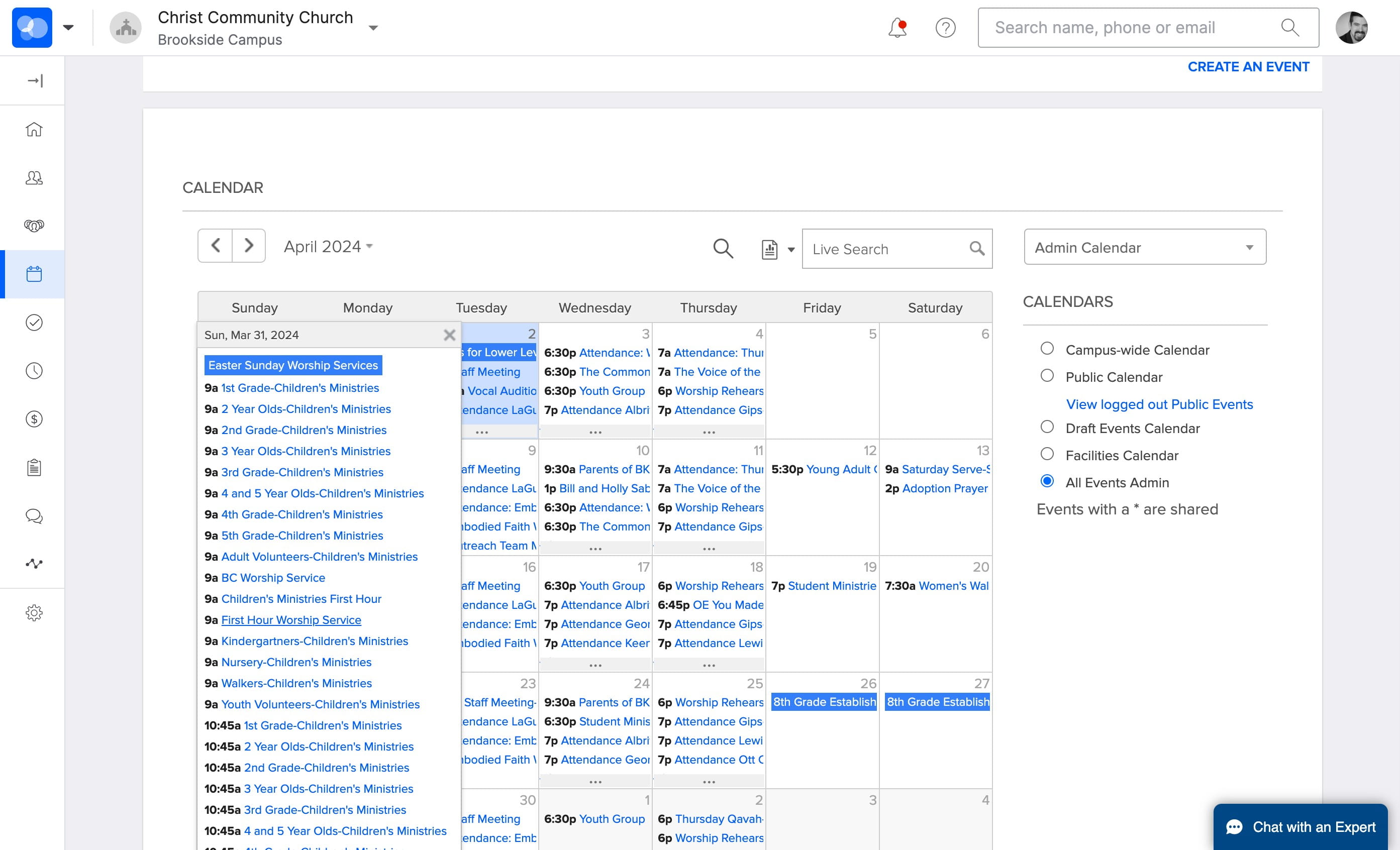
Repeat Steps 5-19 for the Second Service
Editing the List
If you need to remove someone from the list, find their name in the list and uncheck the box next to their name
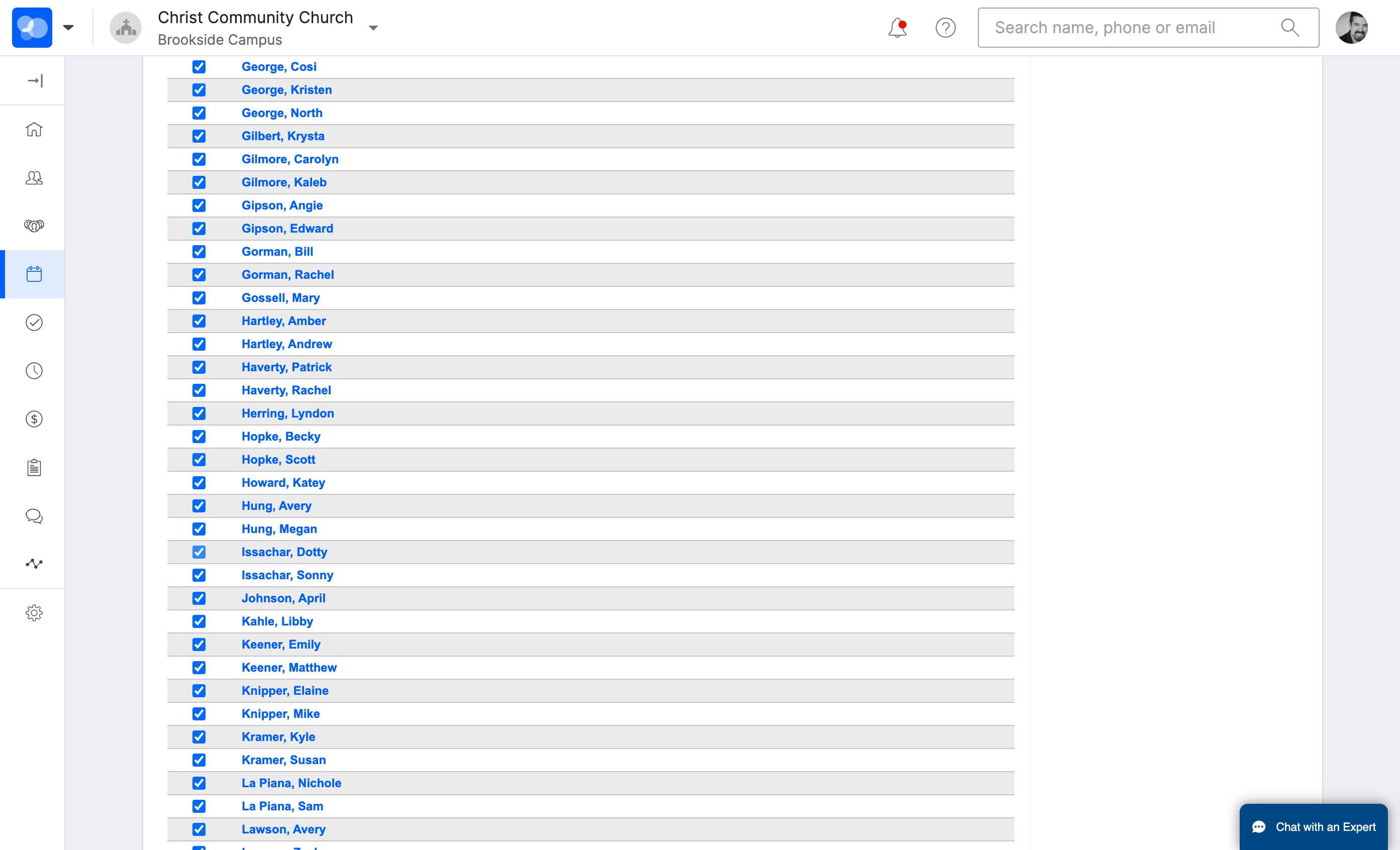
Click on "No one - Don't send an email."
Click to Save when done
Click on "Manage Event"
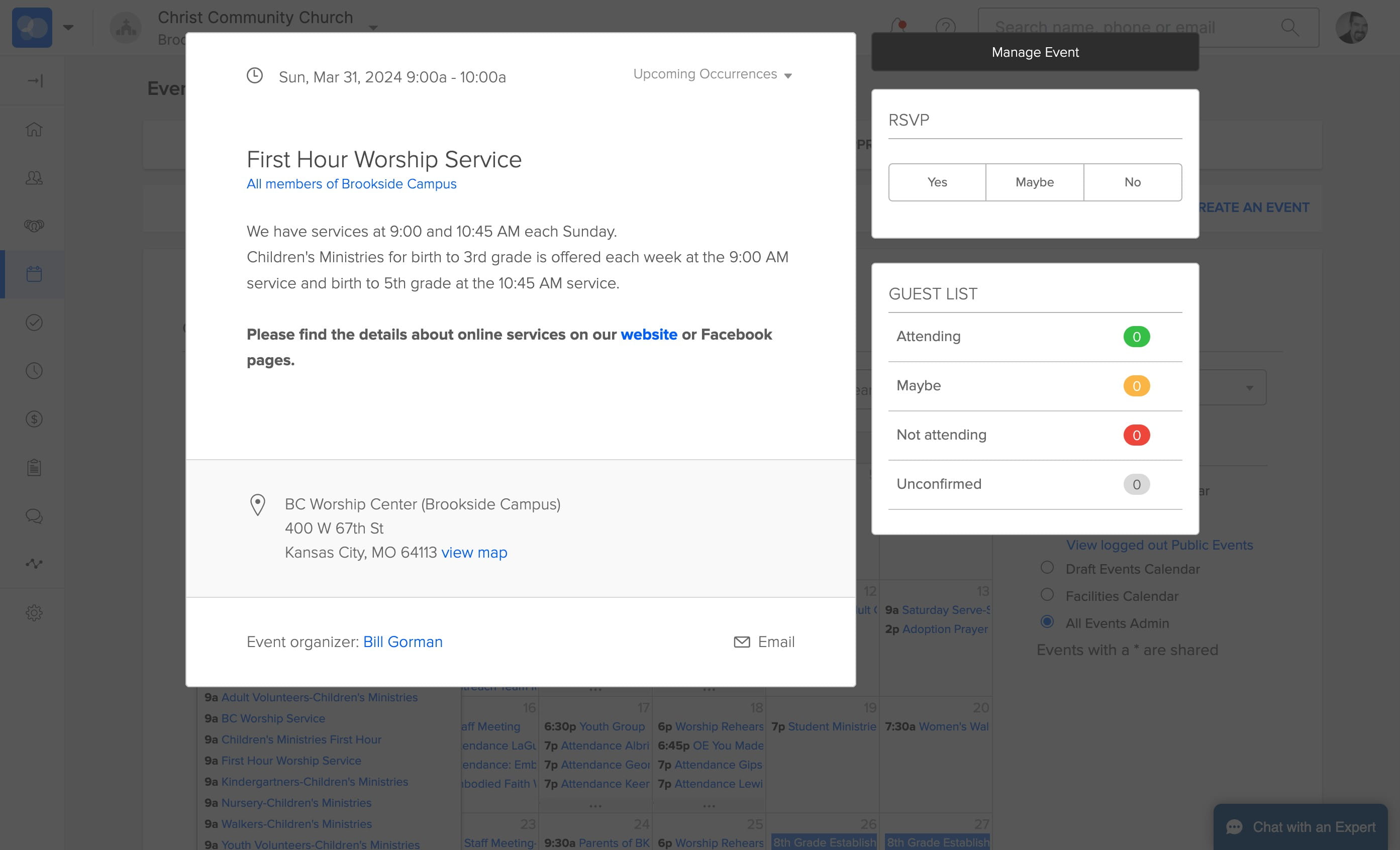
Click on "Attendance"
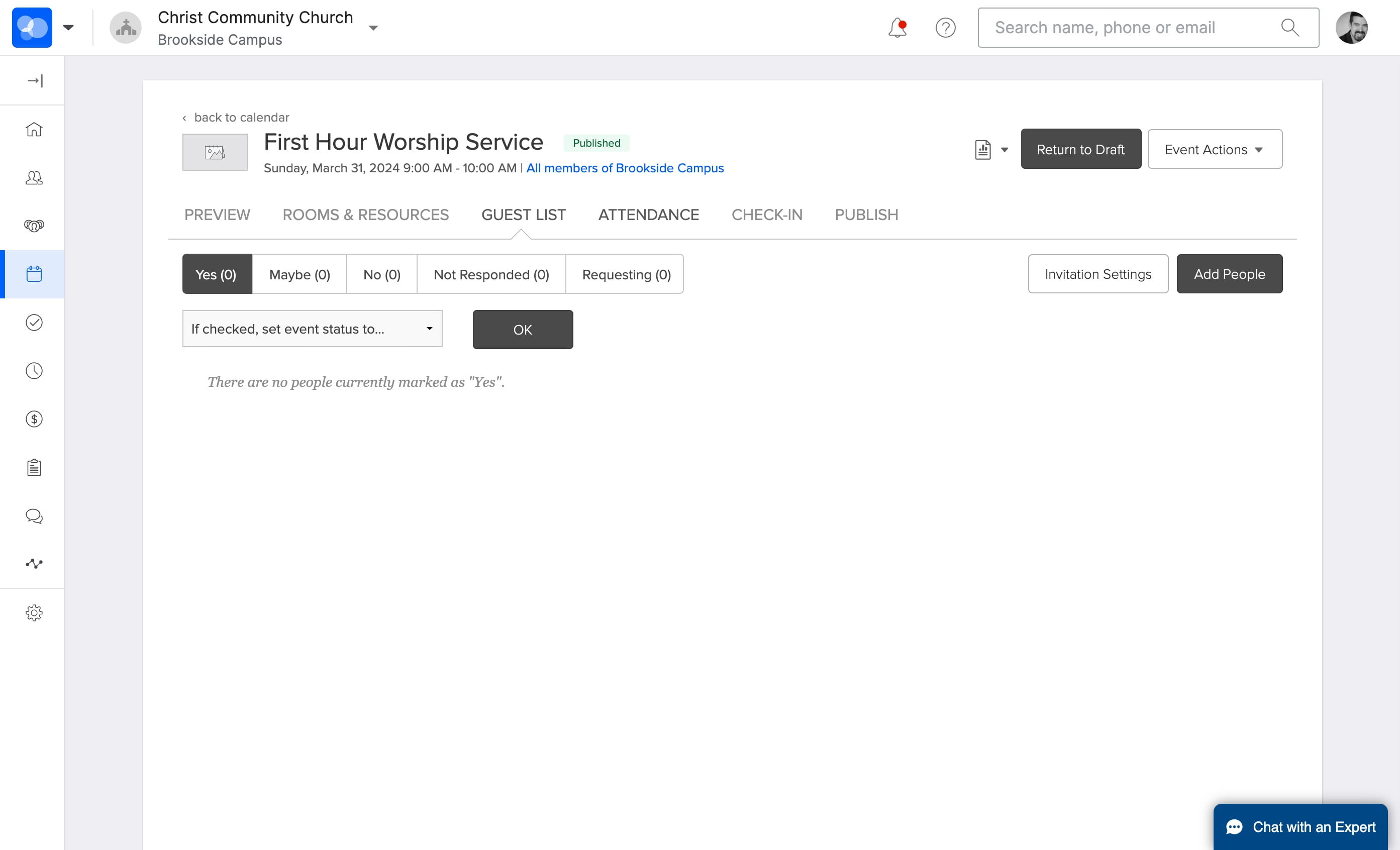
Done 🚀